
Before you start
Everyone in an organization can use the sidebar. What you see in it depends on your role and your own preferences:
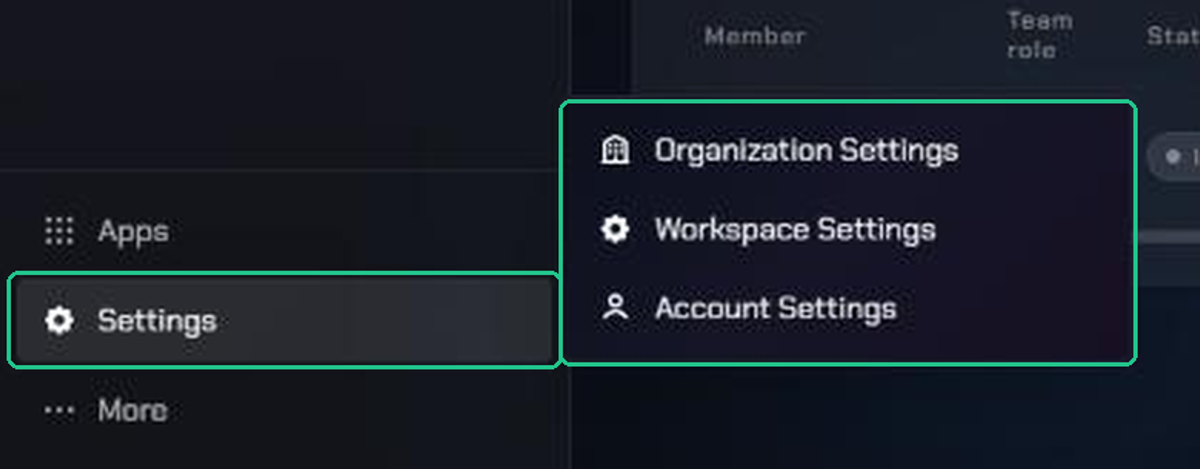
- Settings shows Organization Settings only to organization admins, and Workspace Settings only to workspace admins. Everyone sees Account Settings.
- New Backlog in the Checkpoint menu and Create workspace in the workspace switcher only appear for admins.
- You can hide Recent Activity, Resources and any System from your own sidebar. If something described here is missing, check your preferences (see Change how the sidebar looks below).
- Your Home page shows different cards depending on your Team Role. Observers, for example, don't see My tasks or My inventory.
You need to belong to at least one workspace to use the Systems. If your organization has no active workspace yet, ask an organization admin to create one.
1. Get to know the sidebar
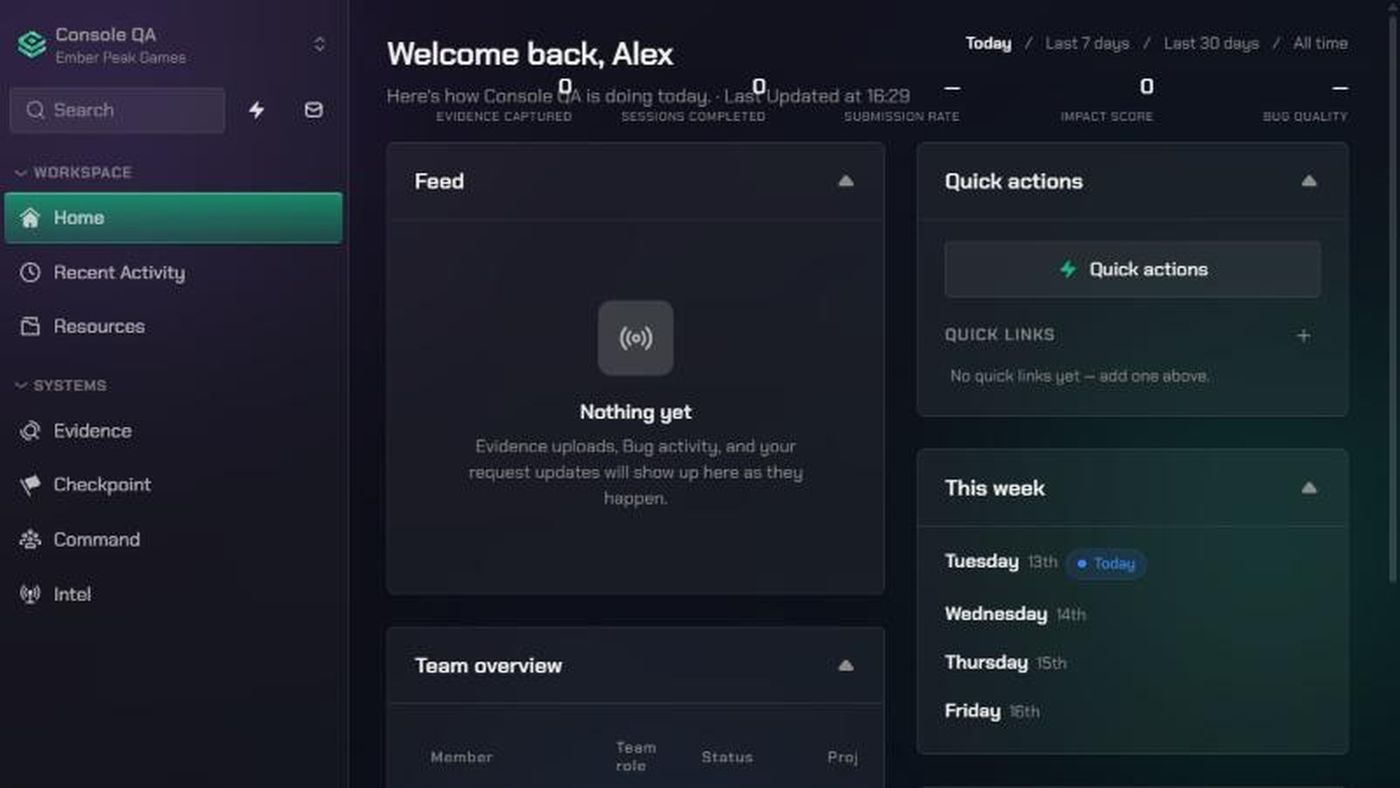
Everything you use to move around TopMod lives in the sidebar. The rest of the screen only shows the page you're on.
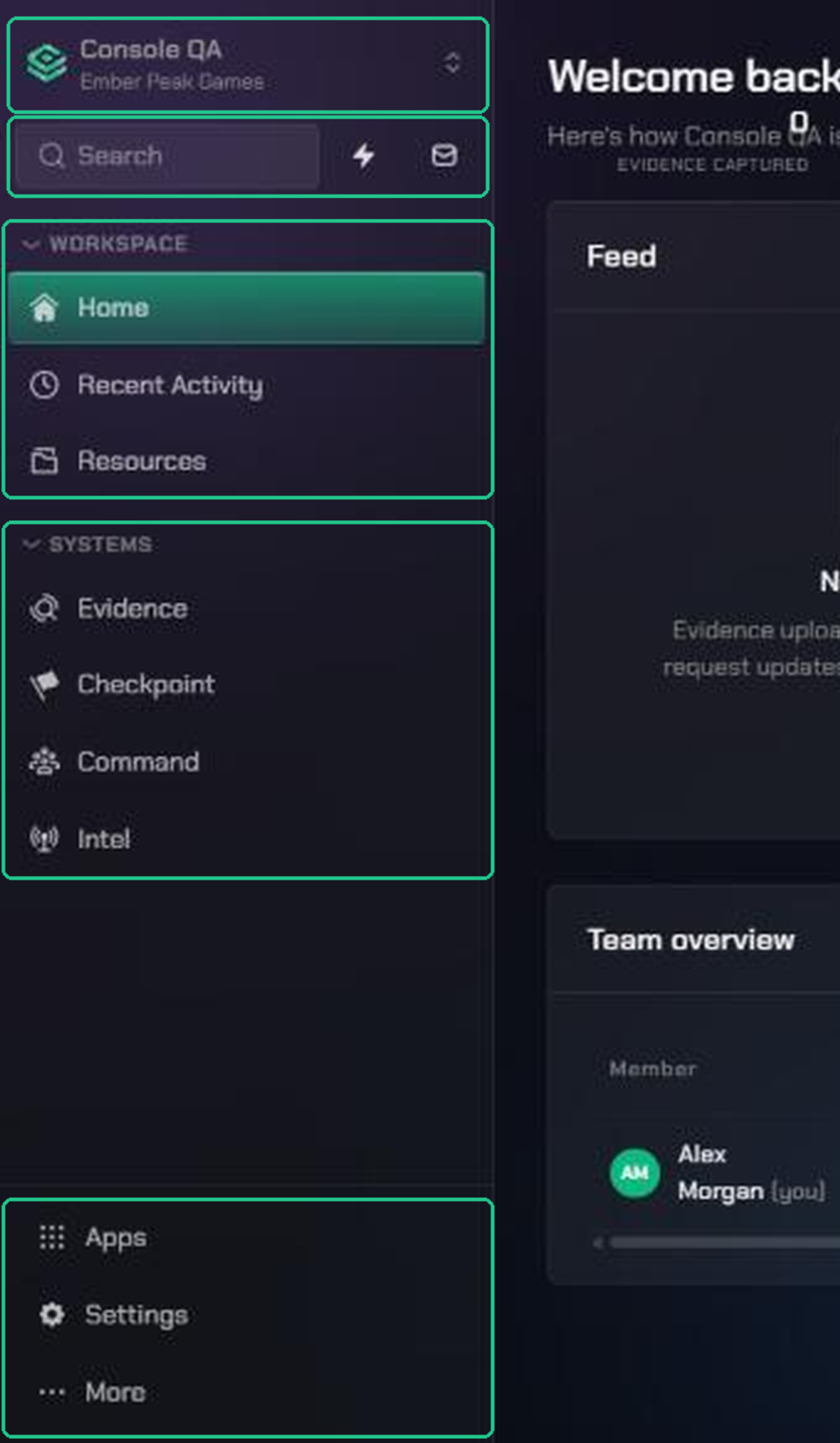
From top to bottom, the sidebar holds:
- The workspace switcher: your current workspace and organization. Click it to switch, or to open your account.
- Search, Quick Actions (the lightning icon) and Inbox (the envelope icon), in one row.
- Workspace: Home, Recent Activity and Resources.
- Systems: Evidence, Checkpoint, Command and Intel.
- At the bottom: Apps, Settings (the gear icon) and More (the three dots).
Hover over any item to see a short description of what it does. Click a section heading, such as Workspace or Systems, to fold it away. TopMod remembers this on every device.
Home, Recent Activity and Resources
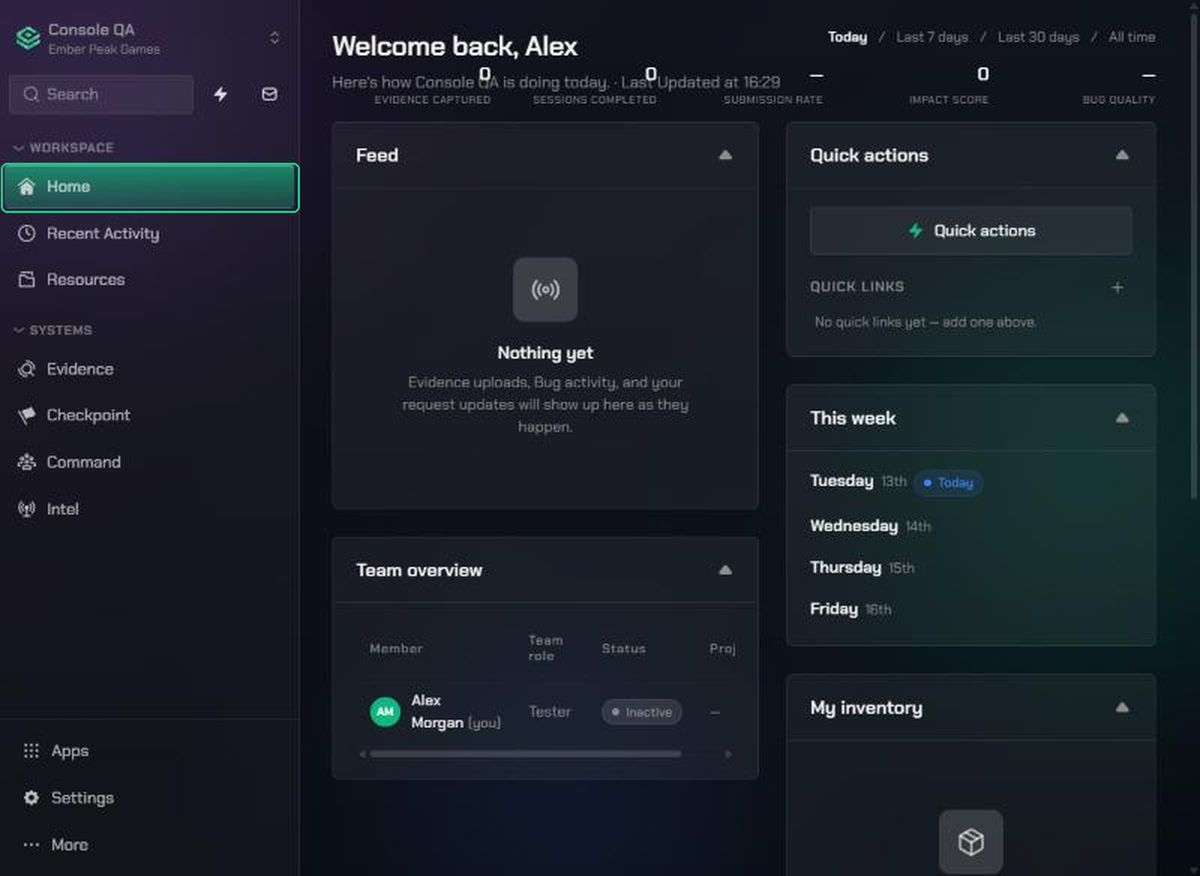
- Home is your workspace overview. It shows My tasks, This week, Feed, Team overview, Active projects and My inventory, depending on your role.
- Recent Activity has two tabs. Recent Pages takes you back to pages you visited. Activity shows what has changed across the workspace.
- Resources opens your workspace's shared documents and folders.
2. Switch workspace or organization
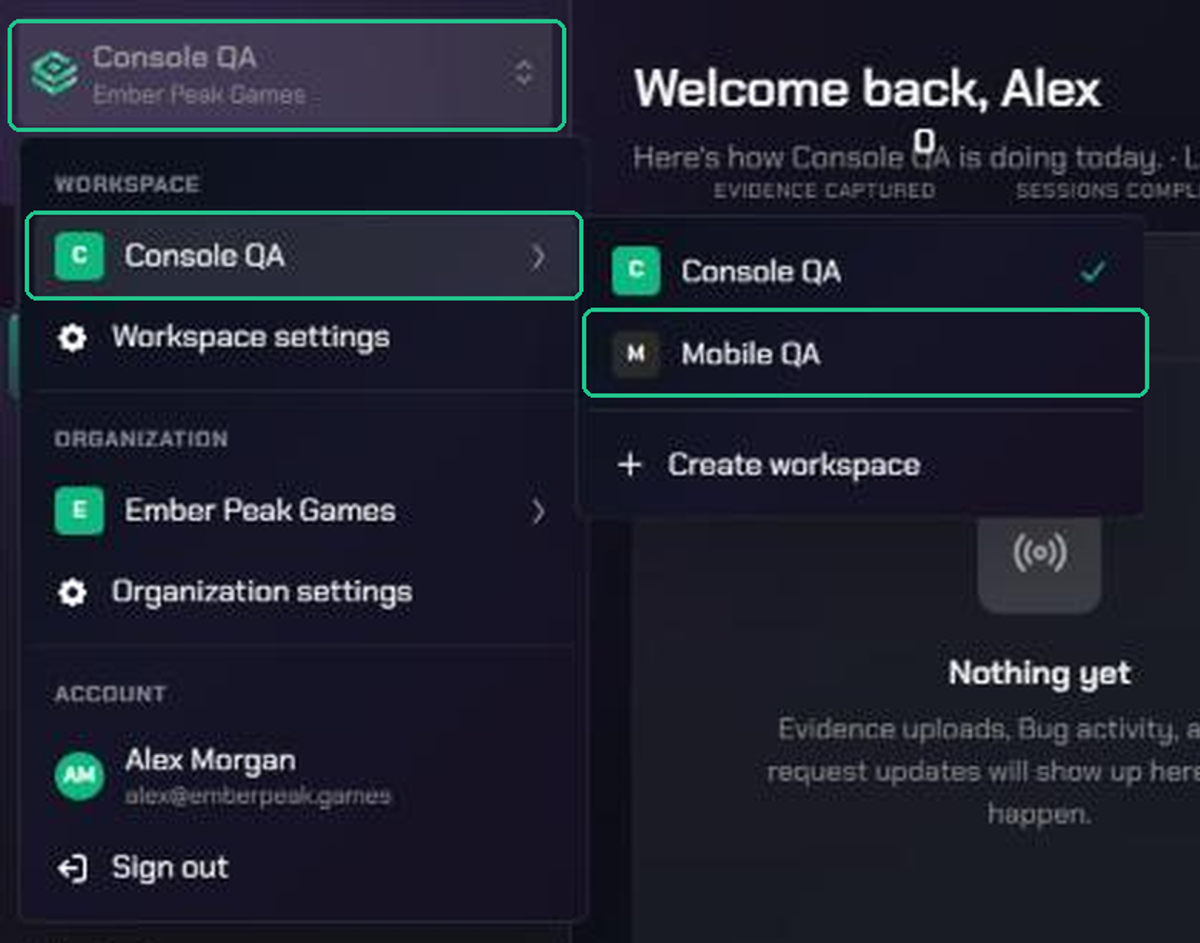
The workspace switcher at the top of the sidebar shows your current workspace, with your organization's name underneath.
- Click the workspace switcher.
- Under Workspace, hover over (or click) your current workspace to see the others in this organization.
- Click the workspace you want. A tick marks the one you're in.
- To change organization, hover over your organization under Organization and click another one.
When you switch workspace, TopMod opens the same System in the new workspace, on its dashboard. It doesn't keep the exact page, because a specific backlog or project belongs to the old workspace.
Workspaces you use most are listed first. Workspaces marked complete or cancelled don't appear in the list.
The same menu also has:
- Workspace settings and Organization settings, if you're an admin.
- Create workspace (organization admins) and Create organization, which needs an organization creation code.
- Under Account, your name, which opens your account, and Sign out.
3. Open a System
TopMod's tools are grouped into four Systems. Clicking a System opens a menu of its pages rather than going straight to one page.
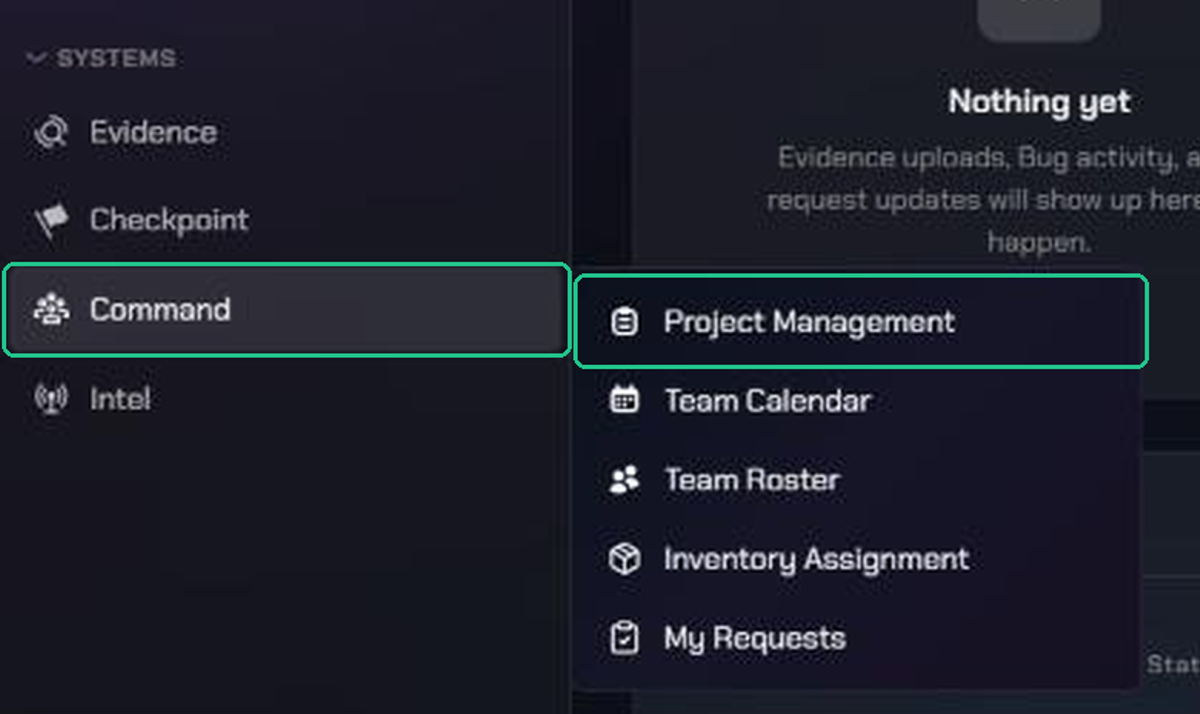
- Under Systems, click a System, for example Command.
- Pick a page from the menu, for example Project Management.
The System you're in is highlighted in green. A red number next to a System shows items waiting for you.
- Evidence: review and share gameplay footage from test sessions. Its menu has Session List, Content Library and Split Views.
- Checkpoint: draft, review and triage bug tickets before developer hand-off. Its menu lists each backlog in the workspace, Review Queue, and New Backlog (admins only).
- Command: manage your team and control your TopMod projects. Its menu has Project Management, Team Calendar, Team Roster, Inventory Assignment and My Requests.
- Intel: understand and identify trends across your TopMod data. Its menu has Signals and Workspace Reports.
The red numbers count bugs in your Review Queue (Checkpoint), active Signals (Intel) and requests waiting for your approval (Command). They refresh every minute.
If you only show one System in your sidebar, its pages are listed directly under its name instead of in a menu.
4. Use Search, Quick Actions and Inbox
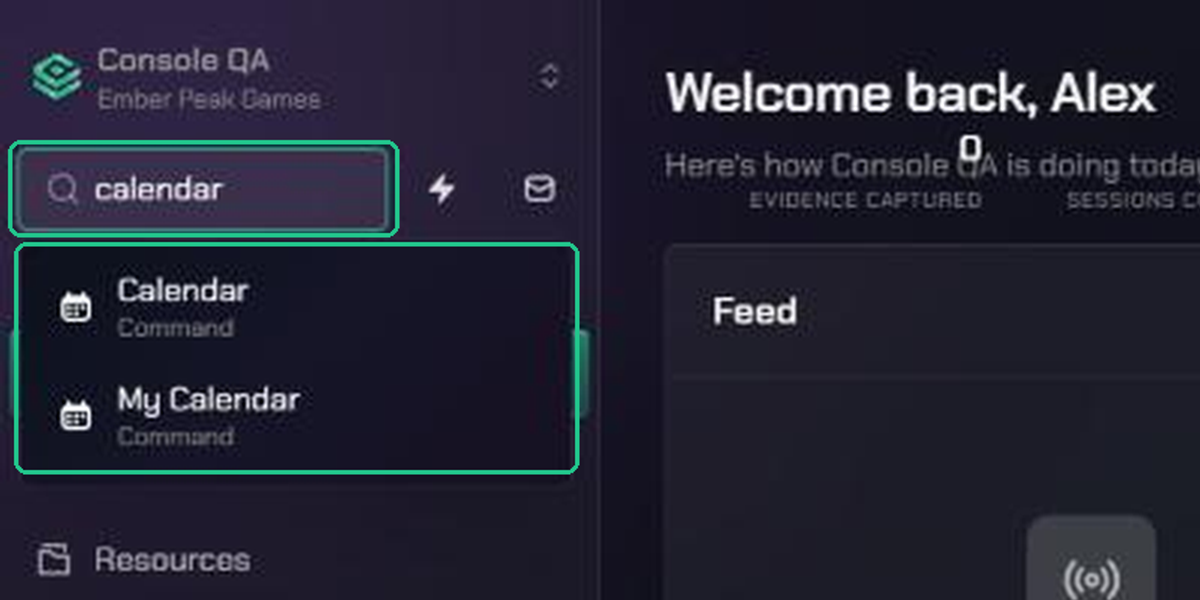
Search jumps you to a page. It finds pages across every System, your backlogs, open projects and settings pages. It doesn't search inside bugs or sessions.
- Click Search and start typing, for example "calendar".
- Click a result, or press Enter to see every match grouped by area.
Quick Actions (the lightning icon) has four shortcuts: Create bug, View latest upload, Upload new evidence and Make request.
Inbox (the envelope icon) collects updates from all your projects: invitations, project updates, bug updates, comments and documents. A red number shows how many are unread.
5. Find settings, apps and help
The bottom of the sidebar has three menus.
- Apps opens the Capture app page and your Discord, Slack and Jira connections.
- Settings (the gear icon) opens Organization Settings and Workspace Settings if you're an admin, and Account Settings for everyone.
- More (the three dots) has Quick Help for the page you're on, Support, Docs, Blog, Report Bug and Suggest Feature.
Change how the sidebar looks
You can set the sidebar up the way you like. Changes apply straight away and follow you to every device.
- Click Settings (the gear icon), then Account Settings.
- Open Preferences.
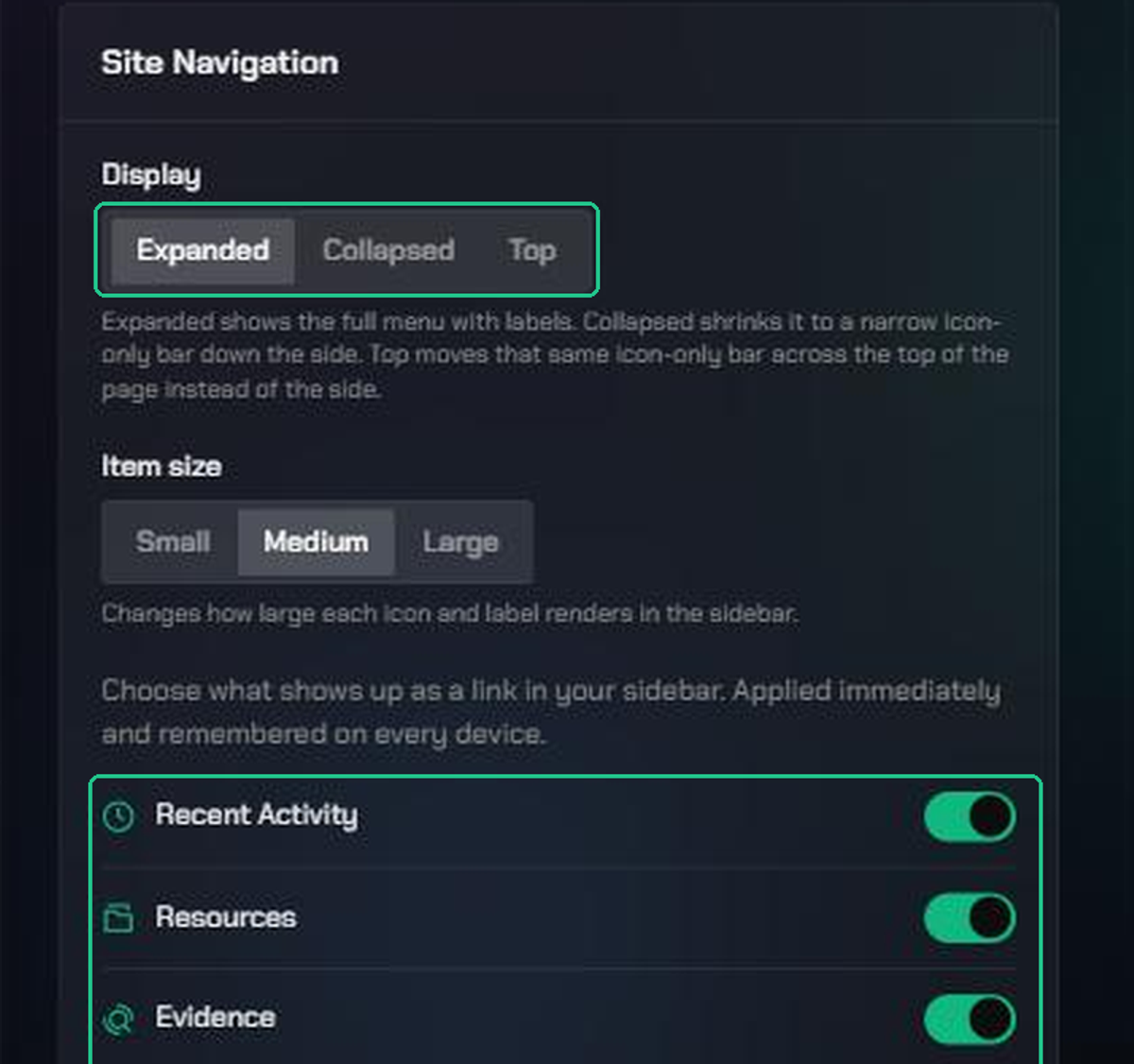
- Under Site Navigation, choose a Display: Expanded (full menu with labels), Collapsed (a narrow icon-only bar down the side) or Top (the icon-only bar across the top of the page).
- Choose an Item size: Small, Medium or Large.
- Use the switches to show or hide Recent Activity, Resources and each System. Home is always shown.
On the same page, Default starting page sets the page you land on when you sign in.
Troubleshooting
- The sidebar has gone and there's only a small button in the top-left corner: click the button (Expand sidebar) to bring the sidebar back.
- A System, Recent Activity or Resources is missing from the sidebar: you may have hidden it. Turn it back on in Account Settings > Preferences > Site Navigation.
- Organization Settings or Workspace Settings isn't in the Settings menu: those are for admins only. Ask an organization or workspace admin to make the change, or to give you admin access.
- A workspace isn't in the workspace switcher: it may be marked complete or cancelled, or you may not be a member of it. Ask a workspace admin to add you.
- "No active workspace": your organization has no workspace you can use yet. If you're an organization admin, create one. Otherwise ask an organization admin to create or reactivate one.
- Search shows "No matches" for a bug or session: Search only finds pages, backlogs, open projects and settings. Open the backlog or Session List and search there.
- Switching workspace took you to a dashboard, not the page you were on: this is expected. TopMod opens the same System in the new workspace, because the old page belongs to the old workspace.