
Before you start
- You need to be an organization admin. Only admins see Organization Settings. If you can't find it, ask an admin to invite people for you.
- Each new member uses a seat. You can only invite as many people as you have free seats. Pending invitations don't use a seat until they're accepted.
- Have their work email addresses ready. Your teammate must accept with the same address you invite.
1. Open the Members page
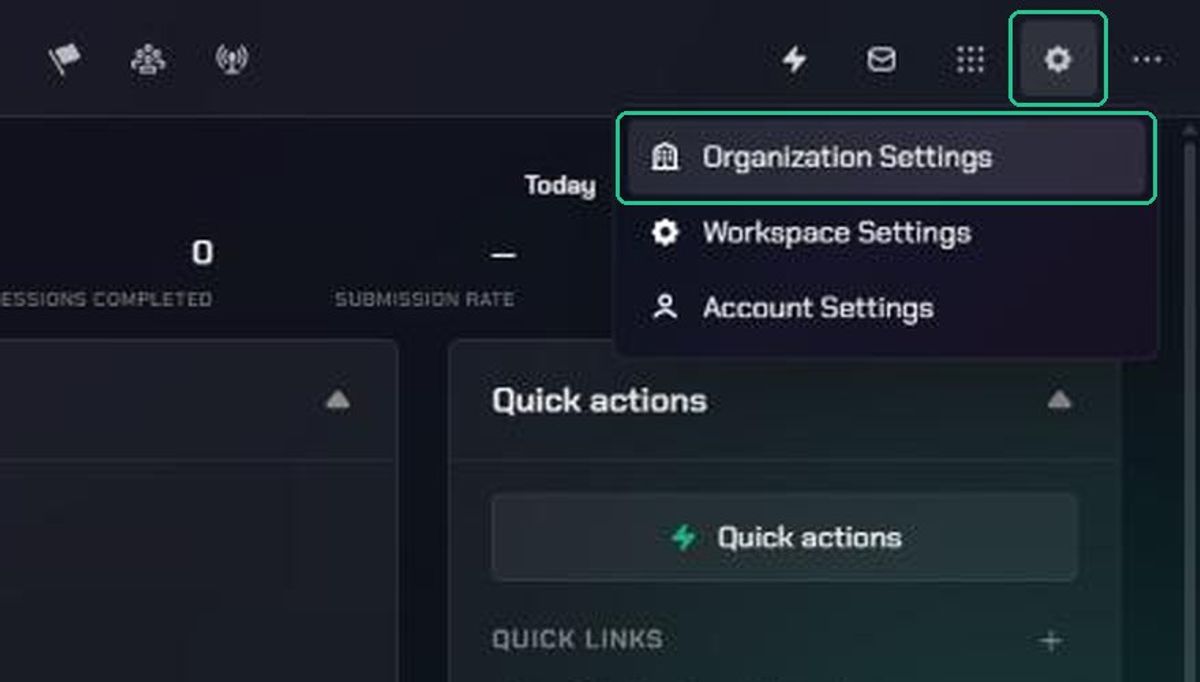
- Click Settings (the gear icon), then choose Organization Settings.
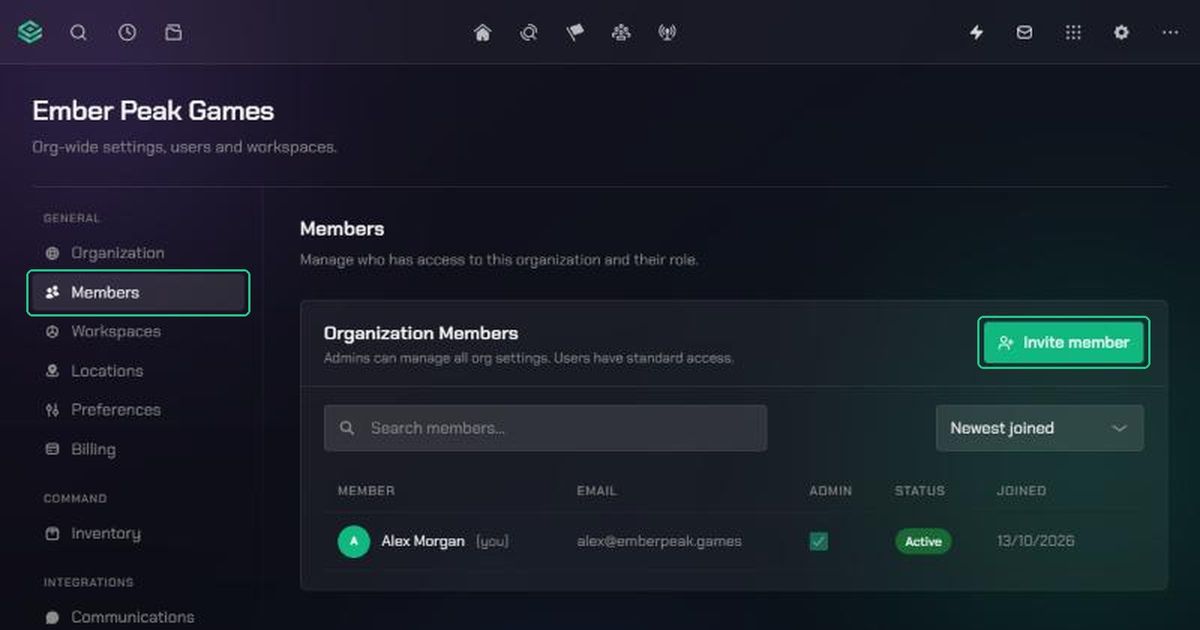
- Under General, click Members.
- Click Invite member in the top-right of the Organization Members card.
If you're running low on seats, you'll see "Only 2 open seats left" next to the button. With no seats left, the button is greyed out. Contact support to add more.
2. Enter email addresses
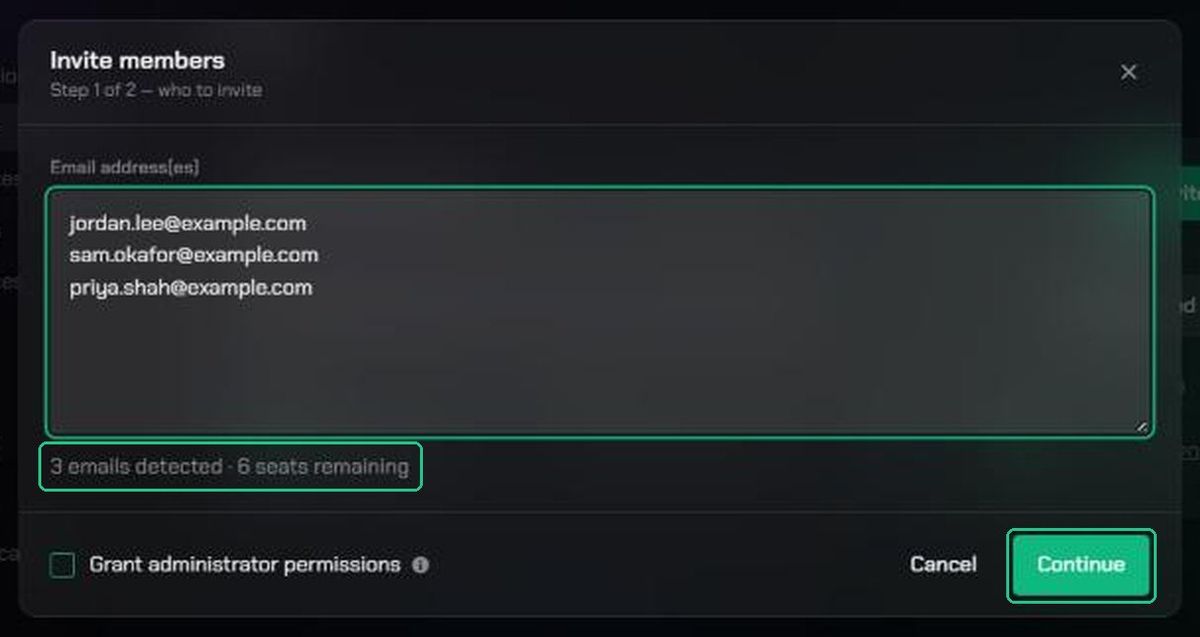
- In Email address(es), type or paste the people you want to invite. Put one per line, or separate them with commas.
- Check the count under the box. It shows how many emails were detected and how many seats you have left.
- Only tick Grant administrator permissions if these people should manage the whole organization. Admins can access every workspace and project, and can change organization settings.
- Click Continue.
TopMod checks each address before moving on. It stops you if an address isn't valid, if the person is already a member, or if you've entered more people than you have seats.
3. Choose workspaces and team roles
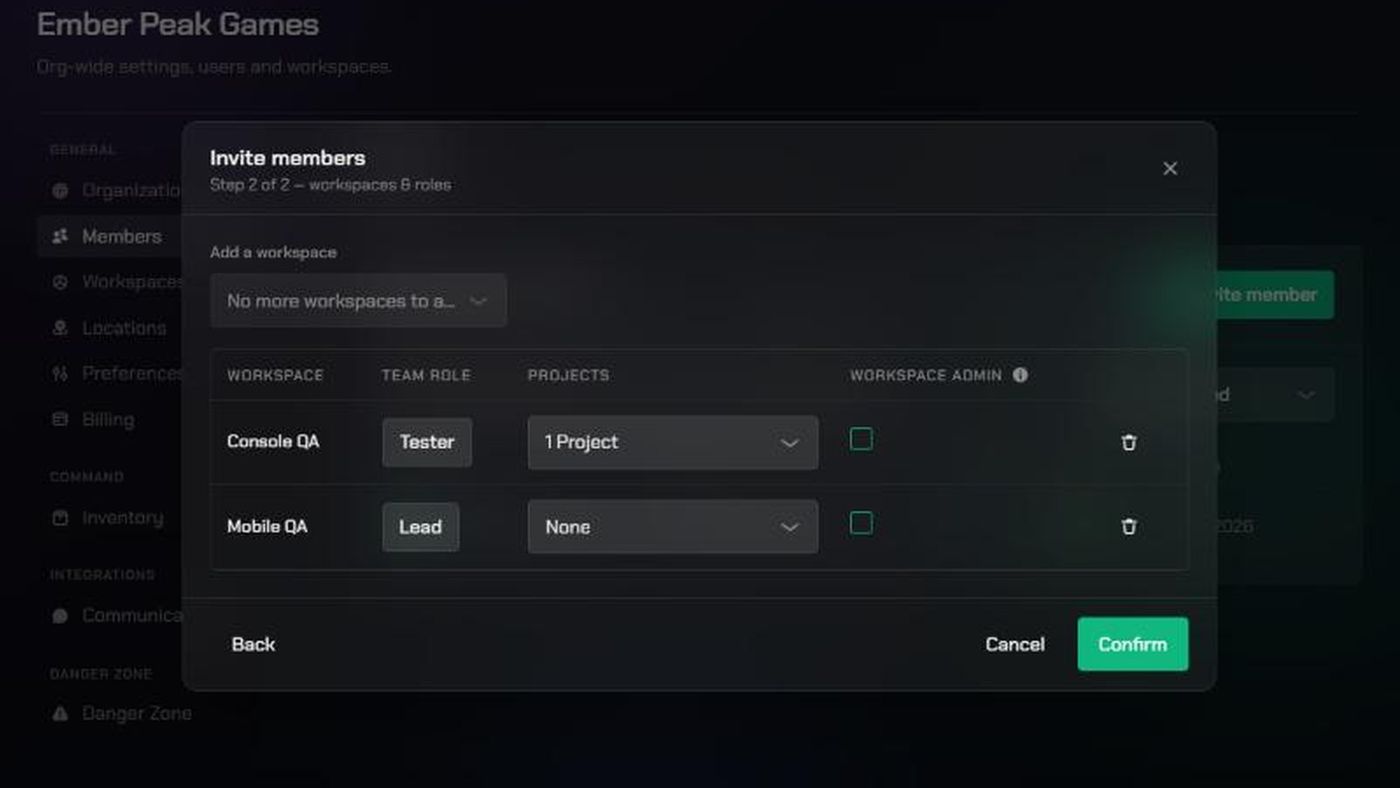
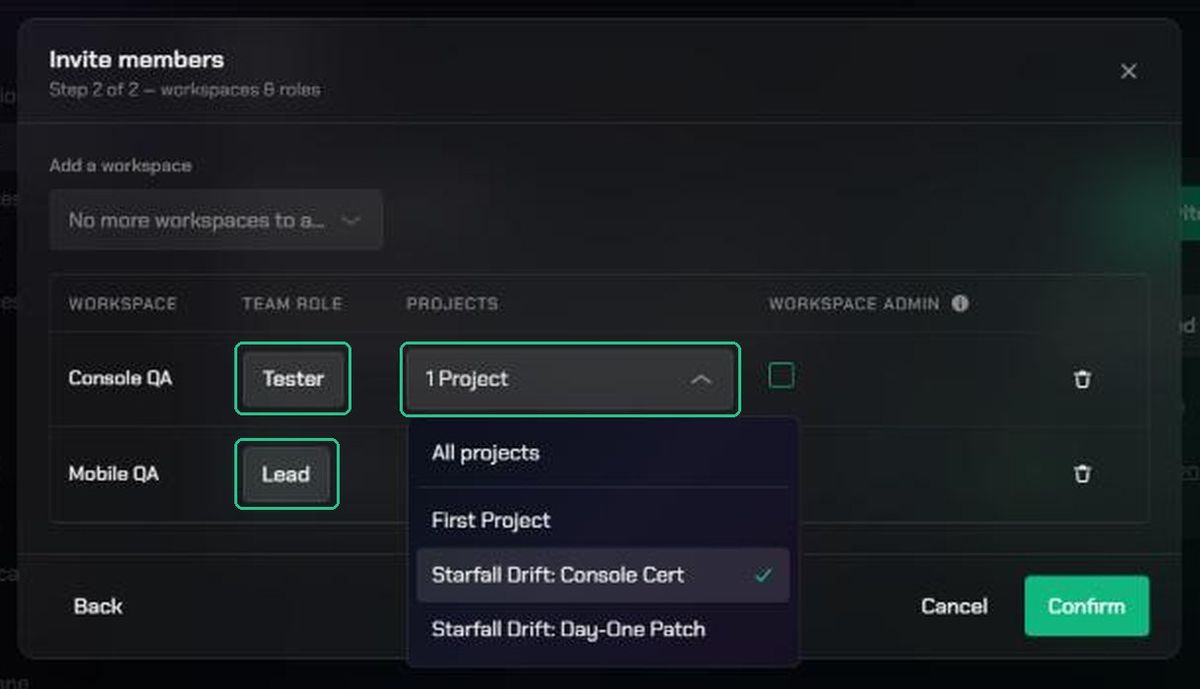
The second screen (Step 2 of 2) decides where your teammates can work. Everyone you invite gets the same settings.
- Use Add a workspace to pick each workspace they should join.
- For each workspace, choose a Team Role. You must choose one for every workspace before you can continue.
- Optionally, use Projects to add them to specific open projects in that workspace straight away.
- Tick Workspace Admin if they should see every project in that workspace and be able to change its settings.
Pick the Team Role that matches what they'll do:
- Tester: people doing the testing. Counts towards testing capacity and utilization.
- Lead: people leading testing activity. Not counted in standard tester capacity.
- Observer: people who need access but aren't part of the testing team, such as producers.
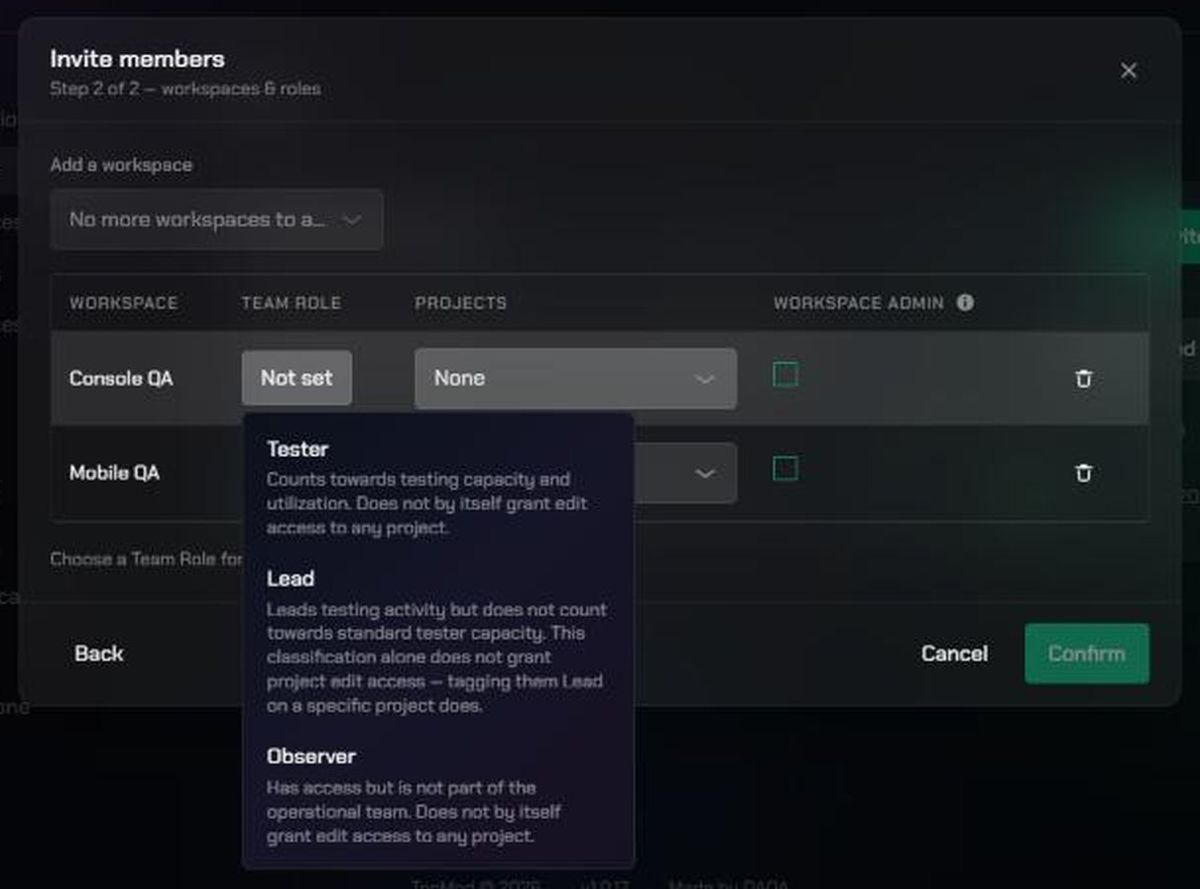
A Team Role never grants edit access to a project on its own. To give someone edit rights on a project, tag them as Lead in that project's team settings.
If you ticked Grant administrator permissions on the first screen, every workspace is already listed. You only need to choose a Team Role for each one.
4. Confirm and share the links
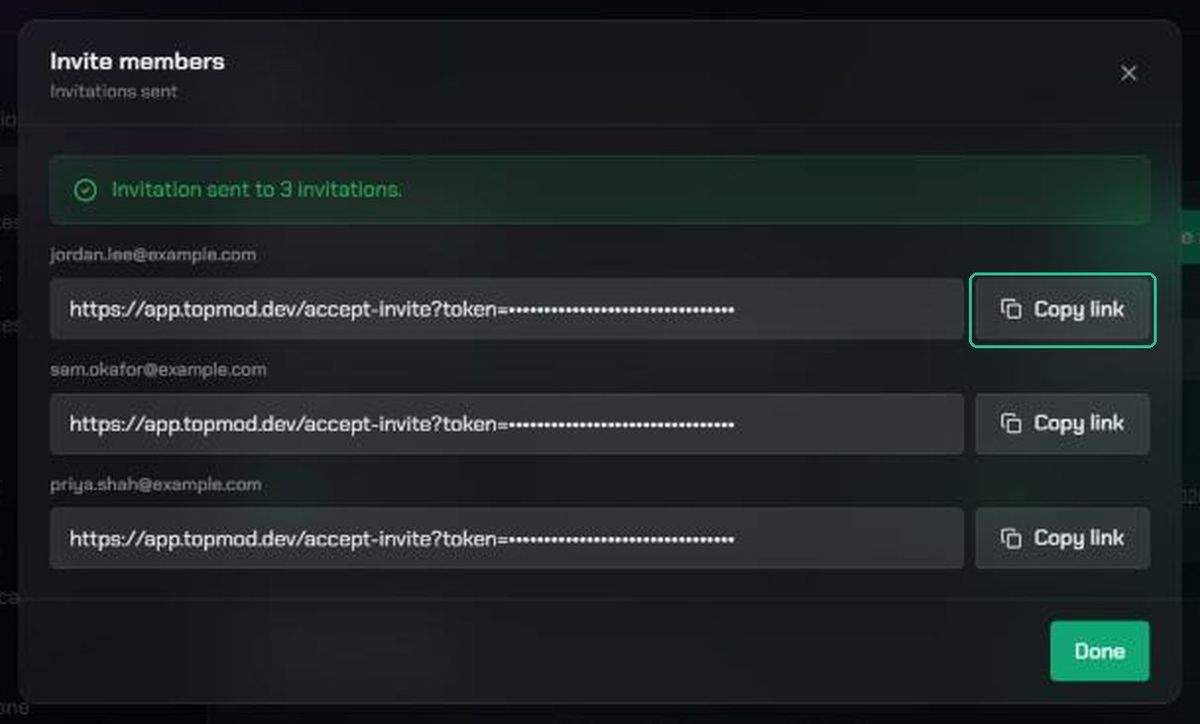
- Click Confirm. TopMod creates the invitations and emails each person.
- You'll see "Invitation sent to" with a personal link for each person. Click Copy link if you'd like to send it yourself, for example in Slack.
- Click Done.
If TopMod couldn't confirm an email was sent, it tells you. Copy that person's link and send it to them directly.
Manage pending invitations
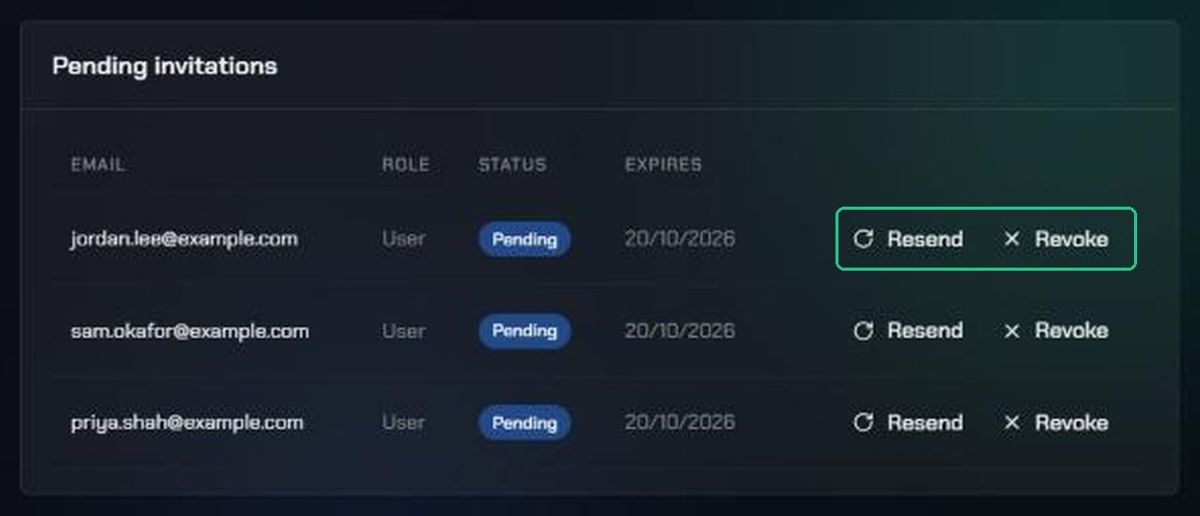
Invitations last 7 days. Until they're accepted, they're listed under Pending invitations on the Members page, with a status of Pending or Expired.
- Resend sends a fresh email with a new link and resets the 7 days. The old link stops working. Use it for expired invitations, or when someone can't find the email.
- Revoke cancels the invitation, so the link stops working.
What your teammate sees
- They get an email with the subject "You've been invited to join your organization on TopMod". They click Accept invitation.
- TopMod opens a "You're invited" page that says which organization and role they're joining.
- New to TopMod? They click Create an account. Already have an account? They click Log in to accept. Signed in already? They click Accept invitation.
- Once they're in, they land in your organization with the workspaces and projects you chose.
They must use the email address the invitation was sent to.
Troubleshooting
- "Already a member of this organization": remove that address. They already have access.
- "Not a valid email address": check the address for typos or extra characters.
- "Only N seats are available": remove some addresses, or contact support to add seats.
- Invite member is greyed out: you have no free seats. Free one up or contact support.
- Your teammate sees "Invalid invitation": the link has expired, been revoked or already been used. Resend it from Pending invitations.
- Your teammate sees "Wrong account": they're signed in with a different email. They should sign out and sign in with the invited address.