
Before you start
- This guide is for anyone who has just joined an organization on TopMod. You don't need to be an admin.
- You need a TopMod account and access to at least one workspace. If you haven't accepted your invitation yet, start with Set up your TopMod account.
- Your admin decides which workspaces and projects you can see. Some pages and menu items in this tour only appear for admins. If something is missing, ask an organization or workspace admin.
How TopMod is organised
Everything in TopMod belongs to one of three levels: your organization, a workspace inside it, and a project inside that workspace.
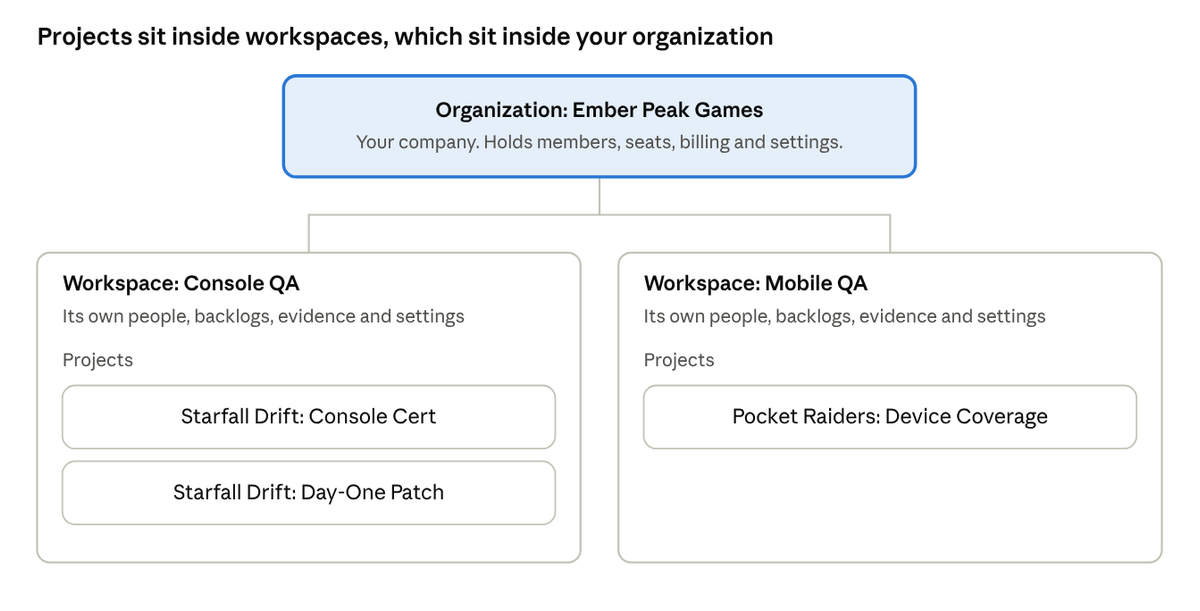
The example uses Ember Peak Games, a fictional studio with two workspaces.
- Organization: your company's TopMod account. It holds everyone's membership, your seats and billing, and the list of workspaces. You can belong to more than one organization.
- Workspace: a team, studio or area of work, such as Console QA. Each workspace has its own people, backlogs, evidence, resources and settings. You only see the workspaces you've been added to.
- Project: a piece of testing work with dates and a team, such as a certification pass or a day-one patch. Projects live in Command.
Roles
At each level you're either an admin or a member. Most people are members.
- Organization: admins can invite and manage members, create workspaces, and manage seats, billing and organization settings. Members can use the workspaces they've been added to.
- Workspace: admins can change workspace settings, add people and create backlogs. Members can use the Systems in that workspace.
- Project: people tagged Lead on a project can edit it and its staffing. Other members can see the project and work on it.
Your workspace admin also gives you a Team Role: Tester, Lead or Observer. It describes the part you play in the team, not what you can access. Testers count towards the team's testing capacity. Observers can use the workspace but don't appear in Command's team lists and calendars.
Find your way around
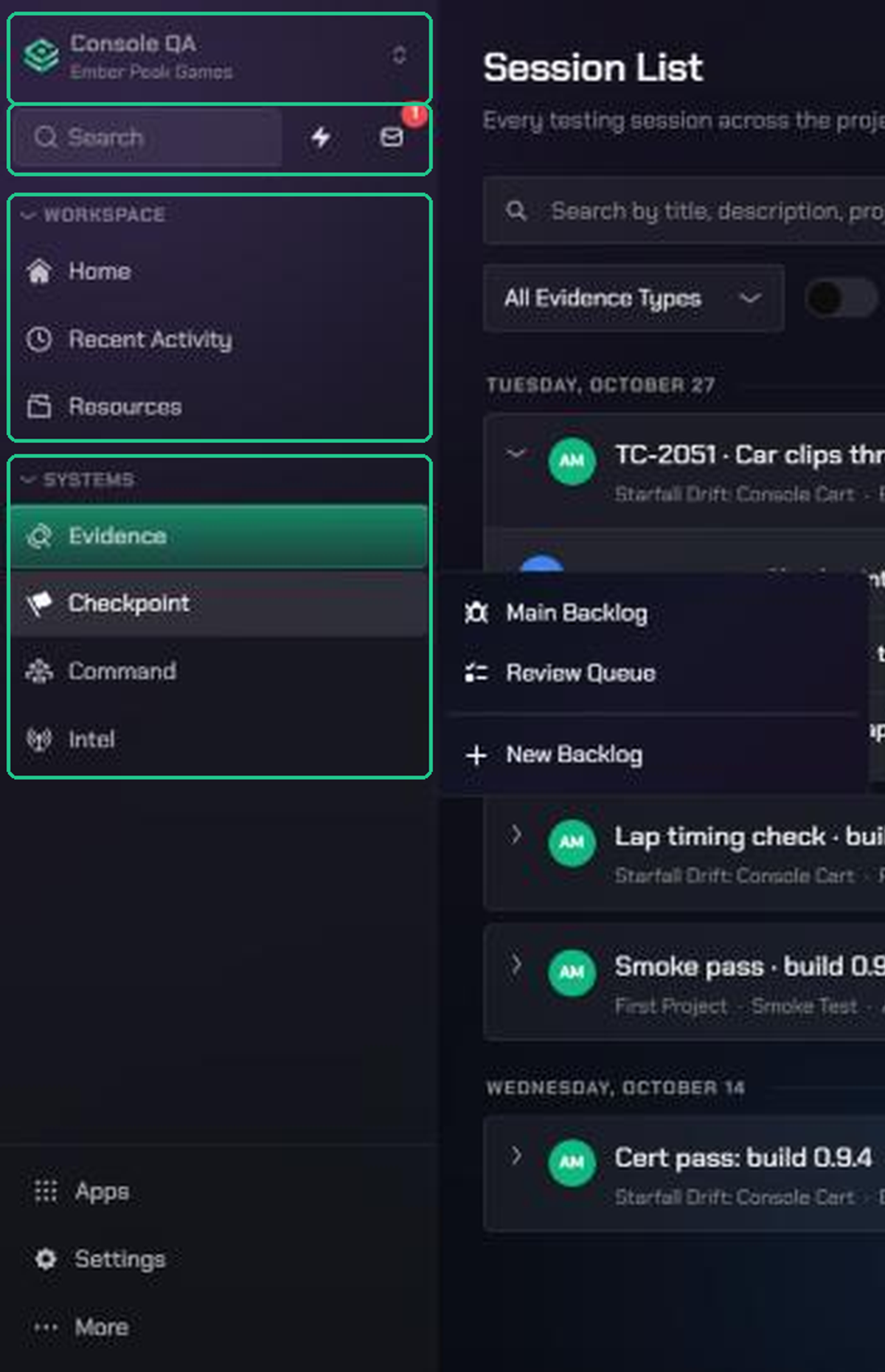
Everything you use to move around TopMod lives in the sidebar. From top to bottom it holds:
- The workspace switcher, showing your current workspace and organization. Click it to switch to another one.
- Search, Quick Actions (the lightning icon) and Inbox (the envelope icon).
- Workspace: Home, Recent Activity and Resources.
- Systems: Evidence, Checkpoint, Command and Intel. Click a System to open a menu of its pages.
- Apps, Settings (the gear icon) and More (the three dots).
Hover over any item to see a one-line description of what it does. You can also show the sidebar as a narrow icon bar, or as a bar across the top of the page.
For every menu and setting, see Find your way around TopMod.
Tour the main areas
TopMod's tools are grouped into four Systems, plus a few workspace-wide pages. Everything in a System belongs to the workspace you're in.
Home
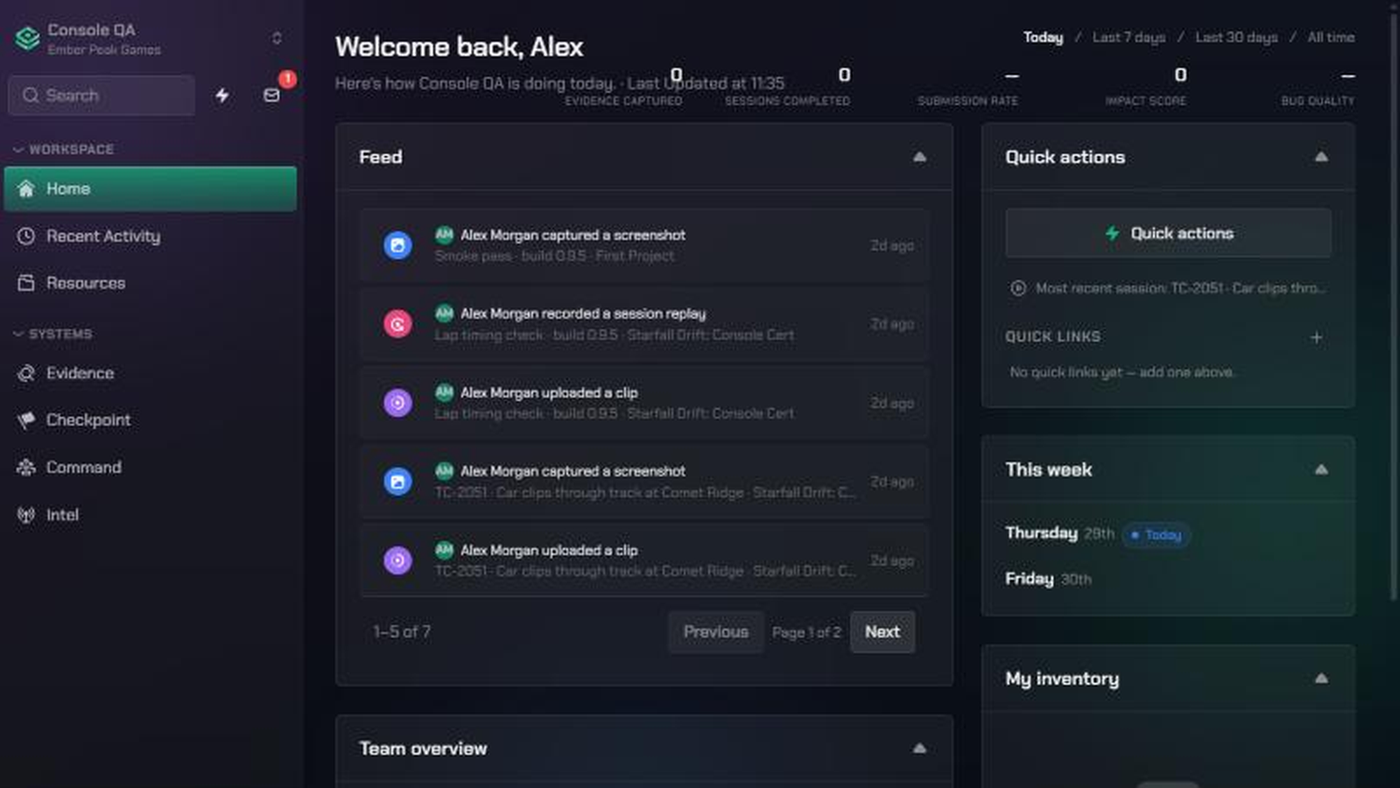
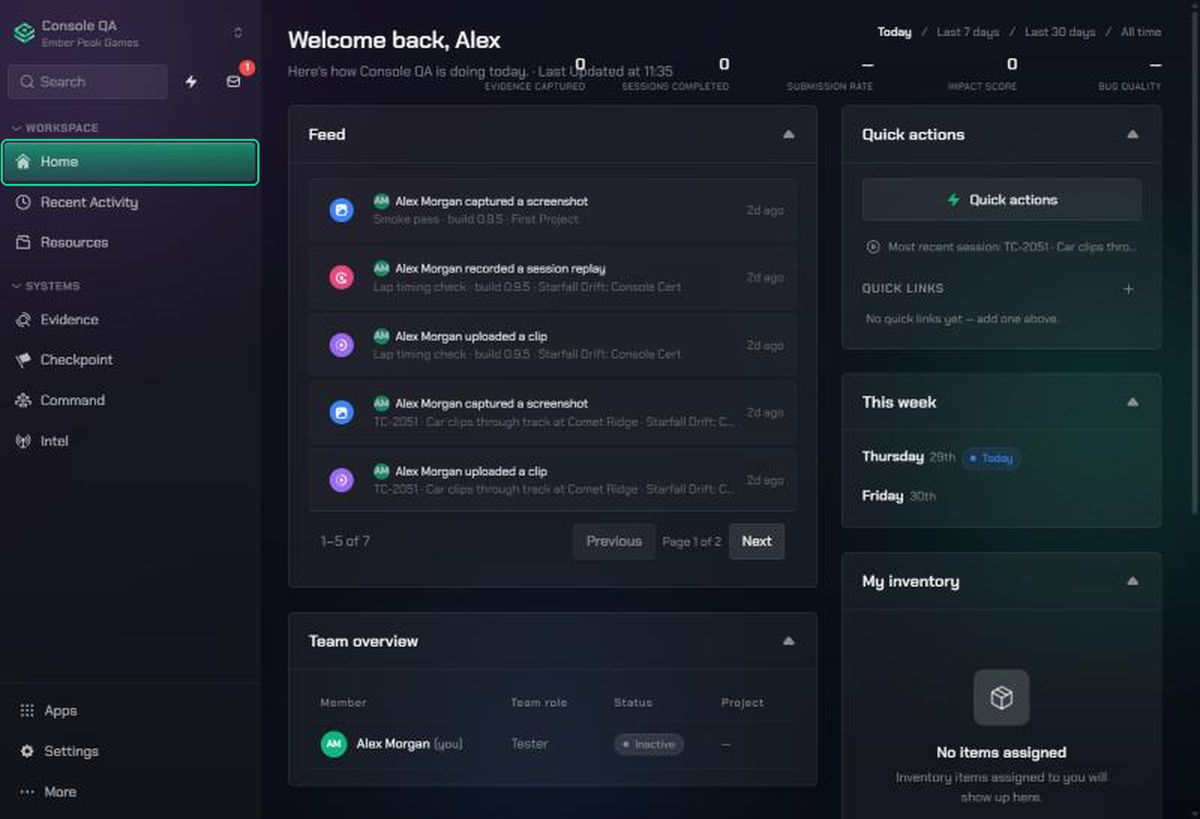
Your workspace overview: your tasks, the latest activity and your team at a glance. It's made of cards such as Feed, Team overview, Quick actions, This week and My inventory. Which cards you see depends on your Team Role.
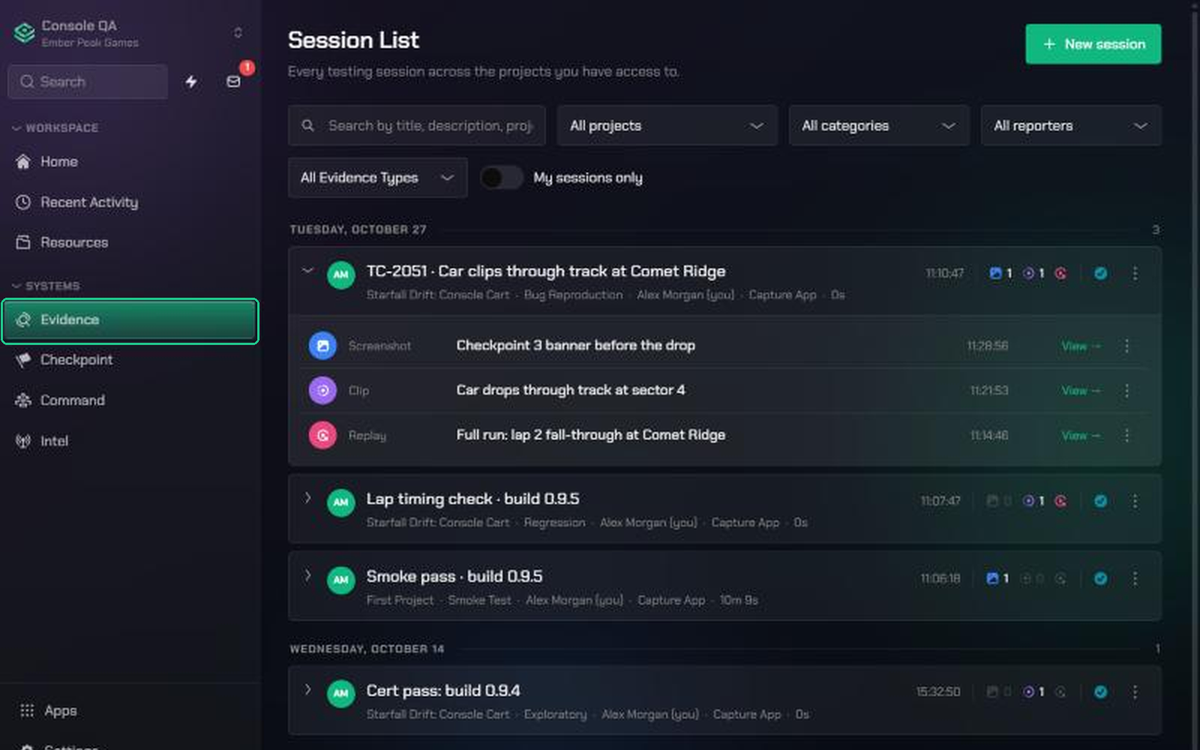
Evidence
Review and share gameplay footage from test sessions. Its menu has:
- Session List: every testing session and the evidence captured in it.
- Content Library: search all the clips, screenshots and replays your team has uploaded.
- Split Views: compare pieces of footage side by side.
Most evidence comes from the Capture app. It records gameplay, inputs, performance and logs in one session, then attaches it straight to a bug. Open it from Apps. See Download and install the Capture app and Session List.
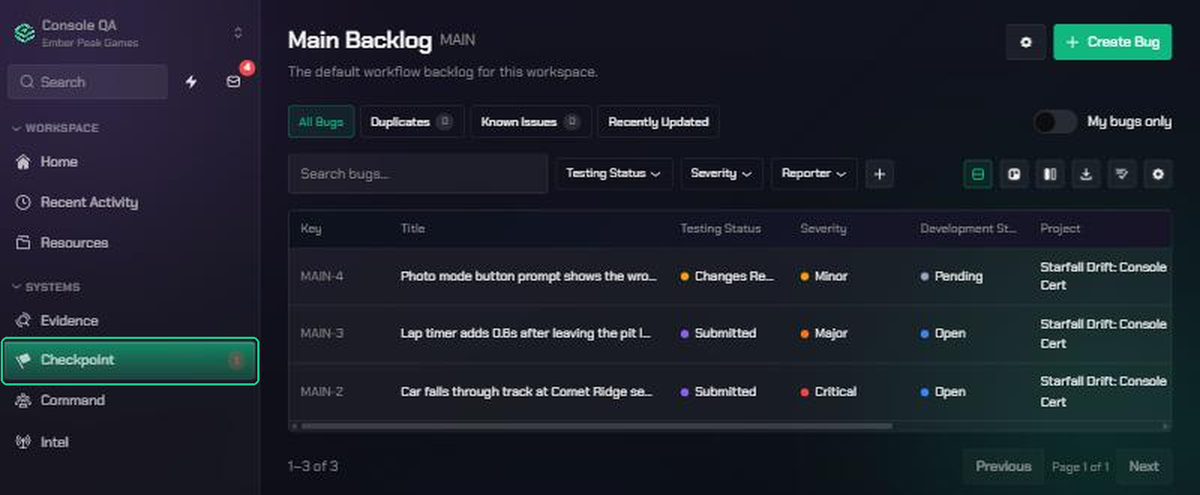
Checkpoint
Draft, review and triage bug tickets before developer hand-off. Bugs are collected in backlogs, for example one per game area, platform or release. Its menu lists:
- Each backlog in the workspace.
- Review Queue: bugs waiting on your review, and your bugs with feedback to action. A red number shows how many.
To log a bug from anywhere, click Quick Actions (the lightning icon), then Create bug. See Check bug reports with the AI reviewer.
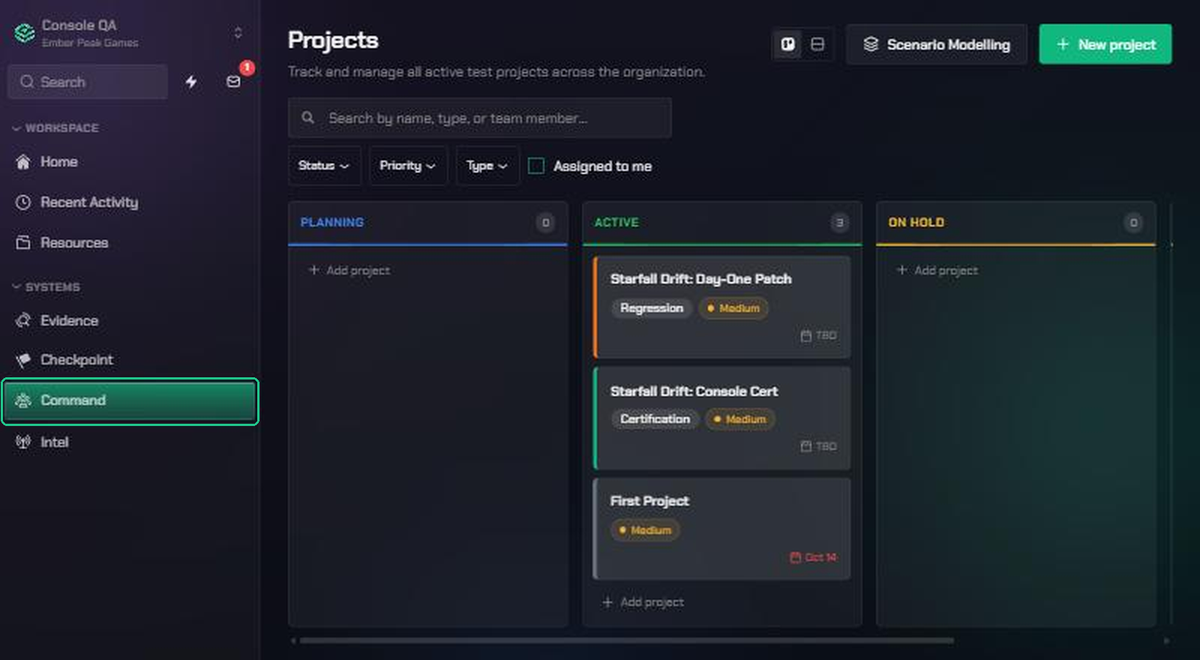
Command
Manage your team and control your TopMod projects. Its menu has:
- Project Management: create and manage projects, and see who is staffed on them.
- Team Calendar: see who is working on what, and who is away.
- Team Roster: everyone in the workspace and the role they play.
- Inventory Assignment: track devices and kit, and who each item is assigned to.
- My Requests: request equipment or time off, and follow each request.
Intel
Understand and identify trends across your TopMod data. Its menu has:
- Signals: alerts that point out notable changes and trends in your data.
- Workspace Reports: pre-built and custom reports on quality across your workspace.
Resources and Inbox
- Resources holds your workspace's shared documents and folders, such as test plans and guides.
- Inbox (the envelope icon) collects updates from all your projects, across every workspace: invitations, project updates, bug updates, comments and documents.
How the pieces fit together
The Systems are built around one journey: from a moment of gameplay to a bug a developer can act on.
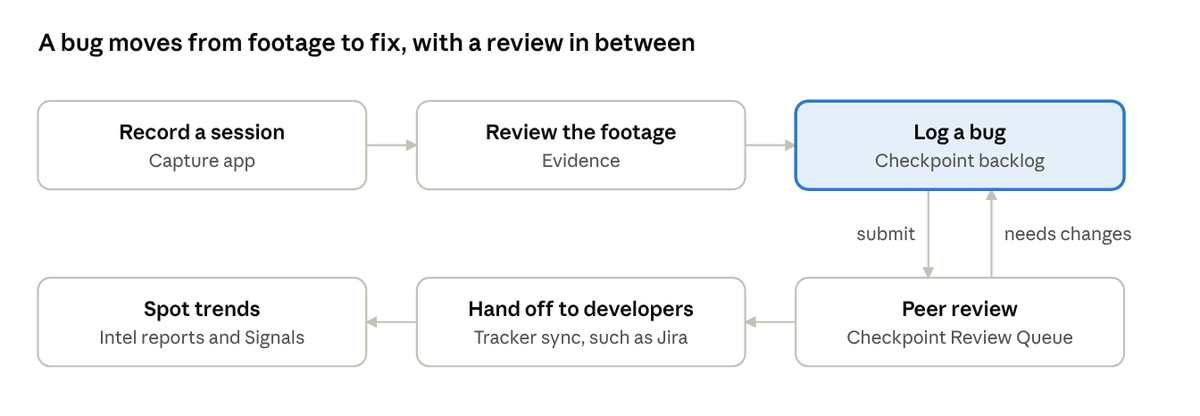
A reviewer can send a bug back for changes before it's handed off. Command sits behind the whole journey, planning the projects and people doing the testing.
Make TopMod yours
In Settings (the gear icon) > Account Settings you can update your profile, choose how the sidebar looks, set your starting page, and pick how notifications reach you: in-app, email, Slack or Discord. See Set up your TopMod account.
Next steps
Pick up where your first day takes you:
- Finish setting up your account: Set up your TopMod account
- Learn every menu in the sidebar: Find your way around TopMod
- Start recording gameplay: Download and install the Capture app
- Browse your team's sessions: Session List
- Write a bug from a clip: Generate a bug from a clip with AI
- Get notifications in Slack: Connect your Slack account
- Ask a question: Get help with TopMod
Troubleshooting
- "No active workspace": you haven't been added to a workspace yet. Ask an organization admin to add you.
- "No Organization Found": your account isn't in an organization yet. Accept your invitation from the email, or ask your admin to invite you, then refresh the page.
- "Your access has been deactivated": an admin has turned off your access. Ask them to reactivate you, then refresh the page.
- A workspace you expected isn't in the workspace switcher: you may not be a member of it, or it may be marked complete or cancelled. Ask a workspace admin to add you.
- A System, Recent Activity or Resources is missing from the sidebar: you may have hidden it. Turn it back on in Account Settings > Preferences > Site Navigation.
- The sidebar has gone and there's only a small button in the top-left corner: click the button (Expand sidebar) to bring the sidebar back.
- Organization Settings, Workspace Settings or New Backlog isn't there: these are for admins only. Ask an organization or workspace admin.
Still stuck? See Fix invitation and access problems or contact support.