
Before you start
- Anyone can do this. Linking your Slack account is a personal setting. You don't need to be an admin.
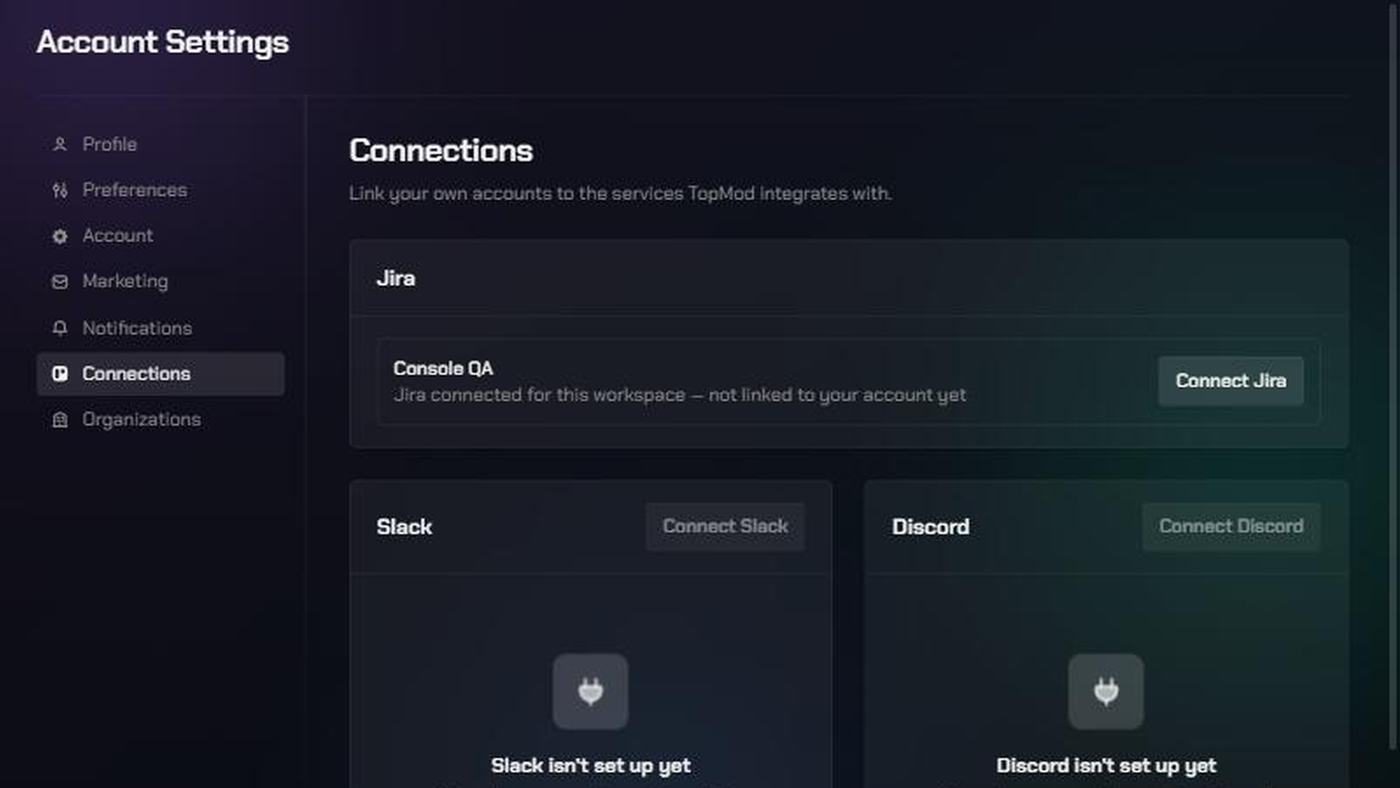
- Slack must be set up for your team first. A workspace or organization admin has to connect TopMod's Slack app before you can link your account. Until then, the Connect Slack button is unavailable. Admins can follow "Connect Slack to your workspace".
- Use the Slack account your team uses. Sign in to Slack with the account that belongs to the Slack workspace your admin connected, or the DMs can't reach you.
- One link covers everything. You link your Slack account once. It works in every TopMod workspace and organization that has Slack set up.
- TopMod only reads your basic profile. It asks Slack to confirm who you are. It can't read your messages or post as you.
1. Open your Connections page
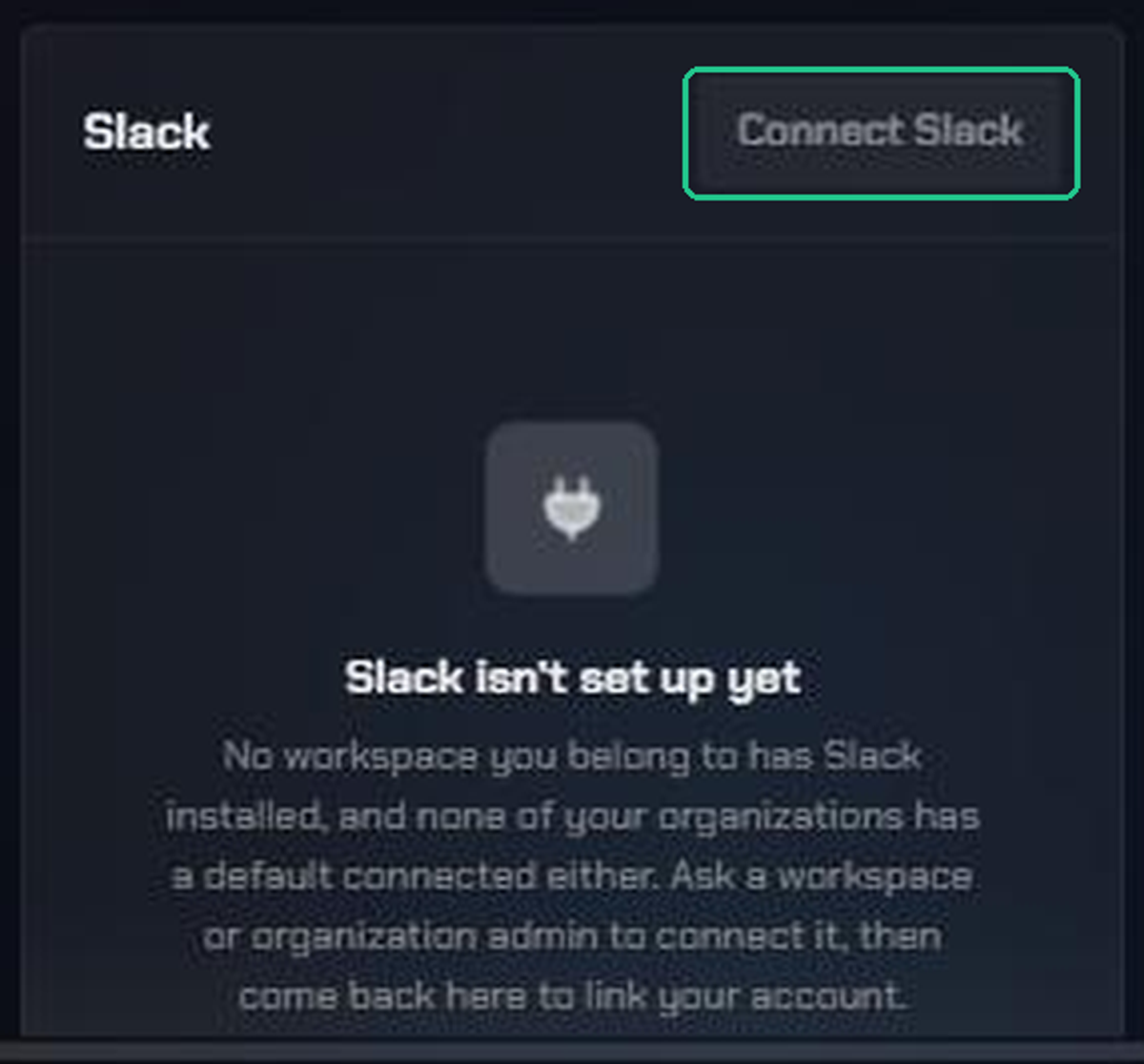
- Click Settings (the gear icon), then choose Account Settings.
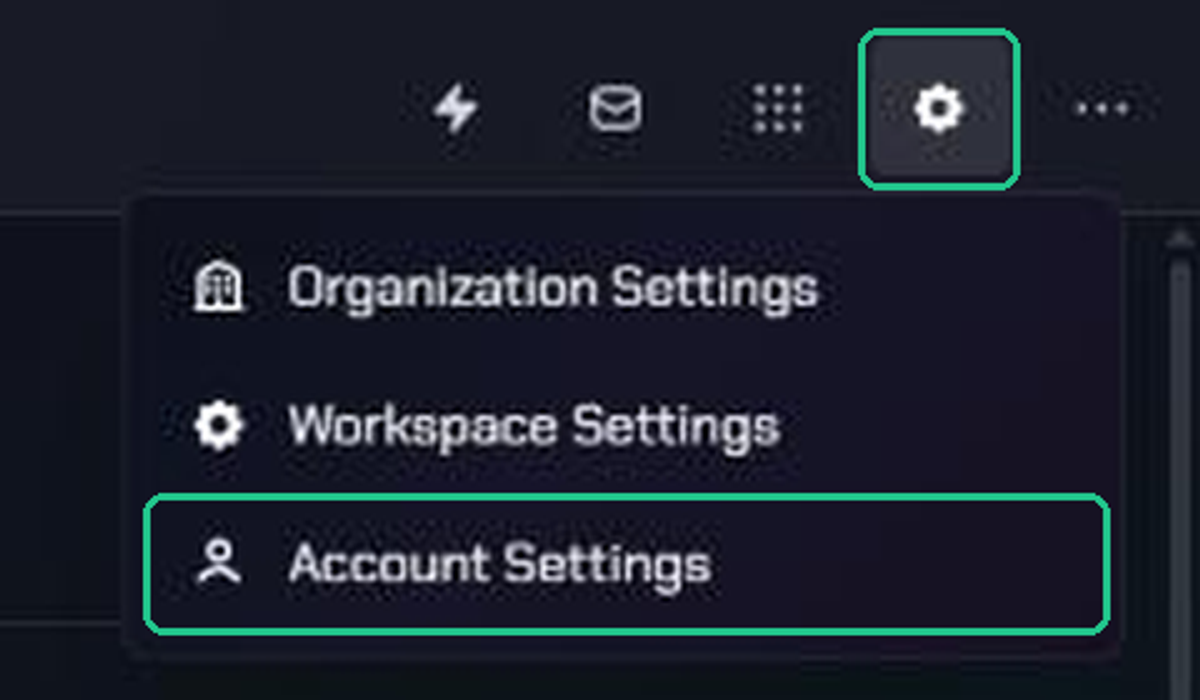
- In the menu, click Connections.
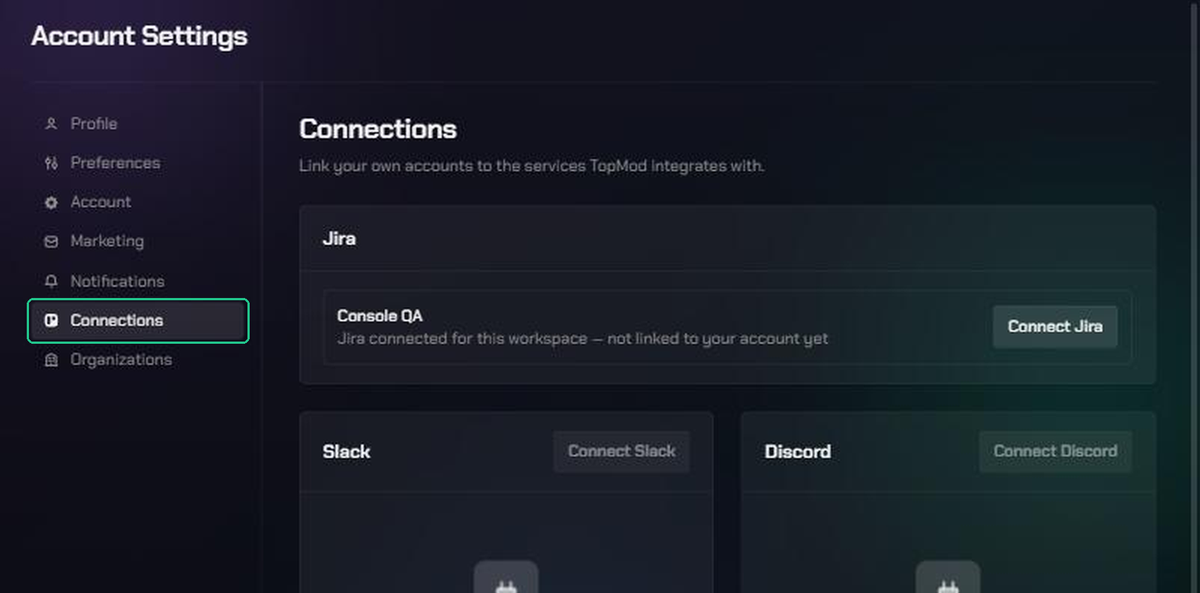
You can also click Apps (the grid icon) and choose Slack under Communications.
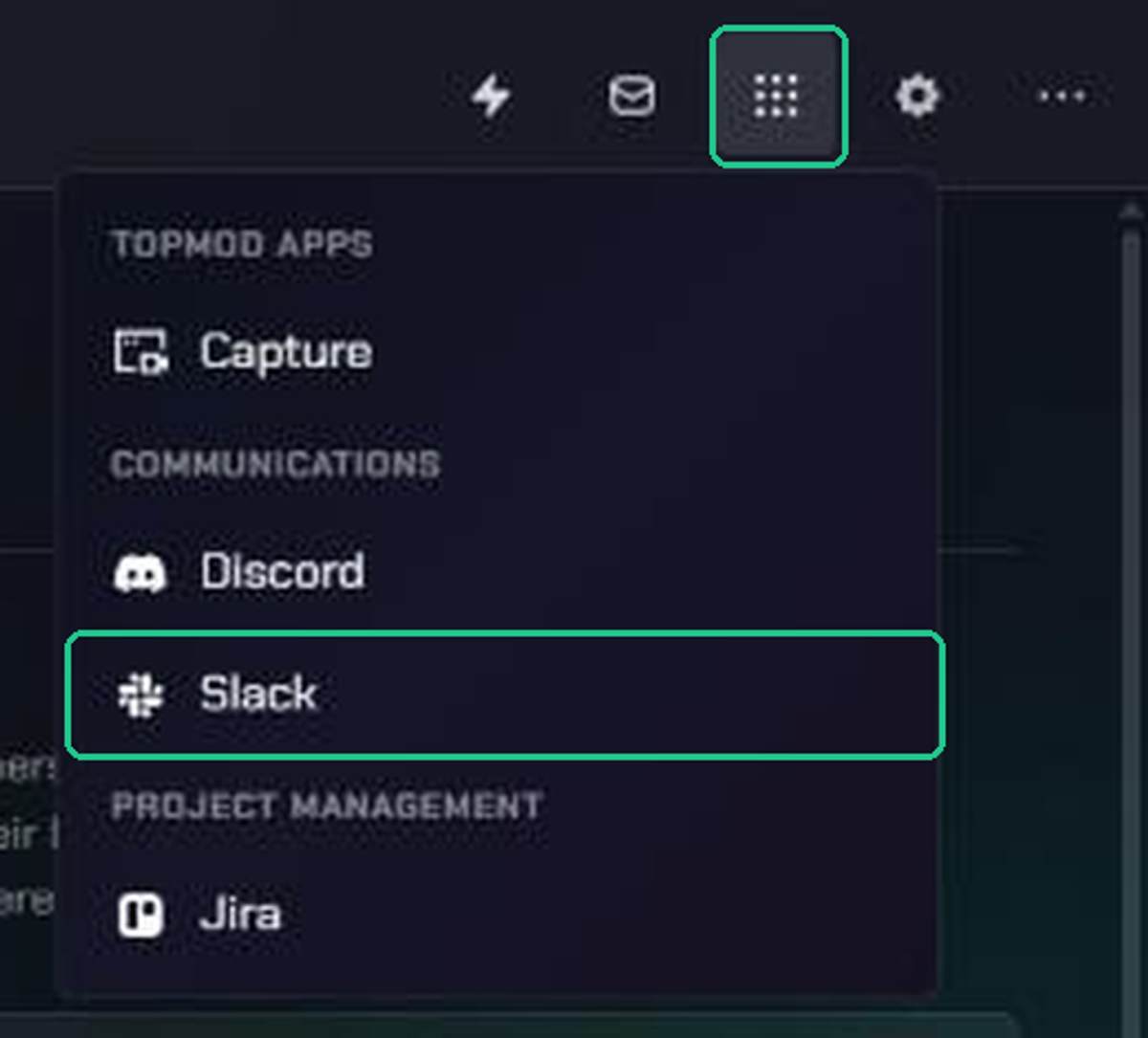
If you're a workspace admin and your workspace hasn't connected Slack yet, Apps opens Workspace Settings instead.
2. Connect Slack
- Find the Slack card. It shows "No Slack account linked" until you connect.
- Click Connect Slack.
TopMod opens Slack in the same window. Finish the next step within 10 minutes, or the request expires.
3. Sign in with Slack
- Sign in to Slack if asked. Check the Slack workspace at the top right is your team's.
- Click Allow to let TopMod confirm who you are.
4. Check your account is linked
Slack sends you back to Connections, and you'll see "Connected your Slack account".
The Slack card now says "Connected — you'll receive Slack DMs for notifications, wherever your workspaces have Slack installed." The button changes to Disconnect.
5. Choose which notifications reach Slack
Linking your account doesn't turn on any DMs by itself. Pick what you want:
- In Account Settings, click Notifications.
- A Slack column now appears next to Email. Tick each notification you want as a Slack DM.
- To turn on every type at once, click Subscribe to all. This also turns on Email and Discord.
- Click Save changes. You'll see "Notification preferences saved".
Your TopMod inbox still lists everything, whatever you choose here.
Disconnect your Slack account
- Go to Account Settings > Connections.
- On the Slack card, click Disconnect.
- In "Disconnect Slack?", click Disconnect to confirm.
You'll see "Disconnected your Slack account" and you'll stop getting Slack DMs. The Slack column disappears from Notifications. Your workspace's Slack app stays installed for everyone else.
To switch to a different Slack account, disconnect first, then connect again.
Troubleshooting
- "Slack isn't set up yet" and Connect Slack is greyed out: no workspace or organization you belong to has Slack connected. Ask a workspace or organization admin to connect it, then come back.
- "Could not connect your Slack account — try again": you clicked Cancel in Slack, or Slack couldn't finish. Click Connect Slack again.
- "This connection request is invalid or has expired. Please try connecting again.": more than 10 minutes passed, or you reused an old Slack tab. Go back to Connections and click Connect Slack again.
- "Could not start the connection": wait a minute and try again. If it keeps happening, contact TopMod support.
- "Could not disconnect. Please try again.": refresh the page and try again.
- No Slack column on the Notifications page: your Slack account isn't linked yet. Follow the steps above.
- Linked, but no Slack DMs arrive: check you've ticked notifications in the Slack column and saved. Check you signed in with the Slack account in your team's Slack workspace.