
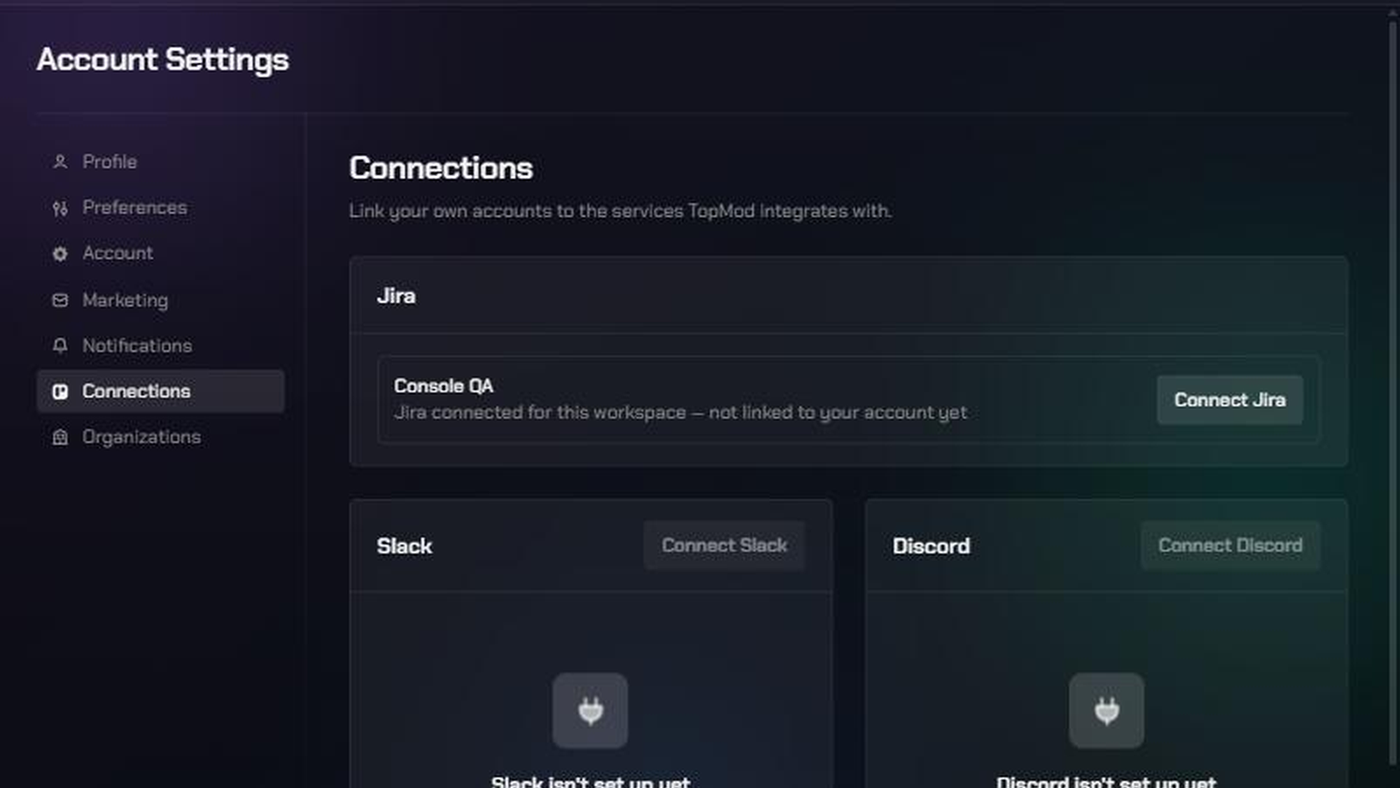
Before you start
- Anyone in the workspace can do this. You don't need to be an admin. You link your account for yourself only.
- An admin must connect Jira to the workspace first. If they haven't, the Jira card says "No workspaces to connect yet". Ask a workspace admin to connect Jira (see Connect Jira to your workspace).
- You need a Jira Cloud account on the same Jira site the workspace uses.
- It's per workspace. If you belong to several workspaces with Jira connected, each one is listed separately. Link the ones you work in.
What changes once you're linked
Without a linked account, TopMod acts in Jira using the workspace's shared connection. Once you link yours, these show your name in Jira:
- the comment TopMod adds to a Jira ticket when you link a Bug to it
- field changes you make in TopMod that sync to Jira
- Jira issues you delete from TopMod
New Jira issues that TopMod creates from synced Bugs still use the workspace's connection.
1. Open your Connections page
- Click Settings (the gear icon), then choose Account Settings.
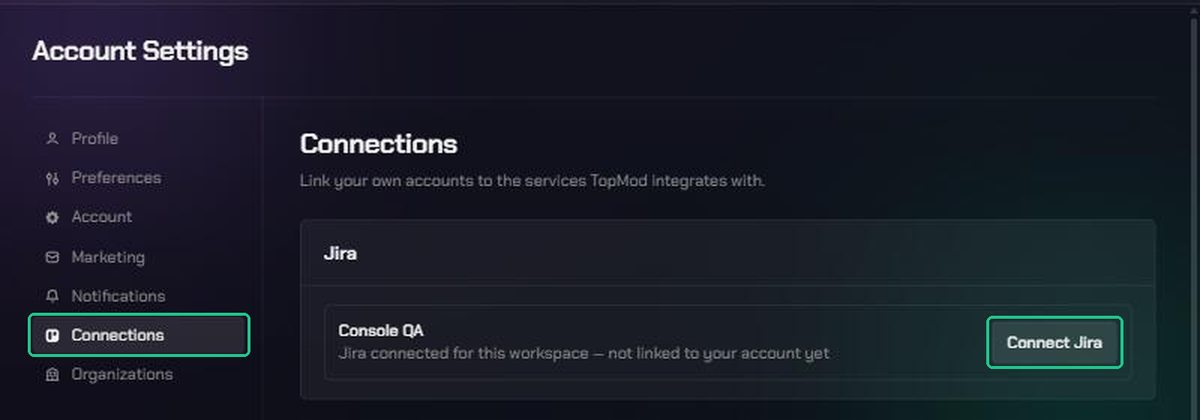
- In the Account Settings menu, click Connections.
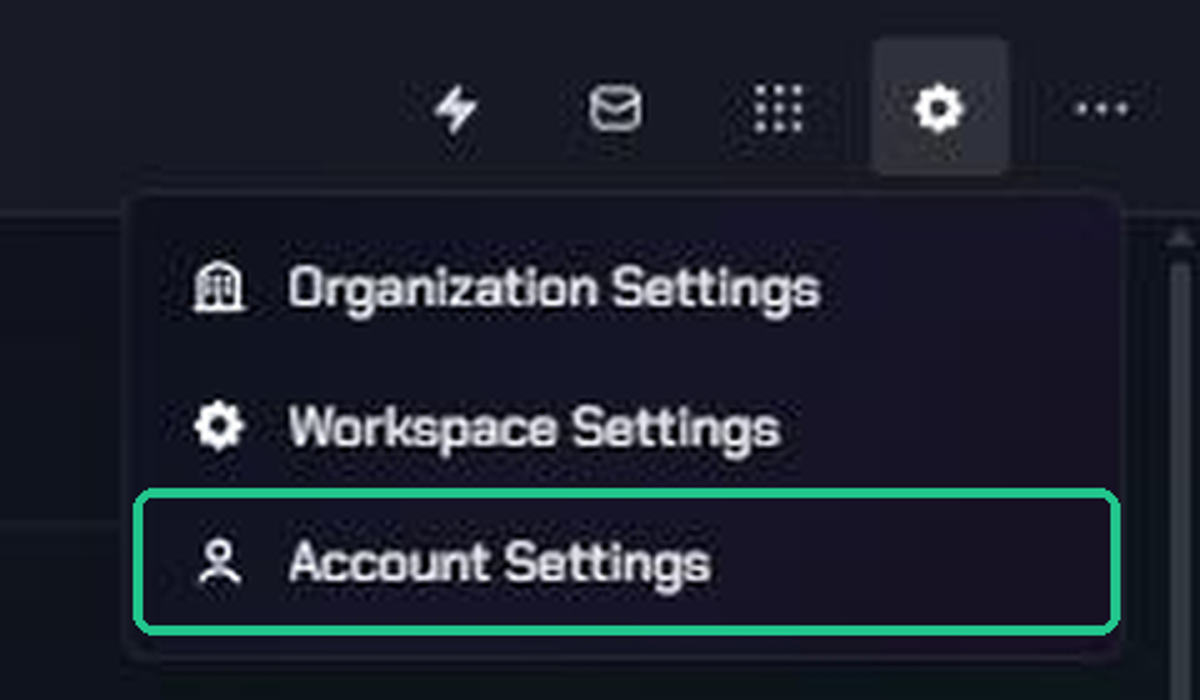
You can also click Apps (the grid icon), then Jira under Project Management.
2. Find your workspace
The Jira card lists every workspace you belong to that has Jira connected. A workspace you haven't linked yet says "Jira connected for this workspace — not linked to your account yet".
3. Connect Jira
- Next to the workspace, click Connect Jira.
- TopMod opens Atlassian's sign-in page in the same window. Sign in with your own Jira Cloud account if asked.
- Review the access TopMod is asking for, then click Accept.
4. Check the connection
Atlassian sends you back to Connections, and you'll see "Connected your Jira account". The workspace now says "Connected as" followed by your Atlassian name.
Repeat for any other workspace in the list.
Disconnect your Jira account
- Go to Account Settings > Connections.
- Next to the workspace, click Disconnect.
You'll see "Disconnected your Jira account" straight away, with no confirmation step. From then on, TopMod uses the workspace's shared connection for your changes. The workspace's own Jira connection isn't affected.
If a workspace admin disconnects Jira from the workspace, it disappears from your list too.
Troubleshooting
- "No workspaces to connect yet": none of your workspaces has Jira connected. Ask a workspace admin to connect it, then come back.
- Your workspace isn't in the list: that workspace doesn't have Jira connected. Ask its admin to connect it.
- "Could not connect your Jira account — try again": the sign-in was cancelled or Atlassian refused it. Click Connect Jira again and click Accept. Make sure your Atlassian account can reach the workspace's Jira site.
- "This connection request is invalid or has expired. Please try connecting again.": the sign-in took too long or the link was reused. Go back to Connections and click Connect Jira again.
- "You don't have access to this workspace, or it doesn't exist": you're no longer a member of that workspace. Ask an admin to add you back.
- "Could not disconnect your Jira account" or "Failed to disconnect": refresh the page and try again. If it keeps happening, contact TopMod support.
- Comments in Jira still show the workspace's account: check the workspace says "Connected as" your name on Connections. New issues created from synced Bugs always use the workspace's connection.