
Before you start
- You need to be an admin. Only workspace admins and organization admins can connect Jira. If you're a member, ask a workspace admin to connect it for you.
- You need a Jira Cloud account that can sign in to the Jira site you want to use. You'll approve access on Atlassian's own sign-in screen.
- One tracker per workspace. A workspace connects to one Jira site at a time. If your Atlassian account can reach several sites, TopMod connects to the first one Atlassian lists, so sign in with an account that only reaches the site you want.
- Connecting is the first step. Choosing which Jira project and issue types a Backlog syncs with is set up separately for each Backlog, under its Jira Sync settings.
1. Open Workspace Settings
- Make sure you're in the workspace you want to connect. Use the workspace switcher to change workspace if needed.
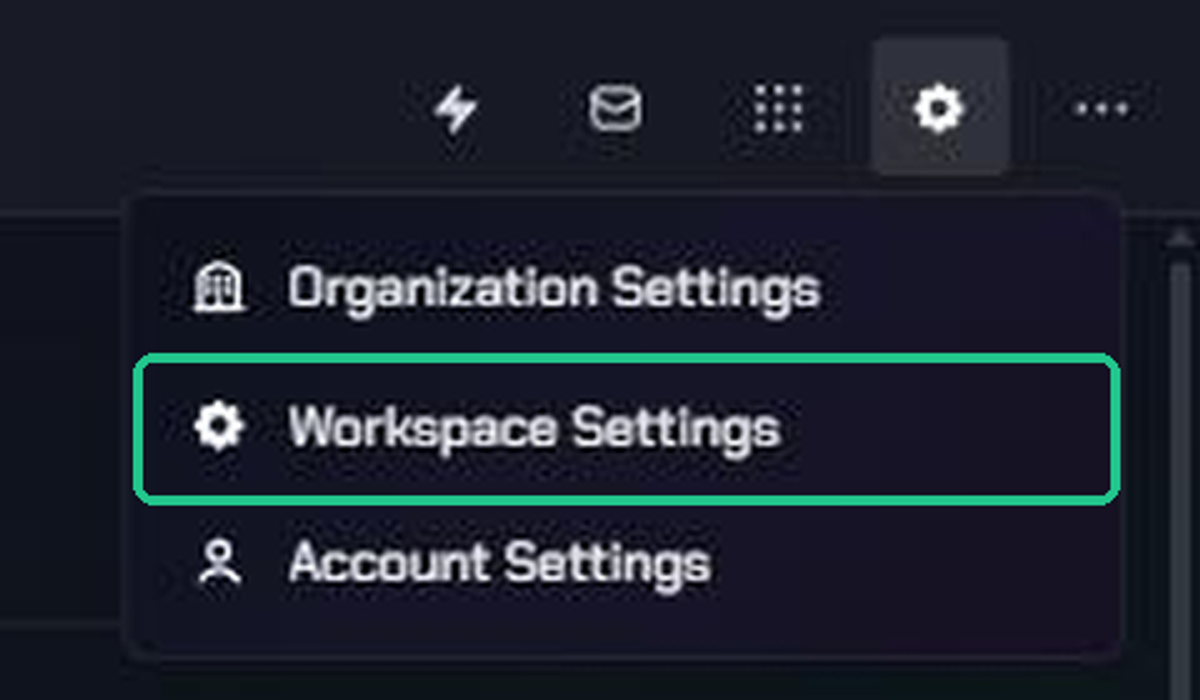
- Click Settings (the gear icon), then choose Workspace Settings.
2. Go to Project Management
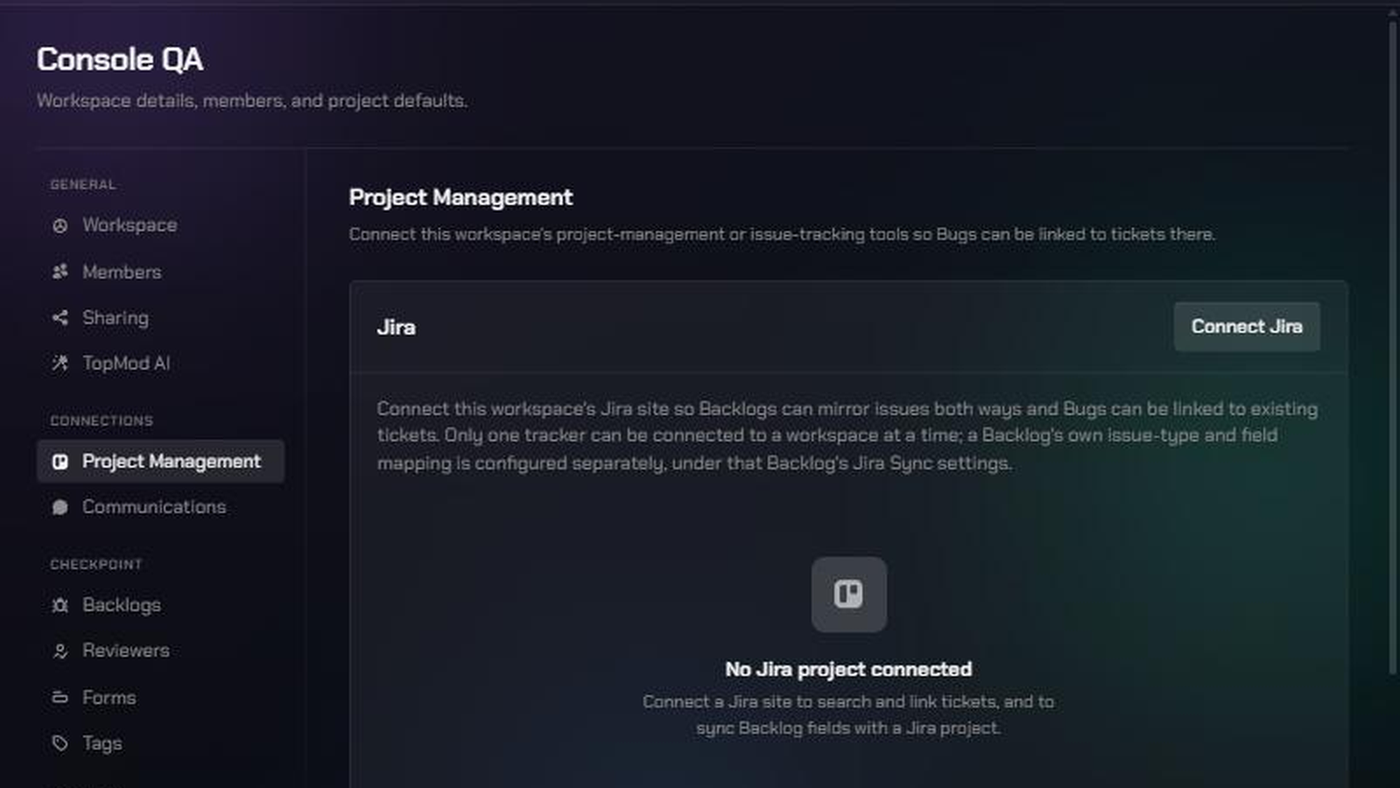
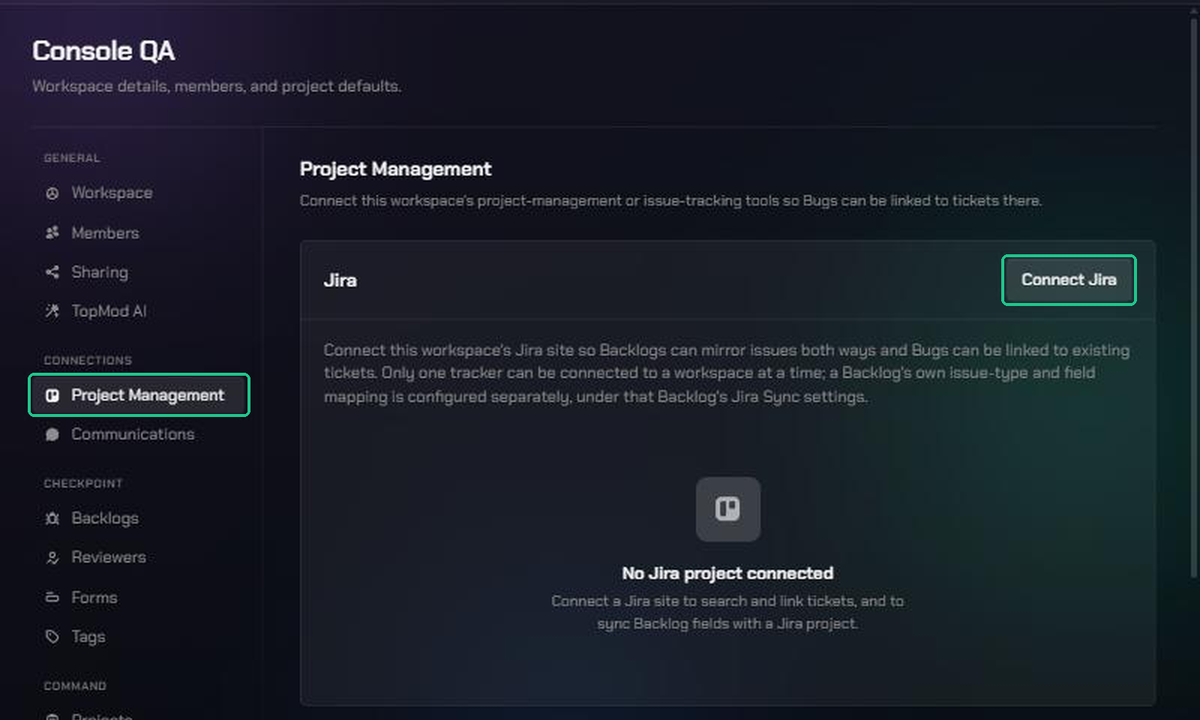
- In the settings menu, under Connections, click Project Management.
- Find the Jira card. It shows "No Jira project connected" until a site is connected.
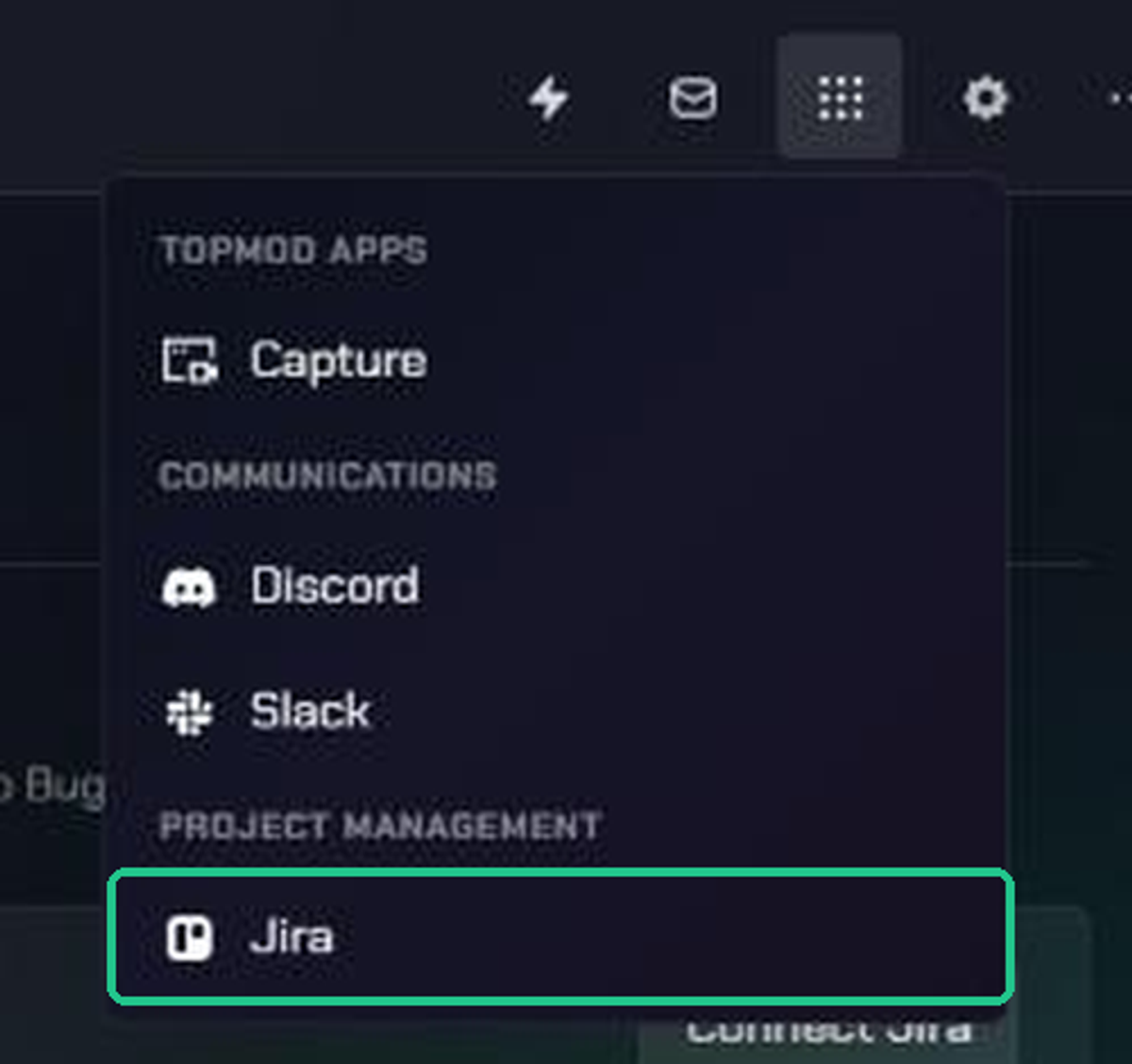
You can also get here from Apps (the grid icon): under Project Management, click Jira.
3. Connect Jira
- Click Connect Jira.
- TopMod opens Atlassian's sign-in page in the same window. Sign in with your Jira Cloud account if asked.
- Review the access TopMod is asking for, then click Accept.
4. Check the connection
Atlassian sends you back to the Project Management page, and you'll see "Connected to Jira".
- Check the Jira card shows your Jira site's name.
- Under the name, you'll see the date it was connected.
5. Set up Jira Sync on a Backlog
Connecting Jira doesn't sync anything on its own. To mirror issues between a Backlog and a Jira project:
- Open the Backlog and click Edit backlog configuration (the gear icon).
- Click Jira Sync and follow the steps to choose a Jira project, issue types and field mappings.
Repeat this for each Backlog you want to sync.
Disconnect Jira
- Go to Workspace Settings > Project Management.
- On the Jira card, click Disconnect.
- In "Disconnect Jira?", click Disconnect to confirm.
You'll see "Disconnected from Jira". Any Backlogs synced to a Jira project stop syncing. Existing links between Bugs and Jira tickets are kept as a read-only reference.
To connect a different Jira site, disconnect first, then follow the steps above again.
What your team sees
Once Jira is connected, members can link their own Atlassian account. This means Bugs they push to Jira are filed under their own name.
- Click Settings (the gear icon), then Account Settings.
- Open Connections and connect Jira on the Jira card.
Members can't open Workspace Settings, so only an admin can connect or disconnect the workspace's Jira site.
Troubleshooting
- You can't find Workspace Settings in the Settings menu: only admins see it. Ask a workspace admin to connect Jira.
- "Only an organization or workspace admin can connect a tracker": you're not an admin of this workspace. Ask an admin to connect Jira.
- "Could not connect to Jira — try again": the connection was cancelled or Atlassian refused it. Click Connect Jira again and click Accept on Atlassian's screen. Check your Atlassian account can reach the Jira site.
- "This connection request is invalid or has expired. Please try connecting again.": the sign-in took too long or the link was reused. Go back to Project Management and click Connect Jira again.
- The wrong Jira site is connected: your Atlassian account can reach more than one site. Click Disconnect, then reconnect with an account that only reaches the site you want.
- "Could not resolve this workspace to redirect back to. Please return to Workspace Settings manually.": open Workspace Settings > Project Management yourself and check whether the Jira card shows your site.
- "Could not disconnect Jira" or "Failed to disconnect": refresh the page and try again. If it keeps happening, contact TopMod support.
- Nothing syncs after connecting: connecting only links the site. Set up Jira Sync on each Backlog you want to sync.