
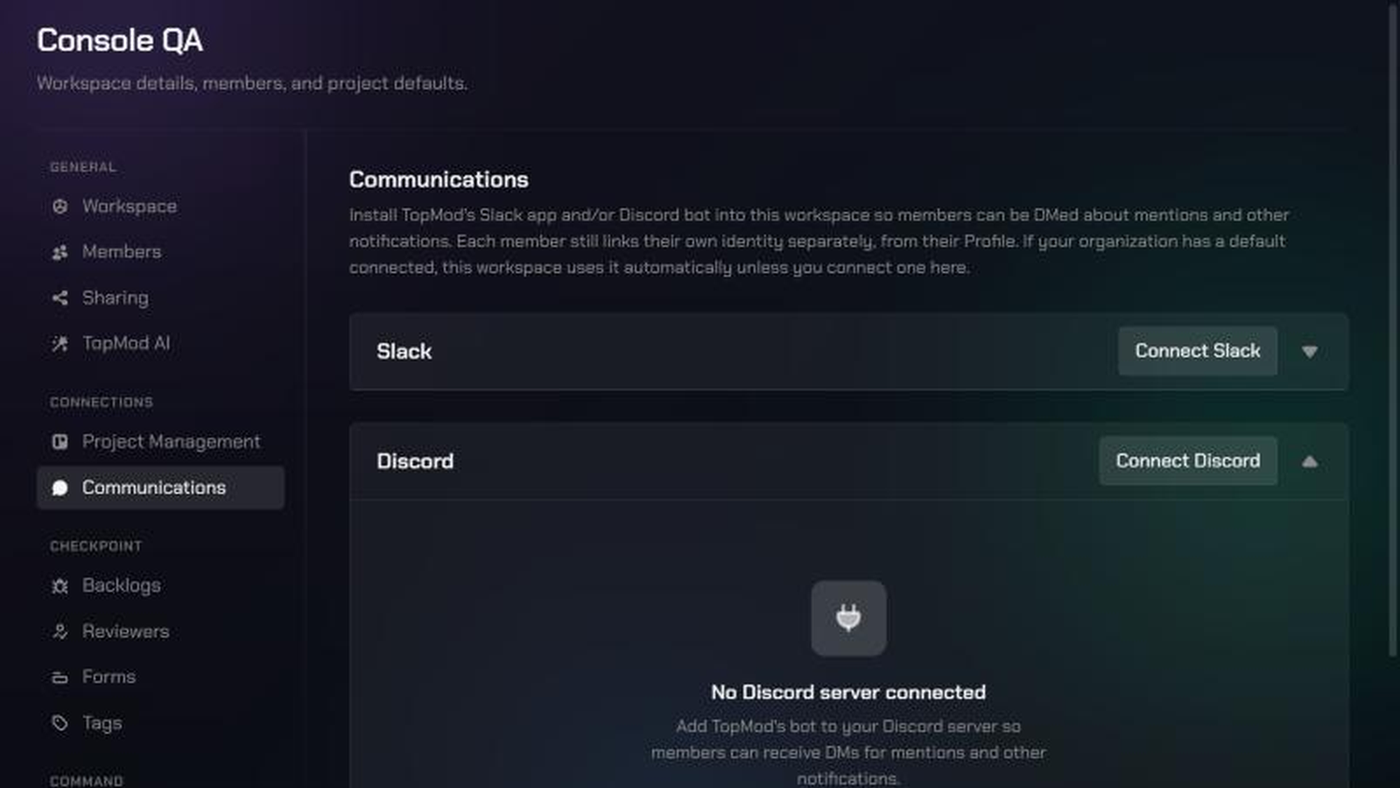
Before you start
- You need to be an admin. Only a workspace admin or an organization admin can connect Discord to a workspace. If you're a member, ask an admin to do it, then link your own account (see "What your team needs to do" below).
- You need permission to add bots in Discord. Discord only lets people with the Manage Server permission add a bot to a server. If that isn't you, ask the server's owner to do this step with you.
- Check whether your organization already has a default. An organization admin can connect one Discord server for every workspace, in Organization Settings > Integrations. If they have, your workspace already uses it. You only need this guide to use a different server for this workspace.
- The bot only sends DMs. TopMod's bot asks for no permissions in your server. It never posts in channels; it only sends direct messages to members who've linked their account.
1. Open the Communications page
- Make sure you're in the workspace you want to connect.
- Click Settings (the gear icon), then choose Workspace Settings.
- Under Connections, click Communications.
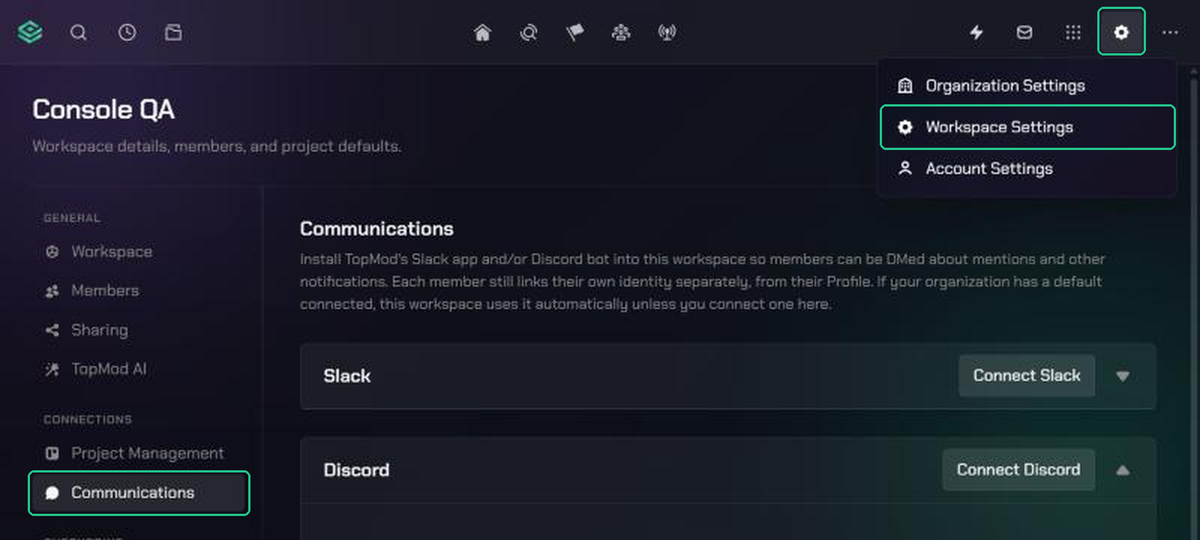
Tip: you can also click Apps (the grid icon) and choose Discord. If the workspace isn't connected yet, this takes admins straight to the Discord card.
2. Start the Discord connection
- Click the Discord card to expand it.
- Click Connect Discord.
- If your organization already has a default Discord server, the button says Use a different Discord instead. The card shows "Using your organization's default Discord connection."
- TopMod opens Discord's authorisation page in the same tab.
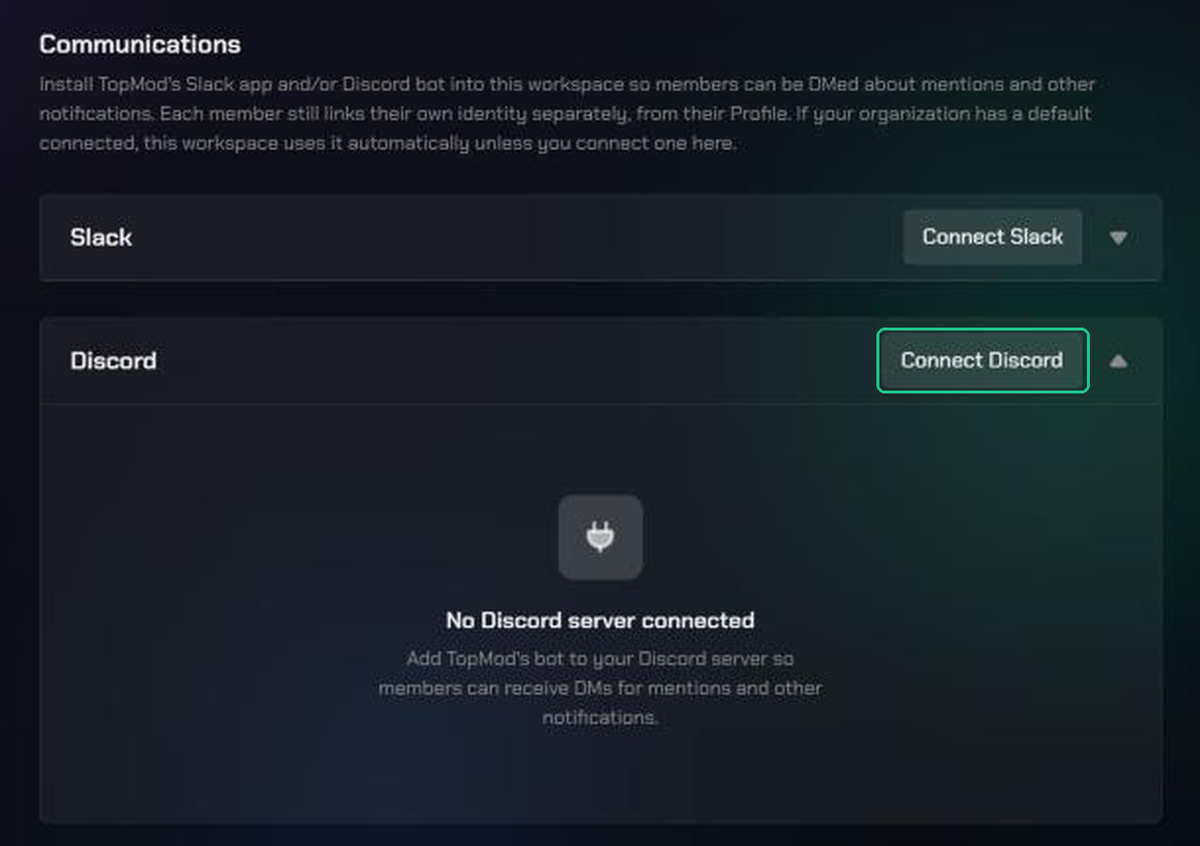
3. Add the bot to your Discord server
- Sign in to Discord if it asks you to.
- Under Add to server, choose the server your team uses.
- Click Continue, then Authorize.
- Complete Discord's captcha if it shows one.
Discord then sends you back to the Communications page. You'll see "Connected to Discord", and the card shows your server's name and the date it was connected.
Complete this step within 10 minutes of clicking Connect Discord. If you leave it too long, start again from step 2.
Change or disconnect Discord
To move the workspace to a different server, disconnect it first, then connect again from step 2.
To disconnect:
- Open Workspace Settings > Communications and expand the Discord card.
- Click Disconnect.
- In the Disconnect Discord? window, click Disconnect to confirm.
When you disconnect, TopMod's bot leaves your Discord server. What happens next depends on your organization:
- If your organization has a default Discord server, the workspace switches back to it. Members keep getting DMs through the default.
- If it doesn't, members stop getting Discord DMs from this workspace until an admin reconnects.
Members' personal Discord links aren't removed either way.
What your team needs to do
Connecting the server is only half the setup. Each member must also link their own Discord account before the bot can DM them.
- Join the Discord server you connected, if they aren't in it already.
- In TopMod, open Settings (the gear icon) > Account Settings > Connections.
- On the Discord card, click Connect Discord and approve the request in Discord. They'll see "Connected your Discord account".
- Open Account Settings > Notifications and tick the Discord column for the notifications they want. This column only appears once their account is linked.
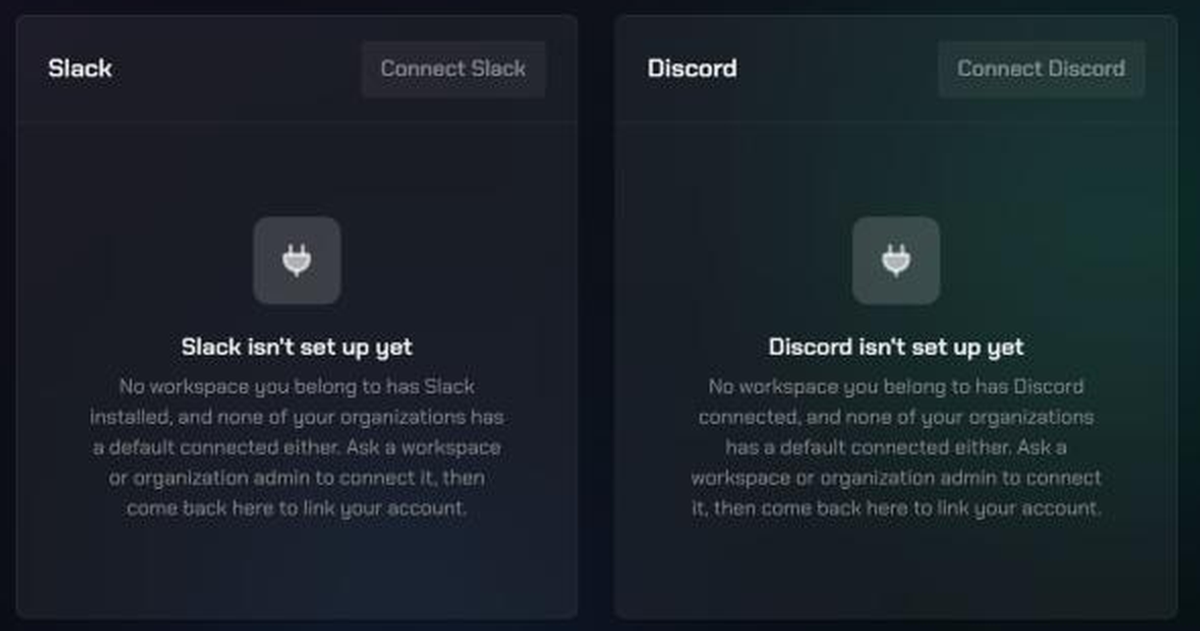
Until an admin connects Discord, a member's Discord card on their Connections page looks like this, and its Connect Discord button is greyed out:
Each Discord DM shows the notification's title and details, a link to Open in TopMod, and a link to manage notification preferences. Several notifications close together arrive as one message, for example "3 new notifications on TopMod".
Troubleshooting
- Connect Discord is greyed out: you aren't an admin of this workspace. Ask a workspace or organization admin to connect Discord.
- "Only an organization or workspace admin can connect discord": your admin role may have changed. Ask an admin to connect it, or to check your role in Members.
- "Could not connect to Discord — try again": you cancelled in Discord, or the connection didn't finish. Click Connect Discord and try again.
- "This connection request is invalid or has expired. Please try connecting again.": more than 10 minutes passed, or the link was used twice. Go back to Communications and click Connect Discord again.
- Your server isn't listed under Add to server in Discord: you don't have Manage Server permission there. Ask the server owner to grant it or to do the connection with you.
- "Could not disconnect. Please try again.": wait a moment and try again. If it keeps failing, contact TopMod support.
- A member's Connect Discord button is greyed out on their Connections page: no workspace they belong to has Discord connected yet. Finish the steps above first.
- A member isn't getting Discord DMs: check they've linked their account, ticked the Discord column in Notifications, and joined your server. In Discord, they also need Allow direct messages from server members turned on for that server.