
Before you start
- You need to be an admin. Only workspace admins and organization admins can connect Slack. If you're a member, you won't see Workspace Settings; ask an admin to connect Slack for you.
- You need permission to install apps in your Slack workspace. If your Slack workspace requires app approval, Slack will ask a Slack admin to approve the TopMod app first.
- Check whether your organization already has a default. If an organization admin has connected Slack in Organization Settings, every workspace uses it automatically. You only need this guide to connect a different Slack workspace for this one TopMod workspace.
- TopMod only sends direct messages. The TopMod Slack app DMs members about mentions and other notifications. It doesn't post in channels or read your messages.
- Each member links their own Slack account. Connecting the workspace installs the app; members then link their personal Slack account from their profile before DMs reach them.
1. Open the Communications page
- Make sure you're in the workspace you want to connect. Use the workspace switcher to change workspace if needed.
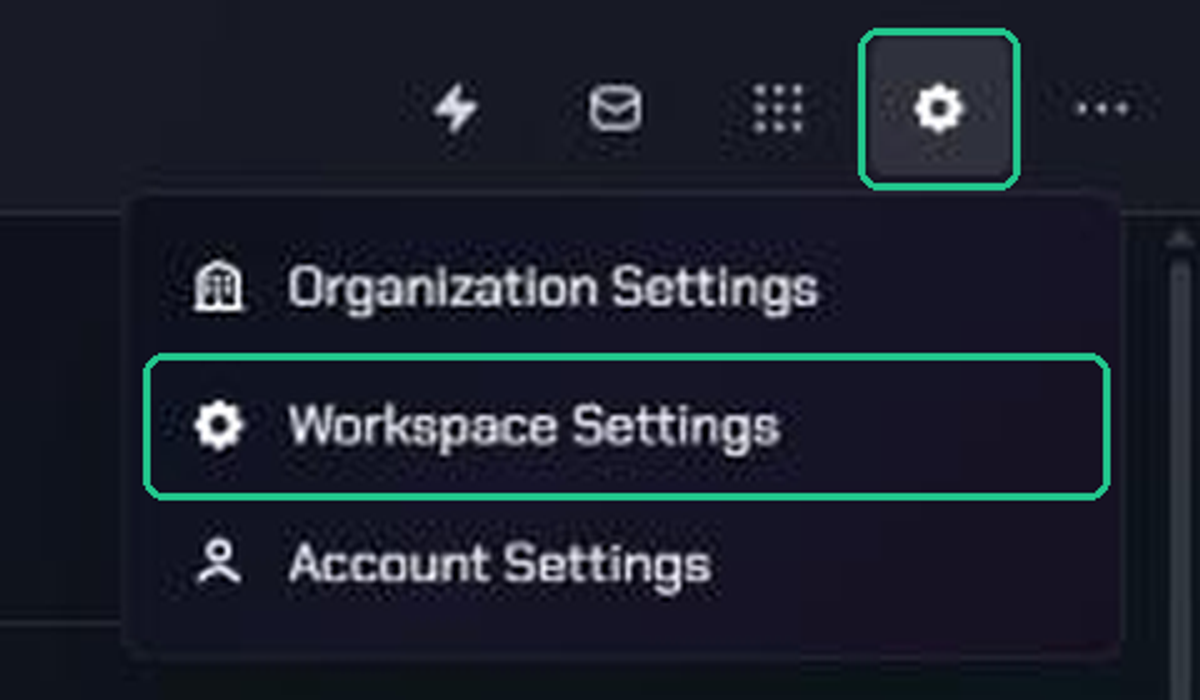
- Click Settings (the gear icon), then choose Workspace Settings.
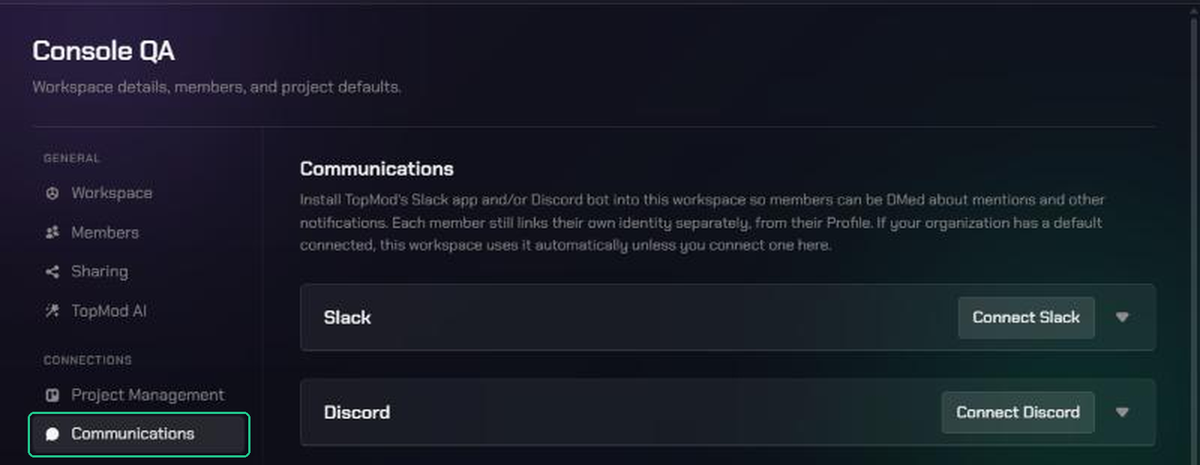
- In the settings menu, under Connections, click Communications.
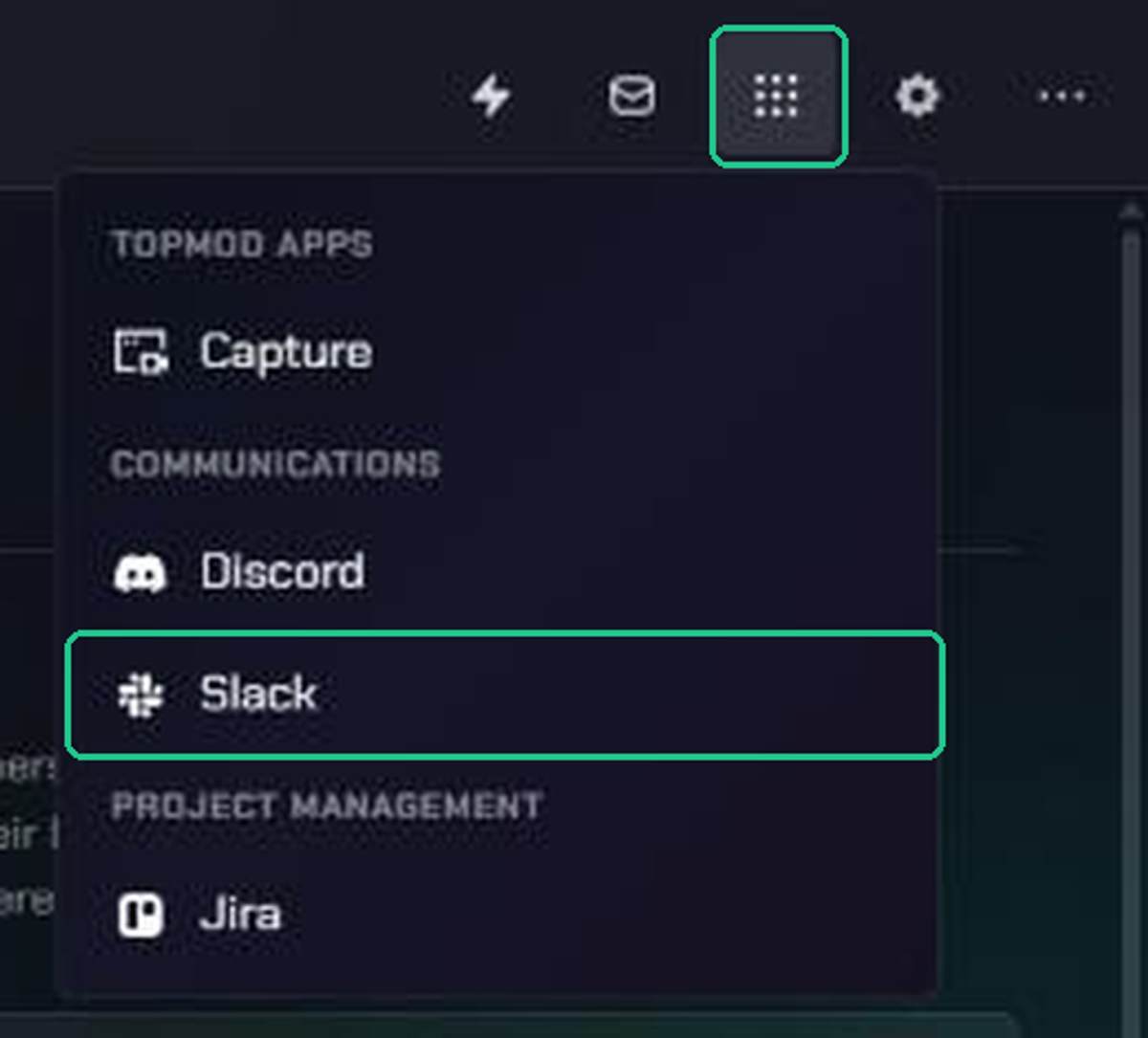
You can also get here from Apps (the grid icon): under Communications, click Slack. If the workspace isn't connected yet, this takes you straight to the Slack card.
2. Start the Slack connection
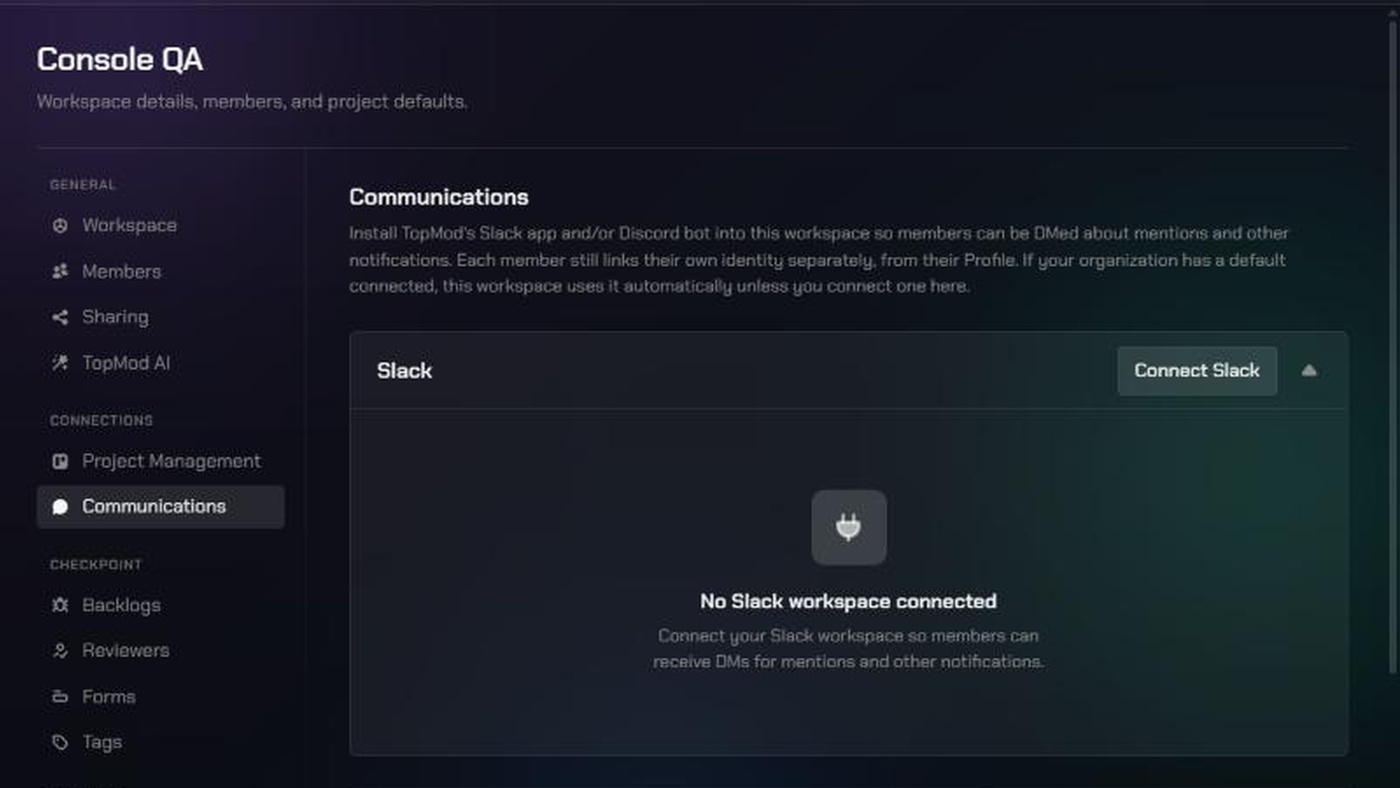
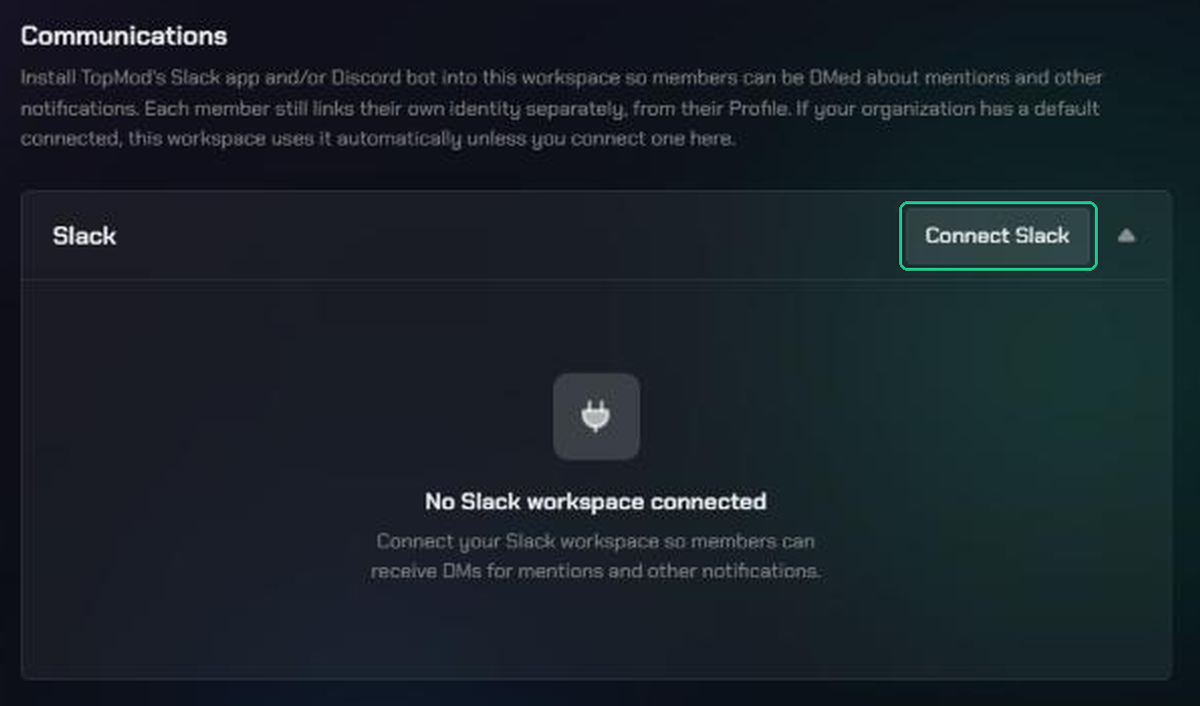
- Click the Slack card to expand it. It shows "No Slack workspace connected" until Slack is connected.
- Click Connect Slack.
If your organization already has a default Slack connection, the card shows "Using your organization's default Slack connection." and the button reads Use a different Slack. Click it only if this workspace needs its own Slack workspace.
TopMod opens Slack in the same window. Finish the next step within 10 minutes, or the request expires.
3. Allow TopMod in Slack
- Sign in to Slack if asked, and check the Slack workspace shown at the top right is the one you want.
- Review the access TopMod is asking for: sending messages and starting direct messages as the TopMod app.
- Click Allow.
4. Check the connection
Slack sends you back to the Communications page, and you'll see "Connected to Slack".
- Check the Slack card shows your Slack workspace's name.
- Under the name, you'll see the date it was connected. The button changes to Disconnect.
What your team needs to do
Installing the app doesn't send anyone DMs yet. Each member, including you, links their own Slack account once:
- Click Settings (the gear icon), then Account Settings.
- Open Connections and click Connect Slack on the Slack card.
- Approve the request in Slack. TopMod shows "Connected your Slack account".
- Open Notifications in Account Settings. A Slack column now appears. Tick the notifications you want as Slack DMs, then save.
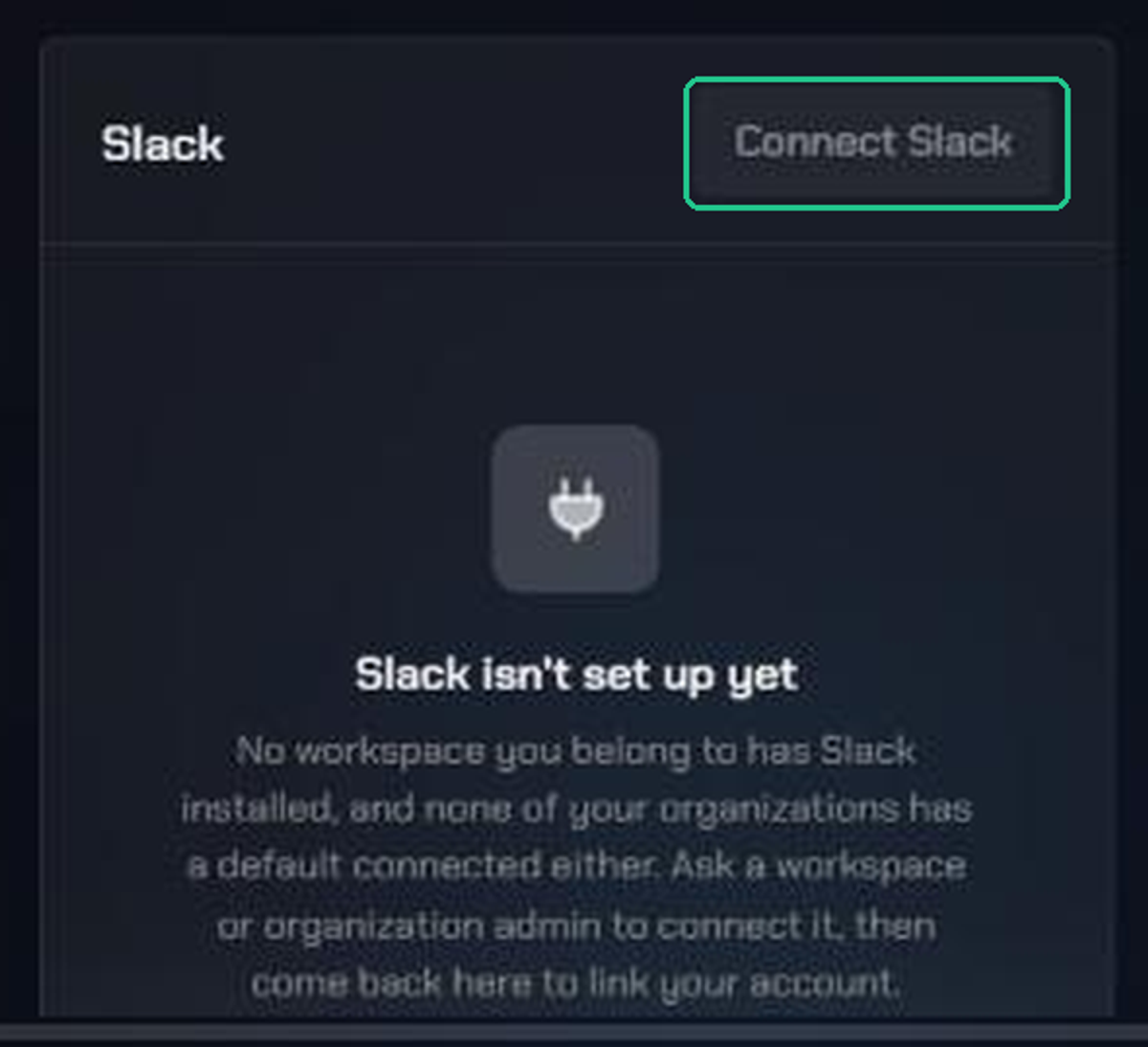
Until a workspace or the organization has Slack connected, members see "Slack isn't set up yet" and the Connect Slack button is unavailable.
Disconnect Slack
- Go to Workspace Settings > Communications and expand the Slack card.
- Click Disconnect.
- In "Disconnect Slack?", click Disconnect to confirm.
You'll see "Disconnected from Slack". What happens next depends on your organization:
- If your organization has a default Slack connection, the workspace falls back to it and members keep getting DMs.
- If it doesn't, members stop getting Slack DMs until someone reconnects.
Either way, members keep their personal Slack link, so they don't need to connect again after a reconnect.
Troubleshooting
- You can't find Workspace Settings in the Settings menu: only admins see it. Ask a workspace admin to connect Slack, or to make you a workspace admin.
- "Only an organization or workspace admin can connect slack": your admin role changed while the page was open. Refresh the page, or ask an admin.
- "Could not connect to Slack — try again": you clicked Cancel in Slack, or Slack couldn't finish the install. Click Connect Slack again. If your Slack workspace needs app approval, ask a Slack admin to approve TopMod first.
- "This connection request is invalid or has expired. Please try connecting again.": more than 10 minutes passed, or you reused an old Slack tab. Go back to Communications and click Connect Slack again.
- "Could not start the connection": wait a minute and try again. If it keeps happening, contact TopMod support.
- Members can't see a Slack column in Notifications: they haven't linked their own Slack account yet. Point them to "What your team needs to do" above.
- Members linked their account but get no DMs: check they're in the Slack workspace you connected, and that they've ticked notifications in the Slack column.