
Before you start
Every workspace member can open and read a bug. Who can change it:
- The bug's reporter can edit its content, change its project to one they're staffed on, and move it through review.
- Workspace admins can edit everything, including Assigned Developer, Reviewer, Testing Status and Development Status, and can delete the bug.
- The assigned reviewer decides on the bug while it's Awaiting Review. See Review Queue.
- People with the Observer Team Role can read bugs but not change them.
Each bug has two statuses:
- Testing Status tracks QA and review: Draft, Awaiting Review, Changes Requested, Rejected and Submitted. Submitted means the bug has been accepted.
- Development Status tracks the fix: by default Pending, Open, In Progress, Needs More Information, Resolved and Closed.
Your backlog's admins can rename the Development Status values and change which moves are allowed.
1. Open the bug
- Open a backlog from the Checkpoint menu.
- Click the bug's row in the Bug Table, or its card on a board.
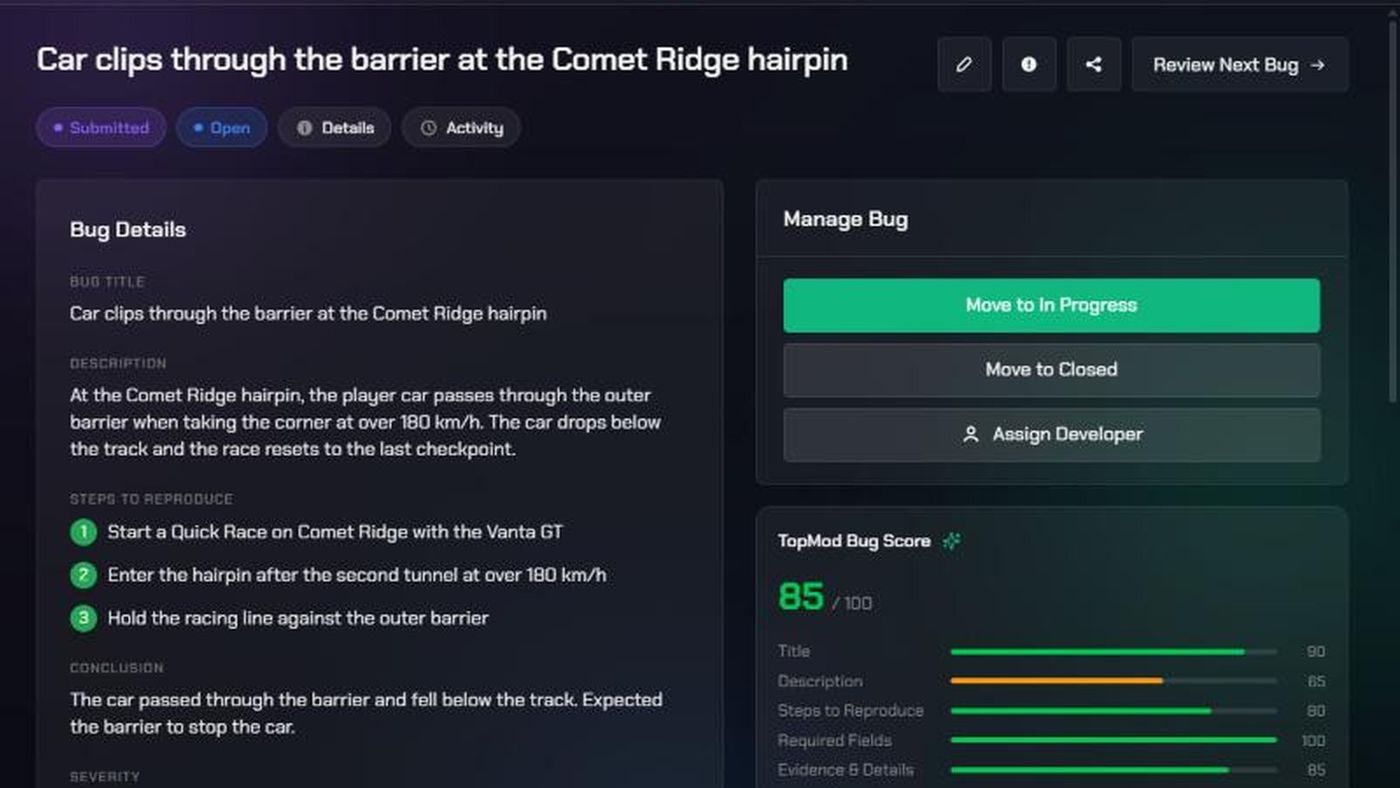
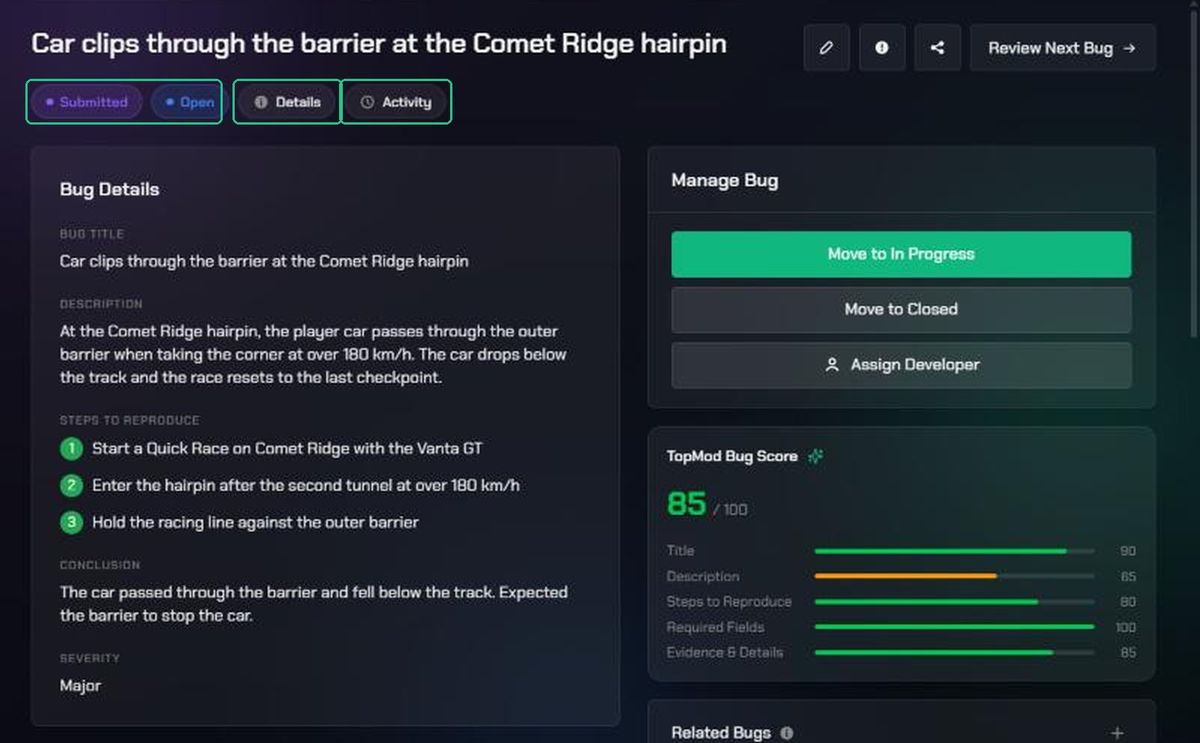
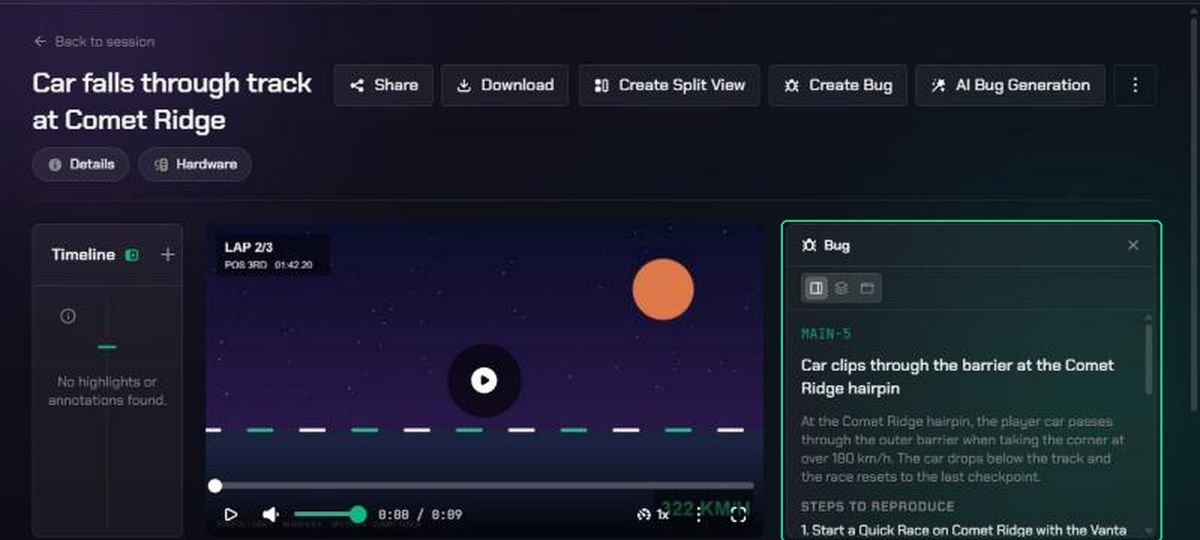
At the top you'll see the bug's title and its Testing Status and Development Status pills. If it's linked to Jira, a chip shows the Jira key and when it last synced.
- Hover over Details to see the project, reporter, assigned developer, reviewer and created date.
- Hover over Activity to see the five latest changes. Click See all activity for the full history.
The main column shows the bug's fields. Empty fields say Not set. The Discussion is underneath.
2. Change the status
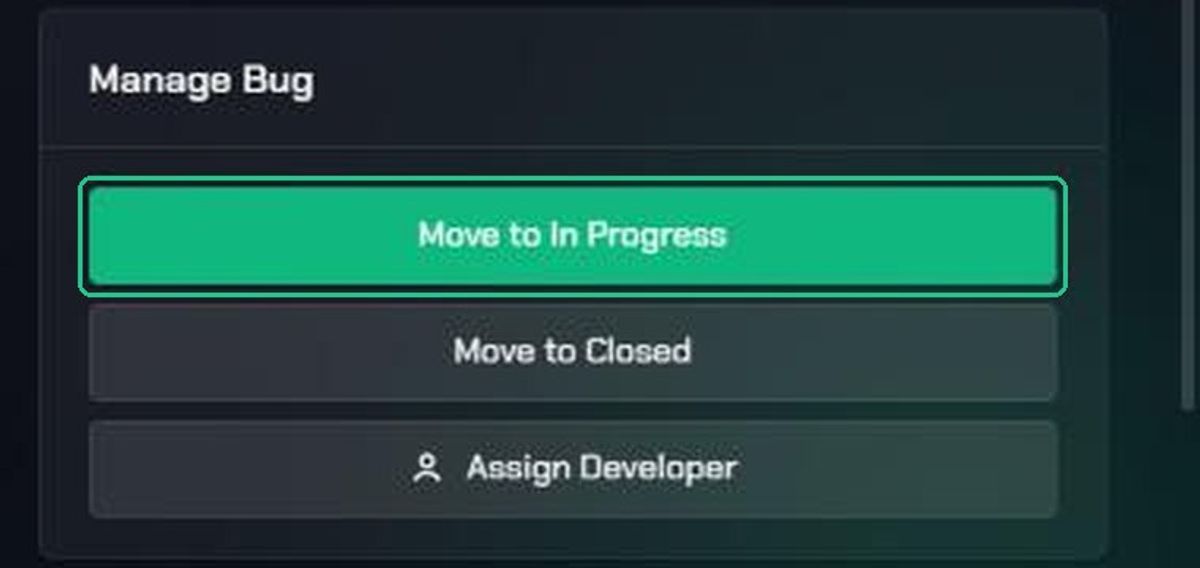
The Manage Bug card on the right has buttons for the moves the backlog allows.
- While the bug is in testing, you'll see buttons such as Move to Draft, Submit for Review and Submit.
- Once the bug is Submitted, workspace admins see Move to… buttons for the next Development Status, such as Move to In Progress or Move to Resolved.
Click a button. You'll see "Testing Status updated to “{value}”" or "Development Status updated to “{value}”".
When a bug becomes Submitted, its Development Status moves to Open automatically.
3. Edit the bug
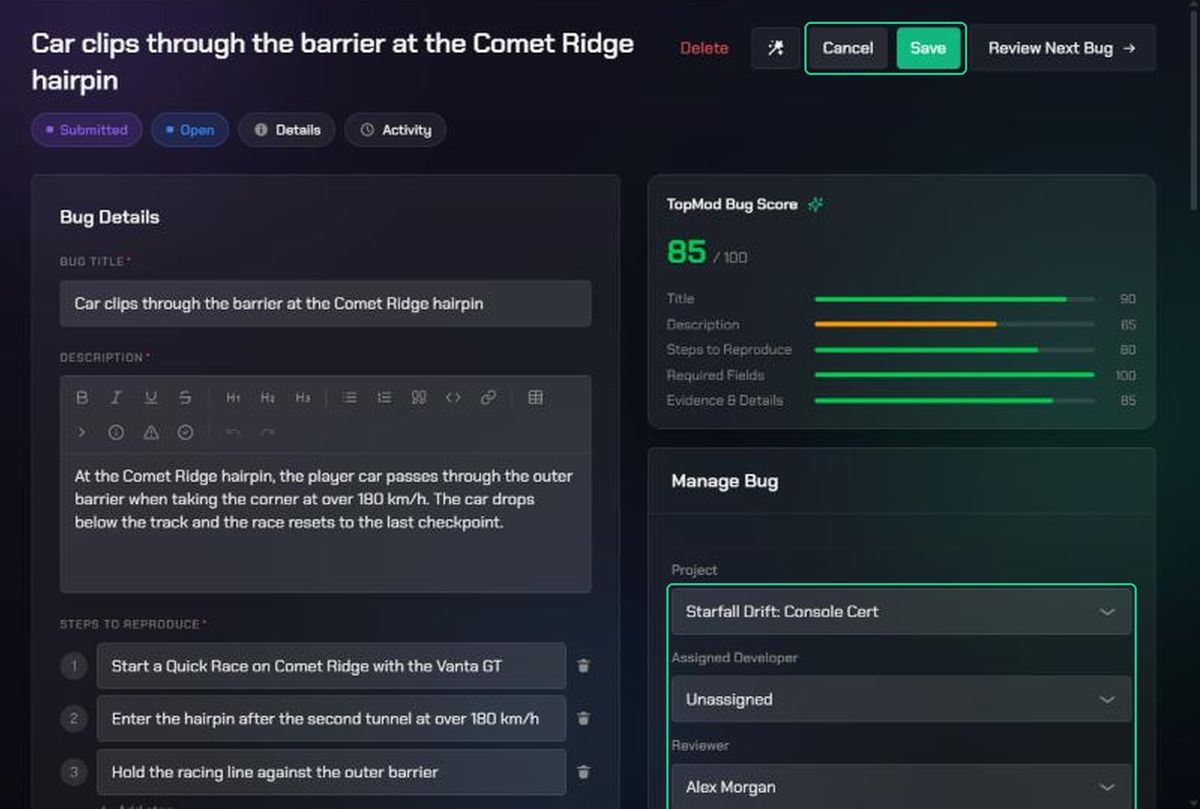
- Click Edit (the pen icon) at the top.
- Change any field in the form. To add or remove attachments, use the attachment fields.
- Admins can also change Project, Assigned Developer, Reviewer, Testing Status and Development Status in the Manage Bug card.
- Click Save. You'll see "Bug updated".
If your changes make the bug look very like another one, you'll see Very similar bug found. Click Review Bug to compare them, or Save Anyway.
To undo your edits, click Cancel, then Discard.
4. Look at the evidence
- Clips and screenshots show a preview. Click Open to view them in a new tab. A bug panel shows the steps to reproduce, severity and statuses beside the media. Choose Dock beside media, Overlay on media or Floating window.
- Images have a View button. Other files download.
- Hardware reports show as a Hardware pill with the GPU, CPU, memory and operating system.
Delete a bug
Only workspace admins can delete a bug.
- Click Edit (the pen icon).
- Click Delete.
- If the bug is linked to Jira, choose whether to tick Also delete Jira ticket {KEY}. Leave it unticked to keep the Jira ticket.
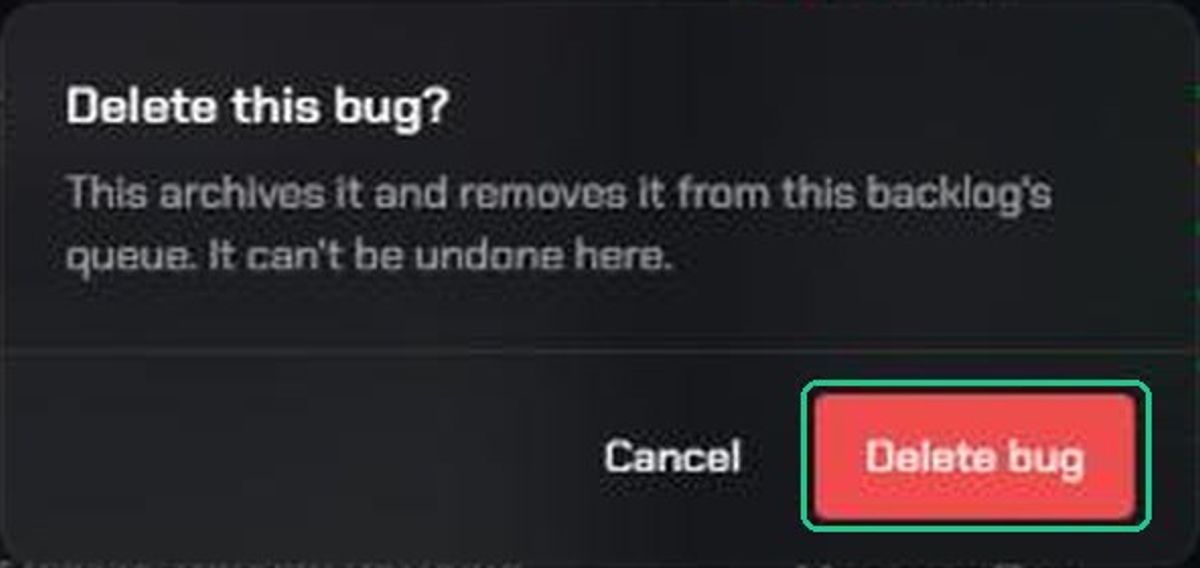
- Click Delete bug. You'll see "Bug deleted".
The bug is archived and removed from the backlog. You can't restore it from this page.
Troubleshooting
- You don't see Edit. Only the reporter, workspace admins and the assigned developer get the Edit button. Observers never do.
- "Only this bug's reporter or a workspace admin can edit it." You don't have permission for that change. Ask the reporter or a workspace admin.
- "Only this bug's assigned reviewer can move it out of Awaiting Review." The bug is waiting for its reviewer. Only they, or an admin, can decide on it.
- "This Backlog has reviewers — send the bug back to Awaiting Review instead." Use Submit for Review, not Submit.
- A status button you expect isn't there. The backlog's status flow doesn't allow that move. For example, nothing moves out of Rejected except an admin's edit. Ask a workspace admin.
- "Could not save your changes." Check your connection and click Save again.
- "This bug could not be found." The bug was deleted, or the link is wrong.