
Before you start
- Only workspace and organization admins can set up Jira Sync.
- Jira must be connected to the workspace first. See Connect Jira to your workspace.
- One backlog mirrors one Jira project and one issue type, such as Bug.
- What syncs which way:
- Mapped fields sync both ways.
- Unmapped fields stay in TopMod only.
- Jira statuses update the bug's Development Status, through the status mapping you set. Development Status changes in TopMod don't change the Jira status.
- Reporter and assignee are matched to workspace members by email address.
- New bugs are pushed to Jira as new issues when they become Submitted.
- Changing a saved sync re-imports its bugs. When you save changes to the sync, TopMod removes the bugs it imported before and imports them again from Jira. TopMod-only details on those bugs, such as unmapped fields and discussion, are lost. Plan your mapping before you start.
1. Open Jira Sync
- Open the backlog's configuration: click Edit backlog configuration (the gear icon) on the backlog.
- Click Jira Sync.
The setup has five steps: Project & Issue Type, Map Fields, Import Filters, Map Statuses and Review. Use Next and Previous to move between them.
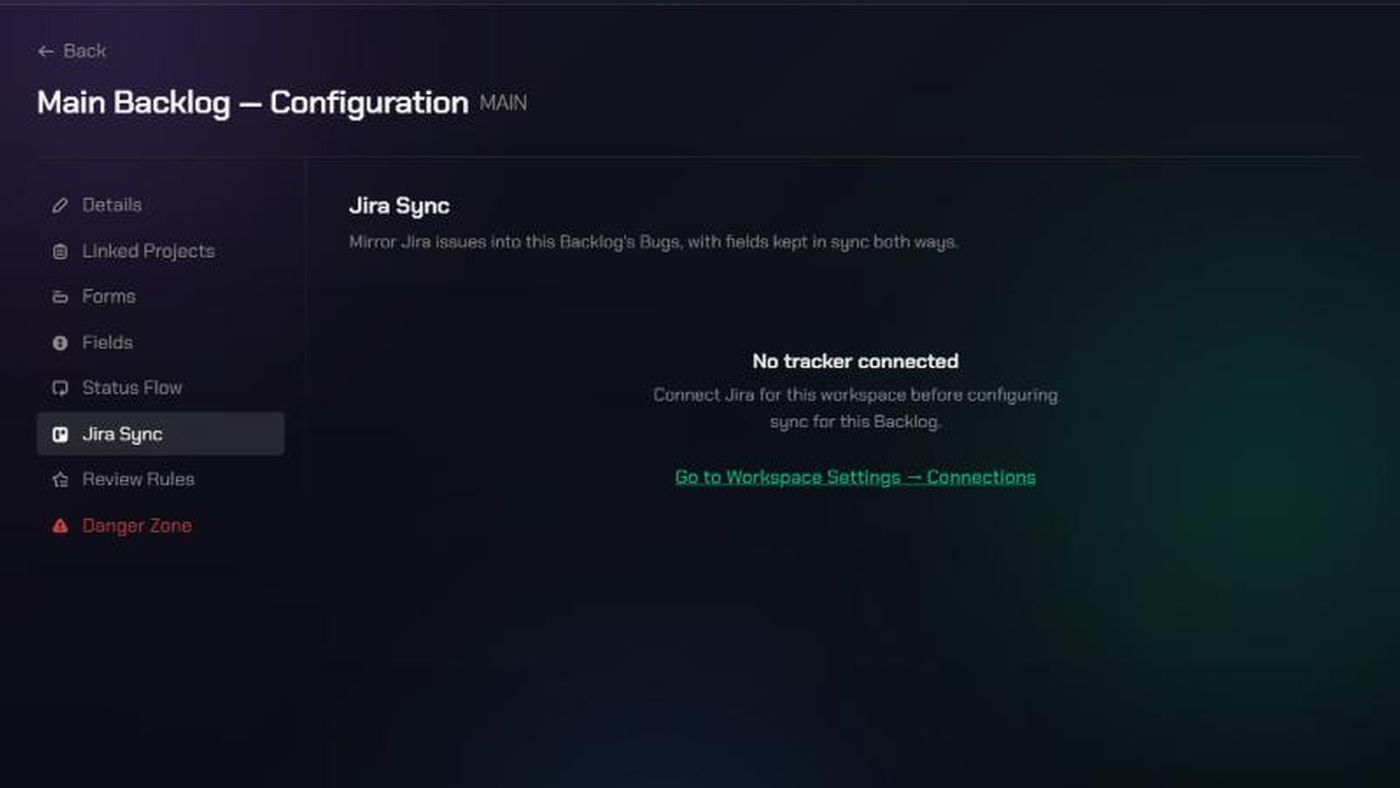
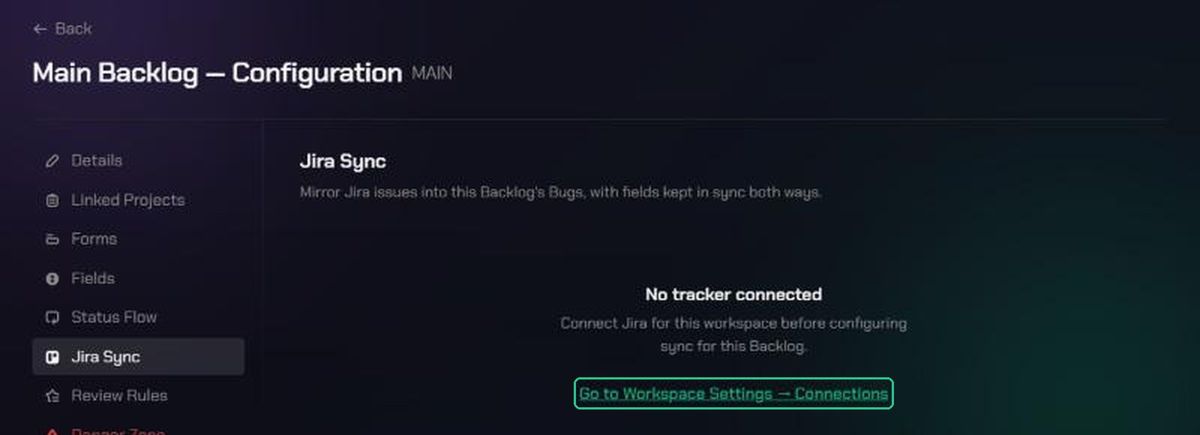
If Jira isn't connected to the workspace yet, the page says No tracker connected instead.
2. Choose the project and issue type
- Under Jira project, select the project this backlog should mirror.
- Under Issue type, select the one issue type to sync, for example Bug.
- Click Next.
3. Map fields
Each row links a TopMod field to a Jira field.
- Click Auto-populate from Backlog forms to add rows for every field your forms use. TopMod suggests matching Jira fields by name, such as Title to Summary and Tags to Labels.
- Check each row. Change the Jira field if the suggestion is wrong. A warning shows if the two field types don't match.
- Tick Append to add the value as a line in the Jira field instead of replacing it. For example, several TopMod fields can append into Jira's Description.
- Click Add field mapping for any other field. Pick Create new field… to add a TopMod field copied from a Jira field.
- Map every field Jira marks as Required. Next stays greyed out until you do.
- Click Next.
Attachments must always be mapped.
4. Set import filters (optional)
By default, every issue of that type in the Jira project is imported. To import only some:
- Click Add rule and choose a Jira field, an operator (such as is or contains) and a value.
- Choose Match all (AND) or Match any (OR). Click Add group for more complex filters.
- Click Test filter to see roughly how many issues match.
- Tick Also set these values on new TopMod bugs in this Backlog to fill those fields in automatically on new bugs. Testers won't be able to change them.
- Click Next.
A filter can have up to 25 rules.
5. Map statuses (optional)
Match each TopMod Development Status to a Jira status, so a status change in Jira updates the bug in TopMod. Leave a row on Ignore (don't update) to skip it. Click Next.
6. Review and start the sync
- Check the summary of the connection, filter, field mappings and status mappings.
- Click Start Sync.
The Syncing with Jira… window shows progress. You can close it; the sync keeps running. When it's done you'll see "Sync complete — {n} bugs synced from Jira." Click Done.
After setup
The Jira Sync page now shows the Jira project, issue type, number of field mappings and filter. It also shows when the sync last ran and whether Live updates active is on. Live updates keep the backlog in step with changes made in Jira.
- Start Sync runs the import again.
- Edit configuration reopens the setup steps. Saving changes re-imports the synced bugs (see Before you start).
- Review Bugs outside the filter checks for imported bugs that no longer match your import filter. Choose Leave them in, or Remove {n} Bugs from Backlog to archive them. The Jira issues aren't touched.
If some bugs failed to push to Jira, the page says how many. Look for the Jira push failed pill on those bugs.
Disconnect the sync
- Click Disconnect.
- Choose what happens to imported bugs:
- Remove the sync only keeps the bugs. Their Jira links stay as a read-only reference.
- Remove the sync and permanently delete imported Bugs deletes every bug the sync created, in TopMod only. This can't be undone. Bugs you linked to Jira by hand are kept.
- Click Disconnect. You'll see "Jira sync disconnected for this Backlog".
Troubleshooting
- "No tracker connected". Jira isn't connected to this workspace. Click Go to Workspace Settings → Connections and connect it.
- Next is greyed out on Map fields. A field Jira requires isn't mapped yet. The warning lists which ones.
- "Live updates not registered". TopMod couldn't register with Jira for live updates, so changes in Jira won't arrive. Click Start Sync to try again.
- "This Backlog already has a tracker sync configured. Refresh the page and try again." Someone else set up the sync. Refresh the page.
- "A filter can have at most 25 rules." Combine or remove rules.
- Bugs are missing after a sync. They may not match your import filter. Click Test filter to check, or widen the filter.
- "Could not start the sync — please try again." Try again. If it keeps happening, contact TopMod support.
- "Only an organization or workspace admin can disconnect a Backlog's tracker sync". Ask a workspace admin.