
Before you start
- Any workspace member except Observers can mark and unmark these.
- Duplicate: this bug is the same problem as another bug that's still open. Work continues on the other bug.
- Regression: this bug is a problem that was fixed before and has come back. The other bug is resolved or closed.
- Known issue: the team accepts this behaviour for now, and there's a workaround to share.
- The bug's reporter gets a notification when their bug is marked as a duplicate or a known issue.
1. Check Related Bugs
Open a bug and look at the Related Bugs card on the right.
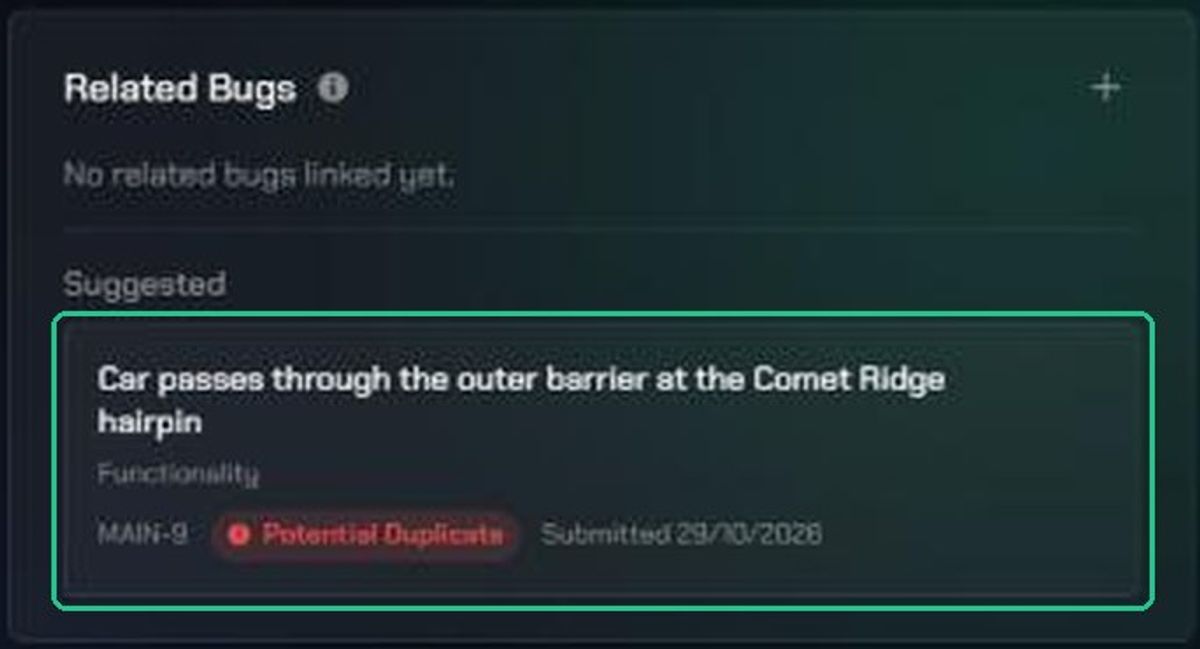
- Suggested lists up to five bugs that are at least 90% similar. Each is tagged Potential Duplicate (the other bug is still open) or Potential Regression (the other bug is resolved).
- Confirmed lists the links already made, such as Duplicate, Regression and Is Duplicated By.
Click a suggested bug to compare it.
2. Compare two bugs
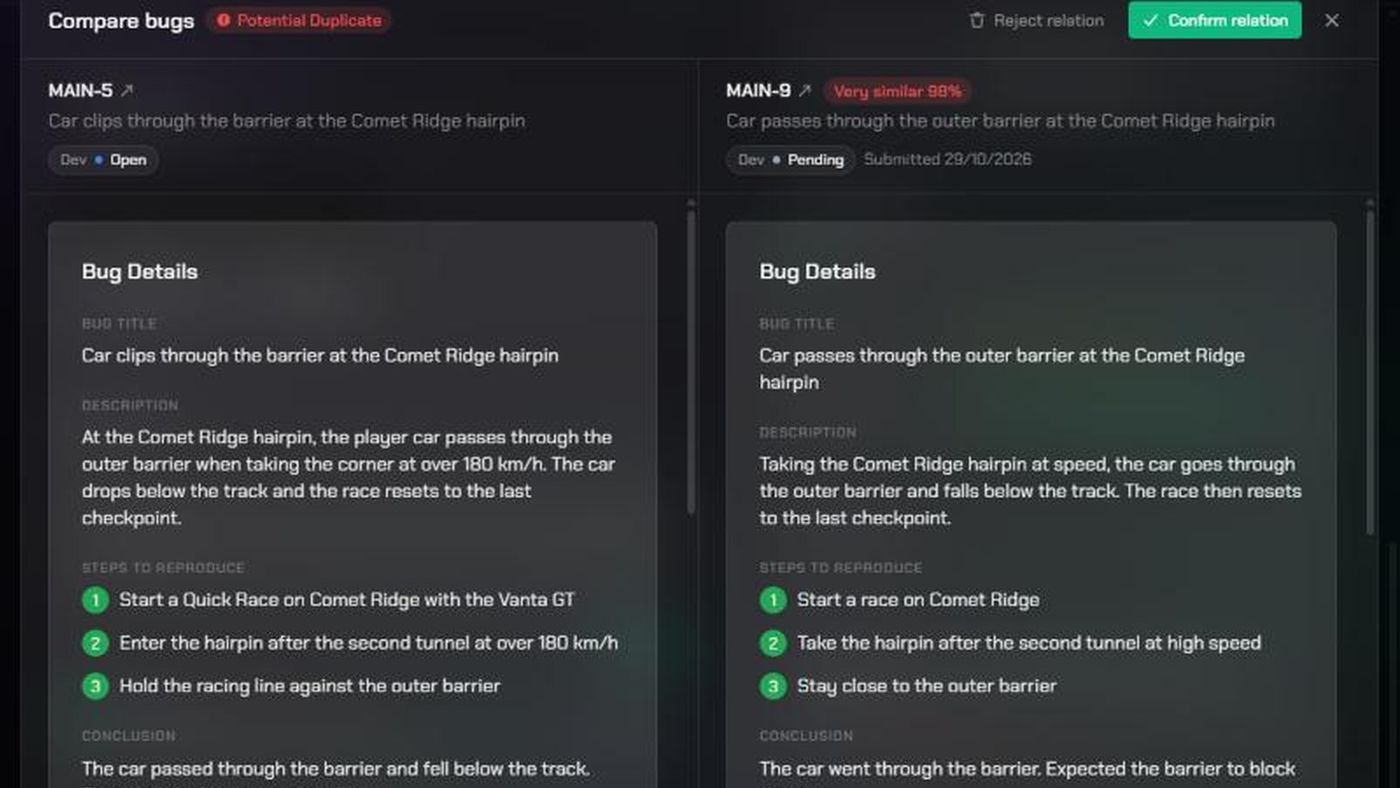
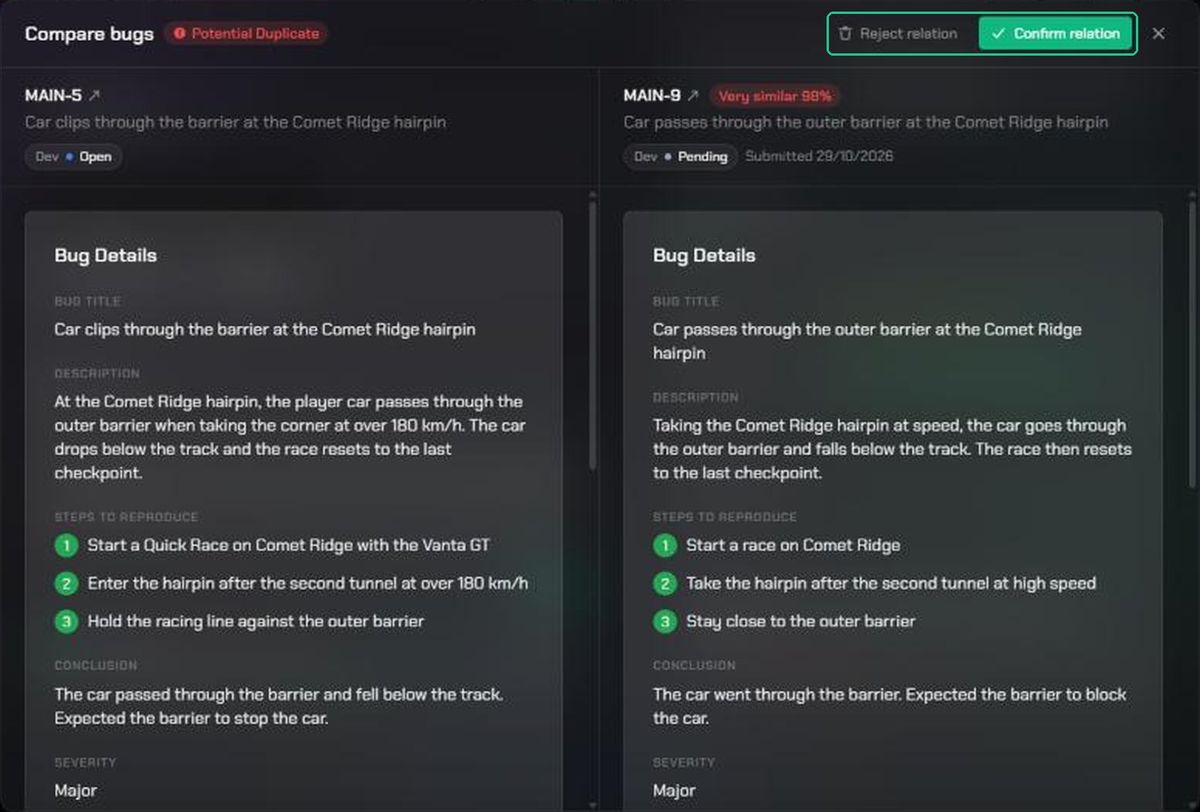
The Compare bugs window shows this bug on the left and the other on the right. The two sides scroll together, and the header shows how similar they are.
- Click Confirm relation to mark the link. You'll see "Marked as a duplicate of {KEY}" or "Marked as a regression of {KEY}".
- Click Reject relation to hide the suggestion.
3. Mark a duplicate yourself
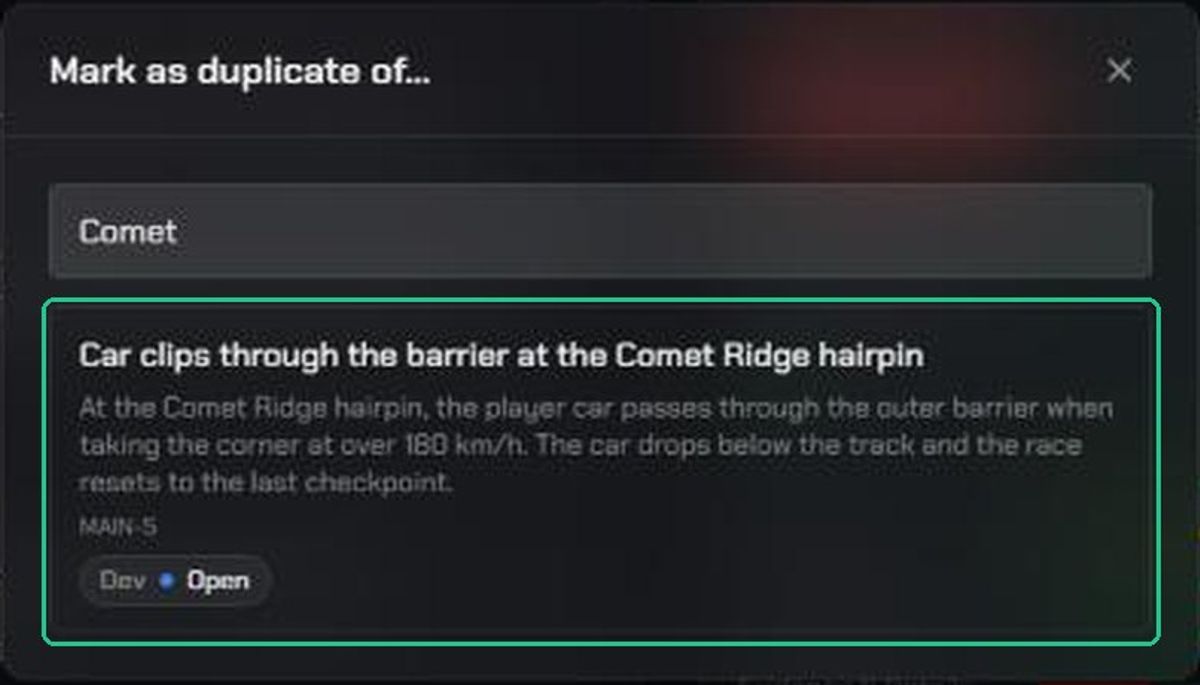
- Click Mark (the warning icon) at the top of the bug, then Mark Duplicate. You can also click + on the Related Bugs card.
- In Mark as duplicate of…, search this backlog's bugs by key or title, and click the original bug.
- Check the comparison, then click Mark as duplicate.
If the bug you picked is already resolved or closed, the button says Mark as regression instead. Clicking it marks a regression, not a duplicate.
A red Duplicate badge appears at the top of the bug. Hover over it to see which bug it duplicates.

4. Mark a known issue
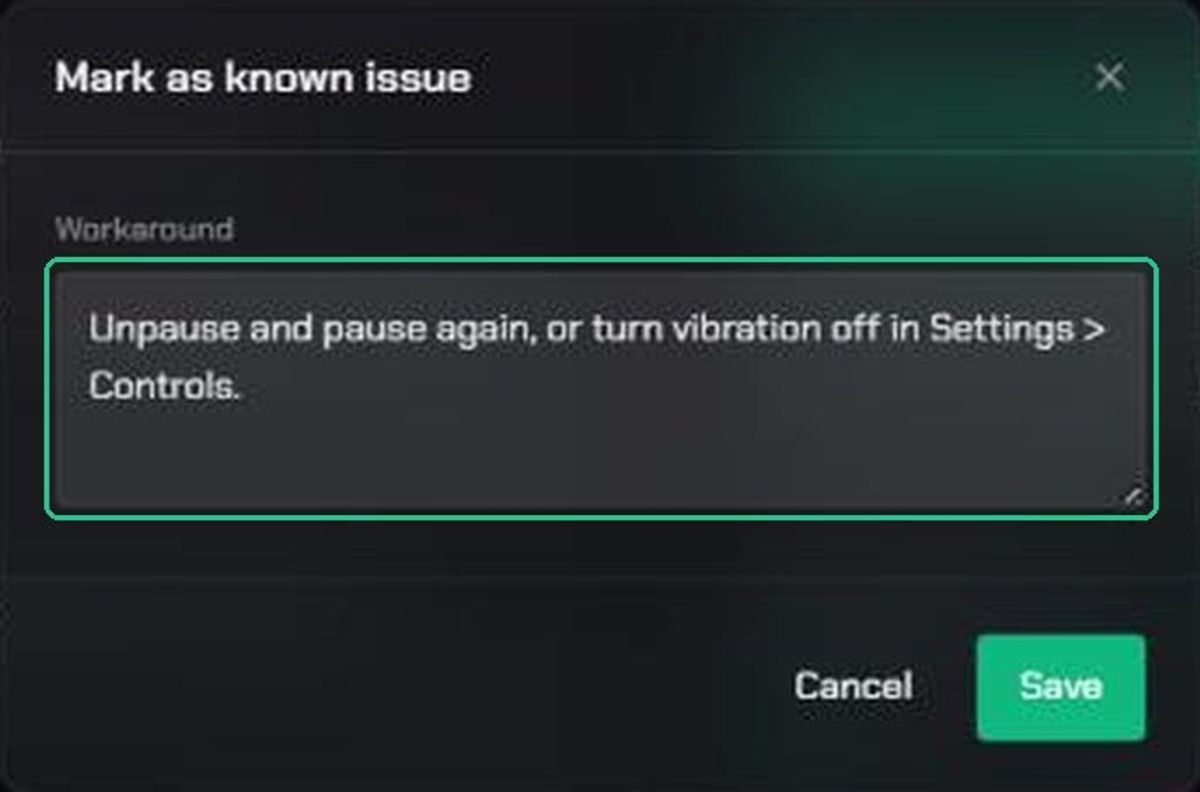
- Click Mark, then Mark Known Issue.
- Describe how to work around the issue in Workaround.
- Click Save.
A green Known Issue badge appears. Hover over it to read the workaround, or click Edit workaround (the pen icon) to change it.
5. Unmark a bug
Hover over the badge and click the ×:
- Unmark as duplicate removes that duplicate link.
- Unmark as known issue removes the known issue and its workaround.
- Unmark as regression is on the Regression badge in the Manage Bug card.
You can also hover over a row under Confirmed in Related Bugs and click the bin icon.
Troubleshooting
- You don't see Mark. People with the Observer Team Role can't mark bugs.
- "No matching bugs in this backlog." The picker only searches the current backlog. A duplicate in another backlog can't be linked.
- No Suggested section on Related Bugs. TopMod found no bugs that are at least 90% similar.
- "Enter a workaround — that's what marks this as a known issue." Type a workaround before you click Save.
- Mark Known Issue is greyed out. The bug is already a known issue. Edit the workaround from the badge instead.
- "Could not confirm this relationship." Try again. The other bug may have been deleted.