
Before you start
- This only works while you're recording a session that has capture fields. See Capture Fields.
- A change applies from the moment you make it. Everything recorded before keeps the old value, so clips and screenshots from earlier keep theirs.
- Capture confirms each change with a "Capture fields" notification, such as "Area: Forest". If the overlay is showing, the message appears there instead.
1. Change a field from the Fields button
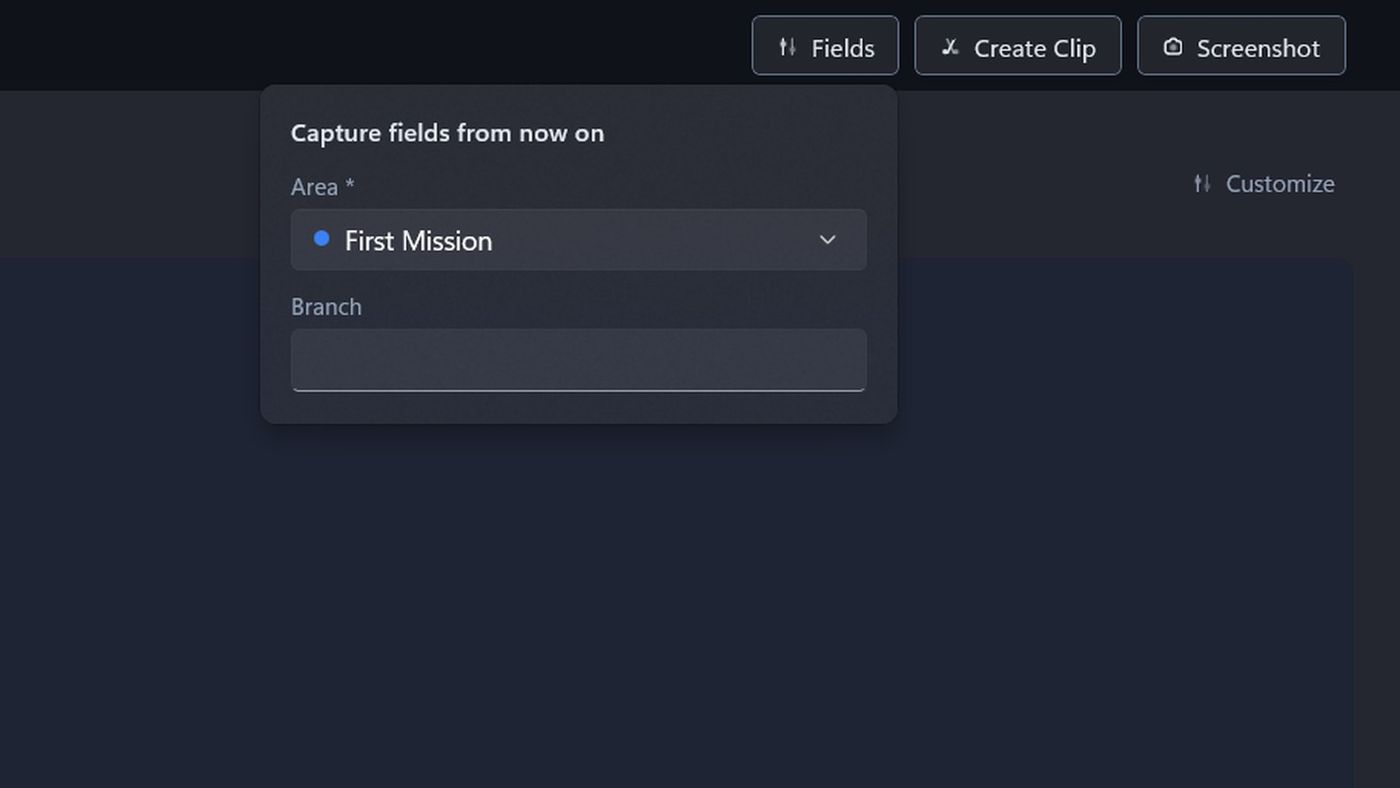
- In the recording toolbar, click Fields.
- Under Capture fields from now on, each field shows its current value. Pick or type the new one.

2. Change a dropdown field with a shortcut
Two shortcuts let you change dropdown fields without leaving your game. They show Not set until you give them keys.
- Cycle Capture Field: moves a dropdown field, such as Area, on to its next value.
- Next Capture Field: if there's more than one dropdown field, picks which one Cycle Capture Field changes. You'll see, for example, "Cycling Area (Castle)".
To set them, open Settings, click Shortcuts, and edit the Cycle Capture Field and Next Capture Field rows. See Shortcuts.

3. Mark a change to fill in later
When you can't stop to change a field, for example in the middle of a fight, press Mark Field Change (Alt+M). Capture marks that moment and shows "Marked 4:12: fill in the fields there when you review".
Marked points wait for you in Review, and show as To fill in on the web once uploaded. See Fields in Review.
Troubleshooting
- "Start a recording to change capture fields." or "Start a recording to mark a field change." These only work while recording. To set values beforehand, use the Start a new session card.
- "This session has no dropdown capture field to cycle." Cycling only works on dropdown fields. Use the Fields button for text and number fields.
- "This session has no capture fields to mark." The project doesn't use capture fields, so there's nothing to fill in later.
- "Already marked at 4:12" You pressed Mark Field Change twice at the same point. One mark is enough.
- A shortcut does nothing. Check it has keys and is switched on in Settings > Shortcuts, and that Enable All Shortcuts is on.
- There's no Fields button while recording. The session has no capture fields.