
Before you start
- You need to be an organization admin. Workspace admins can still change each backlog's own fields.
- Defaults only apply to new backlogs. Existing backlogs keep their own fields until someone clicks Reset to defaults on them.
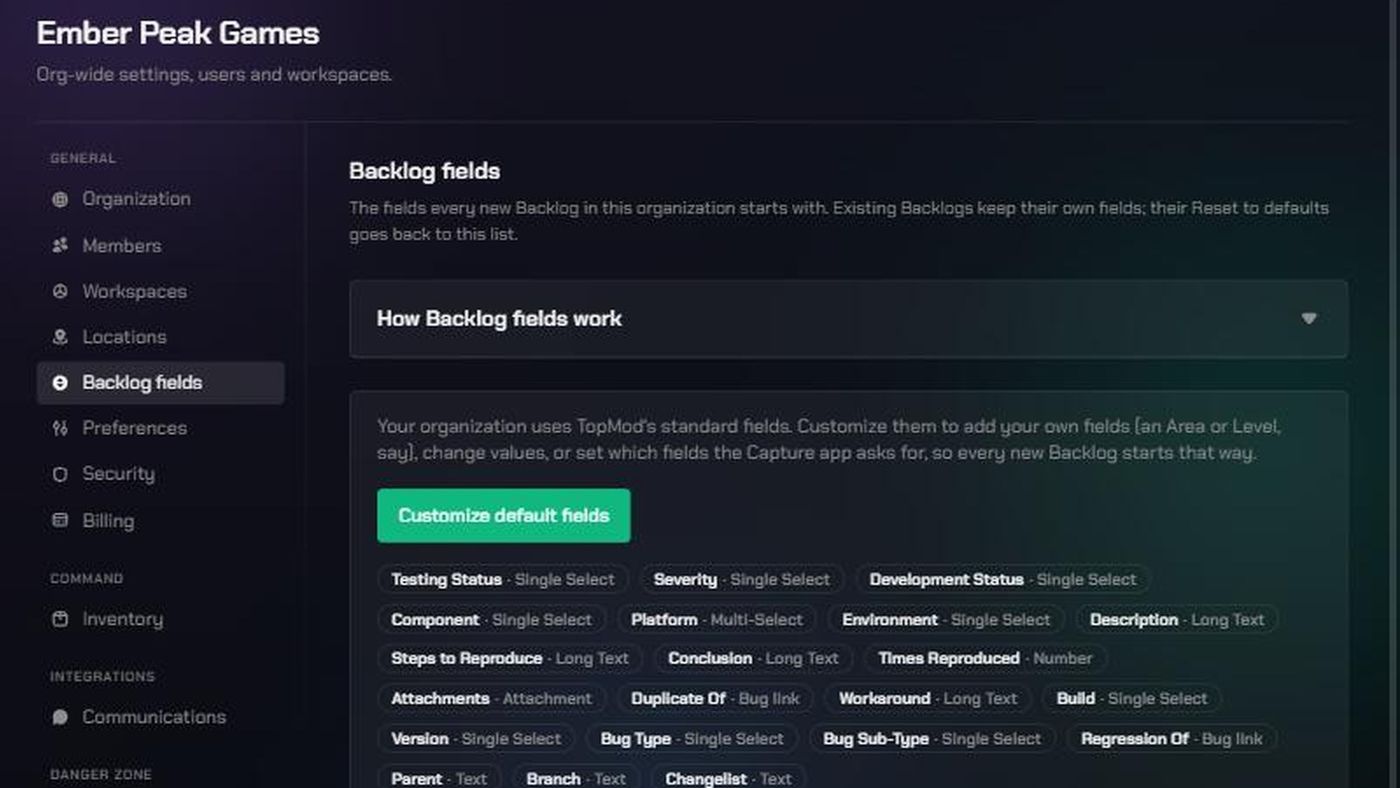
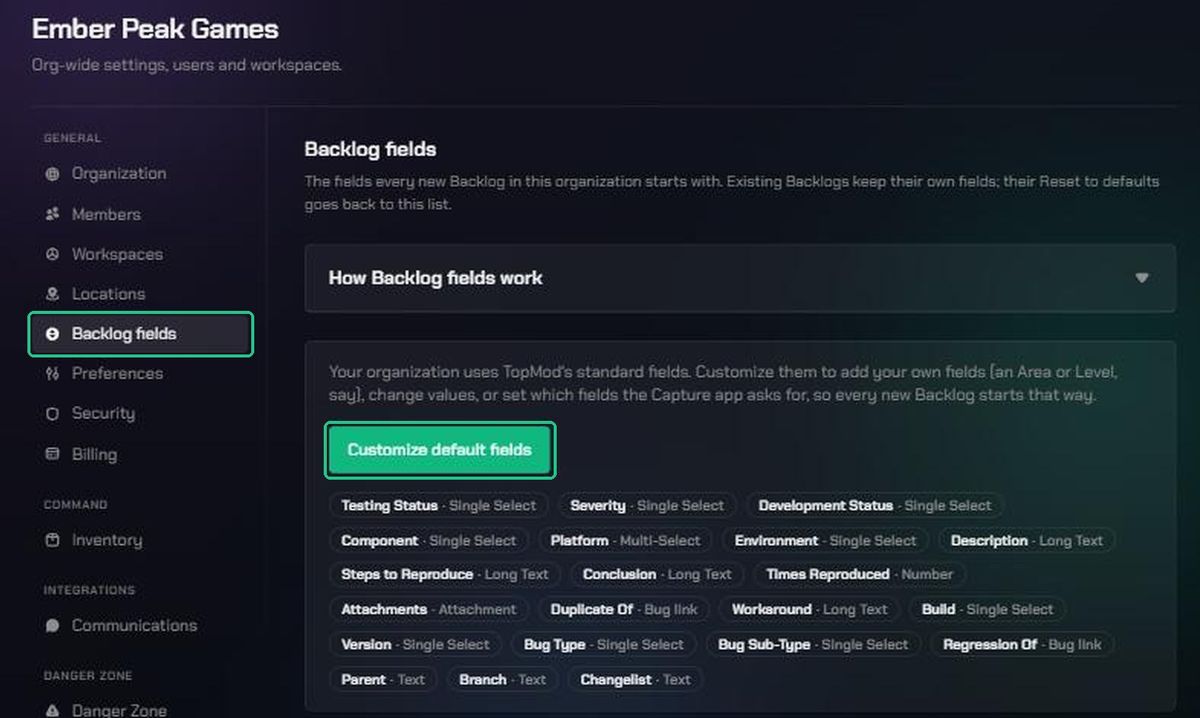
- Until you customize them, your organization uses TopMod's standard fields. These include Testing Status, Severity, Platform, Build, Branch and Changelist.
1. Open Backlog fields
- Click the TopMod logo at the top left, then click Organization settings.
- Under General, click Backlog fields.
- Click Customize default fields. TopMod copies its standard fields into an editable list for your organization.
2. Change the default fields
The list works the same way as a backlog's Fields page. Add fields with Add field, and change or remove them with the pen and bin icons. See Backlog Fields. To decide which fields TopMod Capture asks for, open a field and use its Capture settings. See Capture Fields.
For example, add an Area field with your game's areas as values, tick Show in Capture, and every new backlog asks testers which area they're in.
3. Bring an existing backlog into line
- Open the backlog's configuration and click Fields.
- Click Reset to defaults, then Reset.
The fields added on that backlog are removed and it gets your organization's default fields. Fixed fields stay but get the default values back. Bugs keep the values they already have.
Go back to TopMod's standard fields
Click Use TopMod's defaults and confirm. Your organization's default fields are deleted and new backlogs start with TopMod's standard fields again. Existing backlogs don't change.
Troubleshooting
- There's no Backlog fields page. You're not an organization admin. Ask an admin.
- A backlog didn't change after you edited the defaults. Defaults only apply to new backlogs. Use Reset to defaults on the backlog.
- "Could not load the default fields." Refresh the page and try again.