
Before you start
- Capture field values are recorded by TopMod Capture, for the fields an admin has set up on the project's backlog, such as Area, Branch or Changelist. See Capture Fields.
- Everyone in the workspace can see them. Only the session's creator, the project's Lead and admins can correct them.
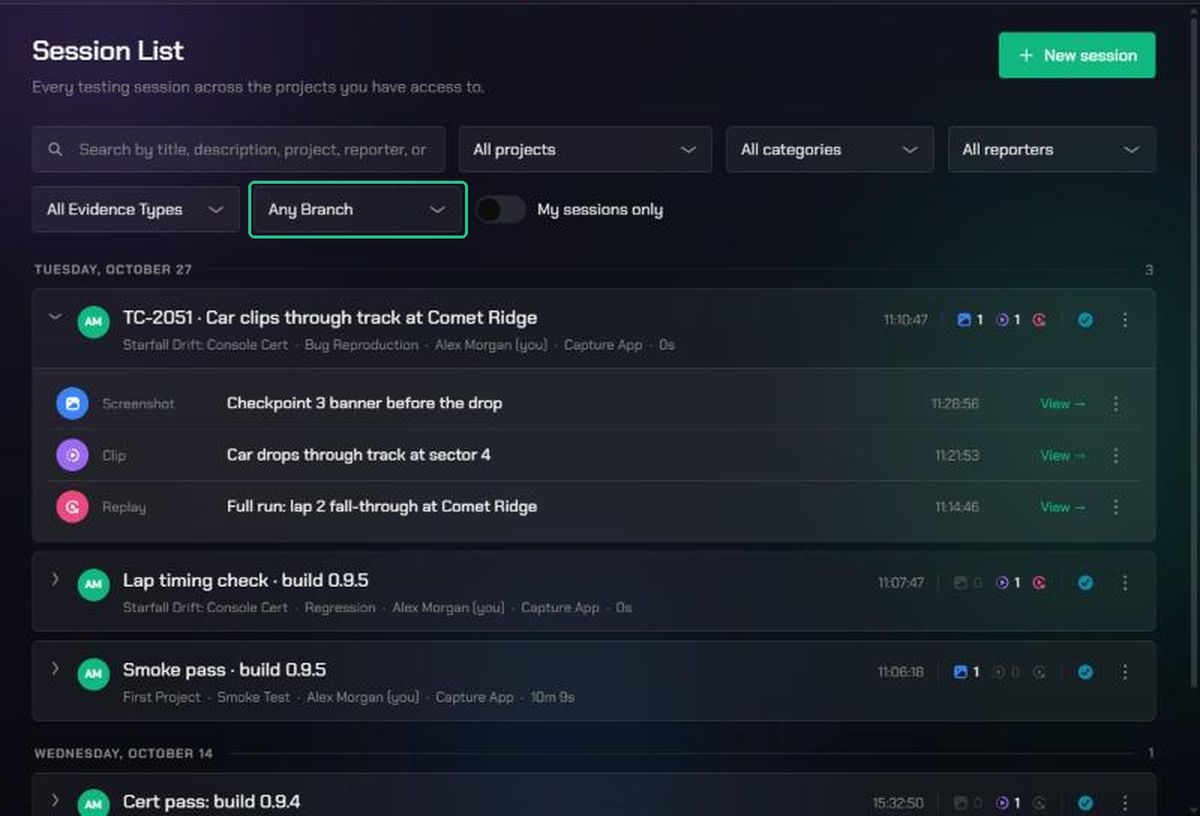
1. Filter sessions by capture field
- In the top bar, click Evidence, then Session List.
- Each capture field has its own filter beside the others, for example Any Branch. Pick one or more values to see only the sessions recorded with them.
- To find sessions uploaded without a required value, switch on Missing required fields. These sessions show a Missing required field badge. Hover over it to see which field.
A field's filter only appears when sessions in the list have values for it. The Missing required fields switch only appears when a session is missing one.
2. See the values on a replay
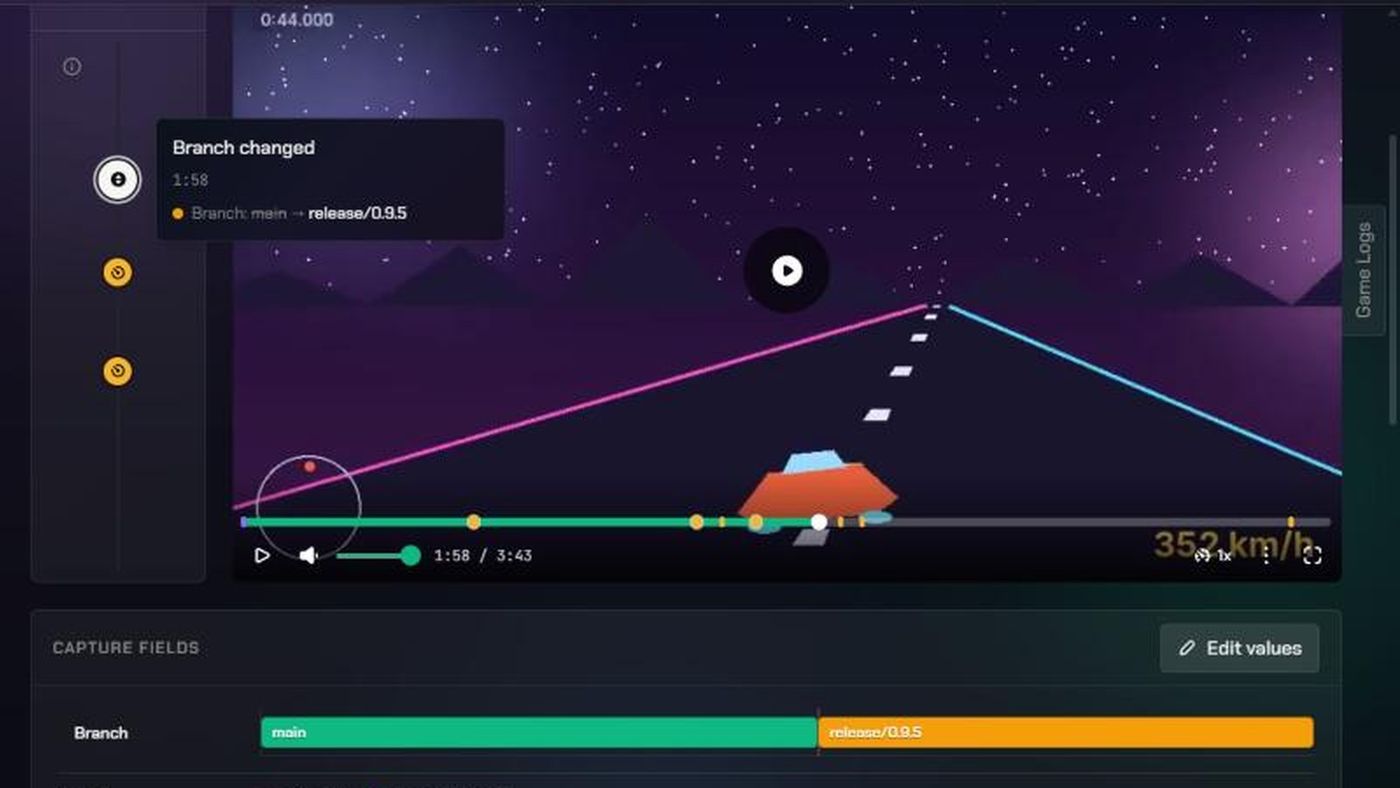
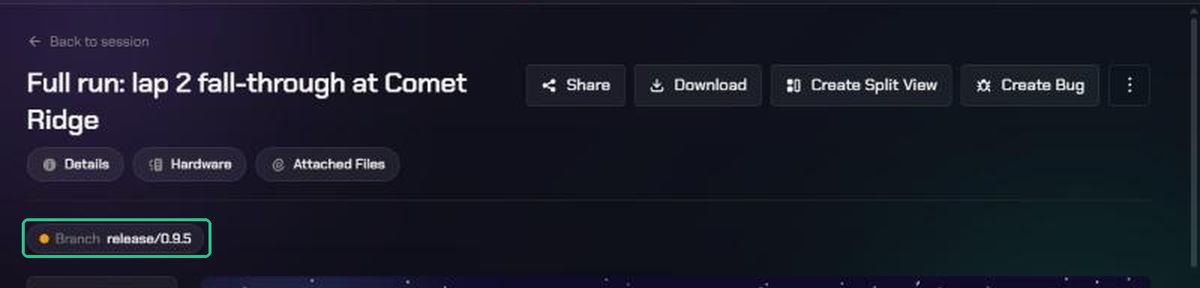
- Above the player, pills show each field's value at the current moment. They change as the video plays.
- Under the player, the Capture Fields card has a track for each field. Hover over a stretch to see its value, when it applied and how it was set: Set before recording, Set in Capture, Set by hotkey, Set on review or Edited on the web. Click it to jump the video there. Below the tracks, each field shows how long it held each value.
- On the Timeline beside the video, each change shows as an entry, such as "Branch changed". Points a tester marked to fill in later show as To fill in.

3. See the values on clips and screenshots
A clip or screenshot shows the values it was captured under as pills above the player or image. A clip from a replay also gets the Capture Fields card for its part of the session.
4. Correct the values
- Open the session's replay. To add a change, first move the video to the moment it applies from.
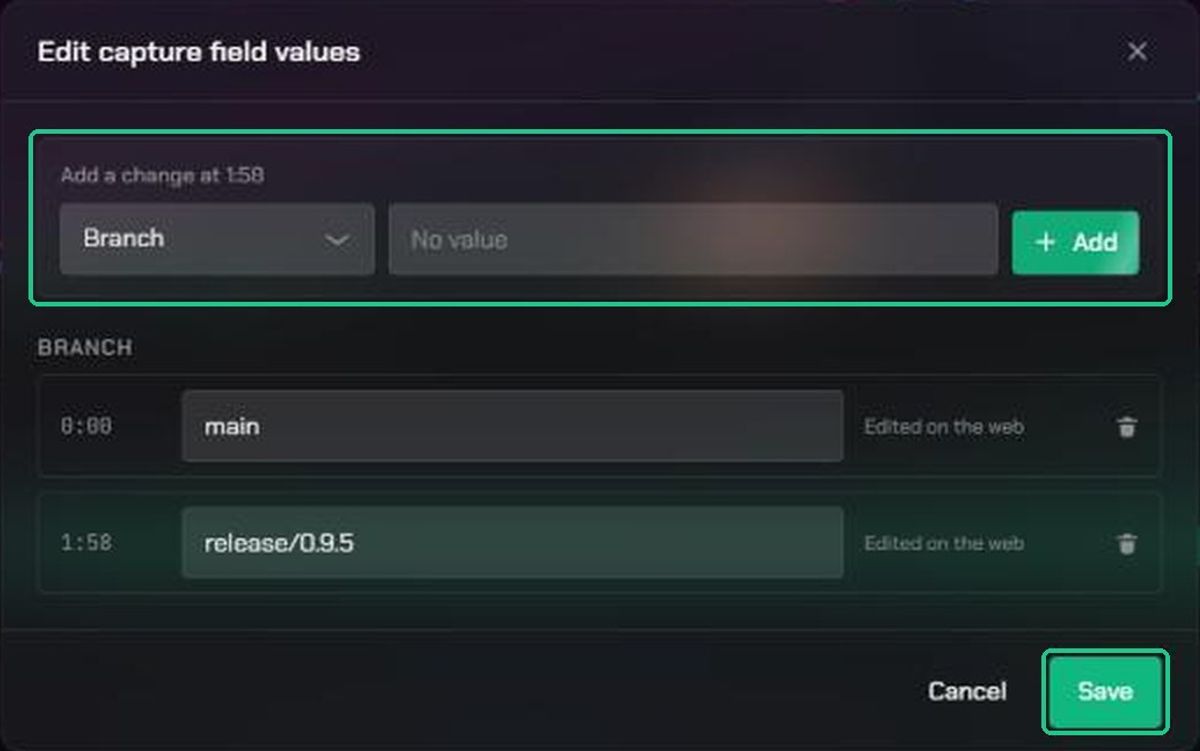
- On the Capture Fields card, click Edit values.
- In Edit capture field values, under Add a change at (the video's current time), choose a field, enter its value and click Add.
- Below, each field lists its changes by time. Change a value in place, or click the bin icon to delete a change. The change at 0:00 is the value from the start.
- Click Save. You'll see "Capture field values saved."
The replay, its clips and screenshots, and the Session List filters all update. To fill in a point marked To fill in, move the video to that point first, then add the changes there.
Troubleshooting
- There's no Capture Fields card. The session has no capture field values, and either you can't edit it or its backlog has no capture fields.
- "No capture field values were recorded for this session." It was recorded before capture fields were set up, or with an older TopMod Capture. You can add values with Edit values.
- There's no Edit values button. You didn't create the session and you're not the project's Lead or an admin. Ask one of them.
- "Could not save the capture field values." Check your connection and try again.
- A value changed after you edited it. The tester may have changed it in TopMod Capture's Review. Changes made there after upload are sent to the web as well.