
Before you start
- Admins and members tagged Lead can always see reviews, Team Performance and the 9-Box Grid. Only admins can leave reviews unless they give others permission.
- Nobody sees performance data on their own profile.
- An admin sets the criteria and who else has access in Workspace Settings > Performance.
1. Set the criteria (admins)
- Open Workspace Settings > Performance.
- Add each criterion with a Criterion name and optional description. Testers are scored 1 to 5 on each one.
- Under Who can view reviews, Who can leave reviews, Who can view Team Performance and Who can update the 9-Box Grid, add anyone else who needs access.
Removing a criterion doesn't change past reviews.
2. Review a tester
- Open Command > Team, click the person, then the Performance tab.
- Under Leave a review, score every criterion and add an optional comment.
- Click Submit review.
The tab also shows Average score over time and the Review history.
3. Use the 9-Box Grid
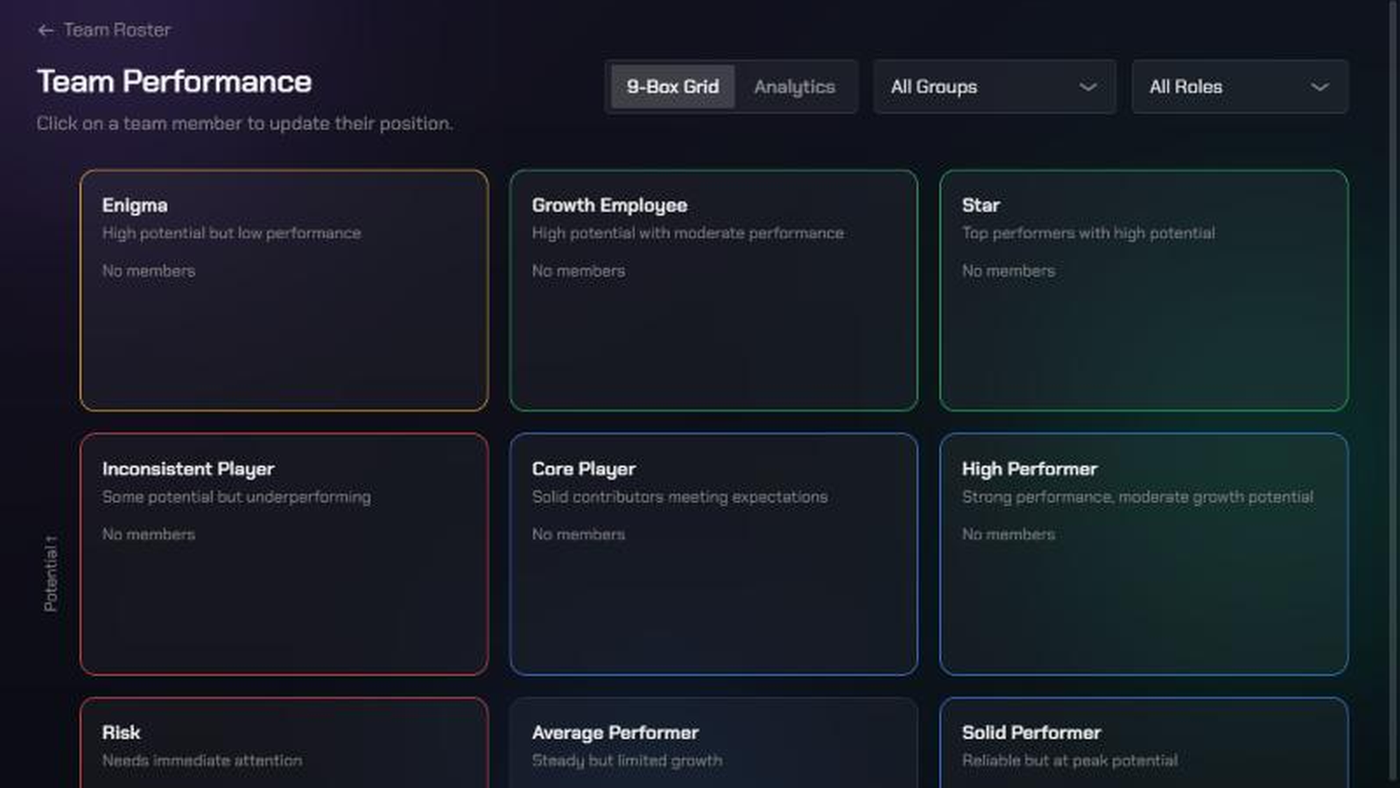
- On the Team Roster, click Team Performance.
- Filter by group, Team Role or dates.
- To place someone, click them on the grid and choose their Performance and Potential tier. You can also do this from their Performance tab, under 9-Box placement.
The grid runs from Risk (low performance, low potential) to Star (high on both). The page also shows Average Performance, Average by Metric and Average Performance Over Time.
Troubleshooting
- "Only workspace admins and members tagged Lead can view this page". Ask an admin to add you under Who can view Team Performance.
- "No criteria configured". An admin needs to add criteria in Workspace Settings > Performance.
- "Score every criterion before submitting." Give every criterion a score from 1 to 5.