
Before you start
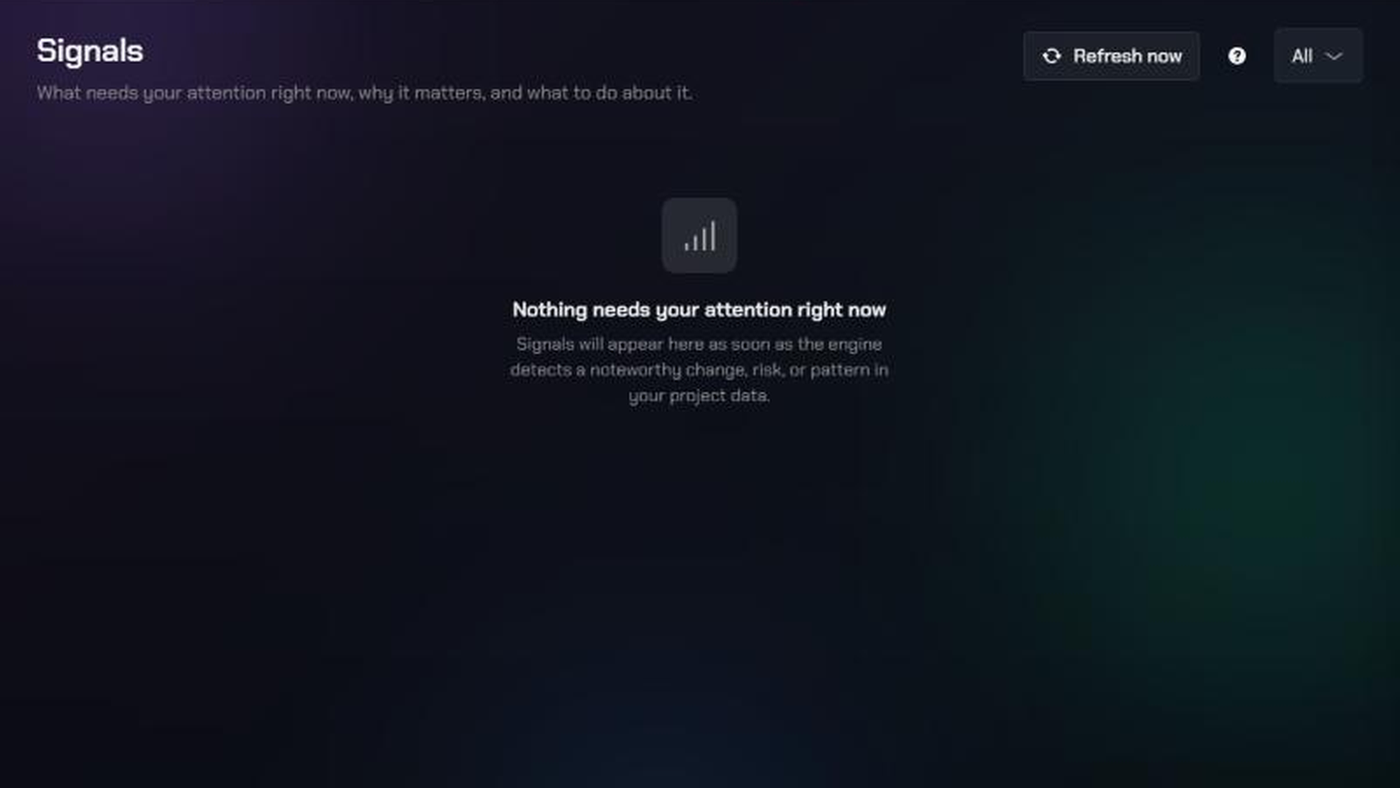
- Signals scans your Checkpoint, Evidence and Command data every hour. It looks for notable changes, risks and patterns, so you don't have to go looking.
- A Signal updates in place while its condition is still true, and resolves itself when it isn't.
1. Open Signals
- Click Intel in the top bar or sidebar, then Signals.
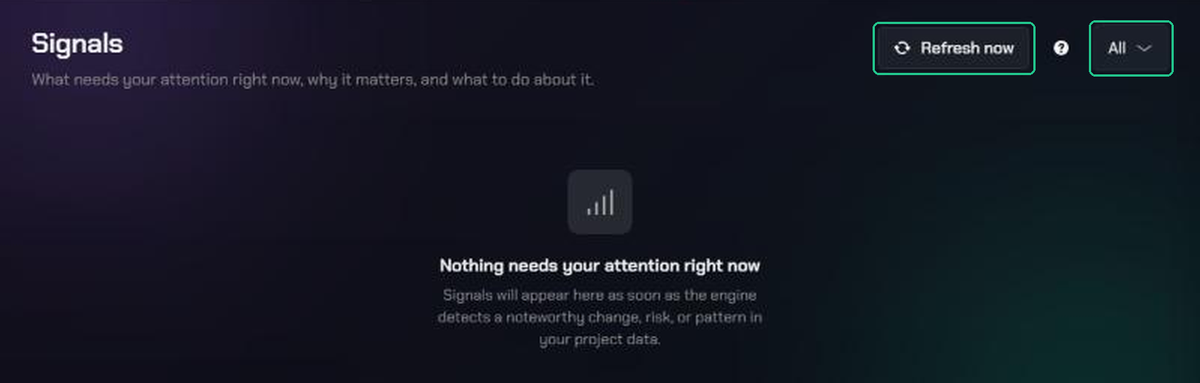
- Use the filter menu (it starts at All) to show Important, Build, Component, Regression, Live or Team / Allocation Signals.
- Click Refresh now to check straight away instead of waiting for the next hourly run.
2. Read a Signal
Each card shows the Signal's type, how important it is (Critical, Important, Attention or Info) and a suggested next step, such as Open issue, Review duplicates or Review allocation.
- Click a card to open Why you’re seeing this and the Contributing data behind it.
- Click Mark as seen once you've read it, or Dismiss to clear it.
Importance is about the Signal, not one bug. A small rise in minor development bugs ranks well below a critical regression on Live.
Signal types
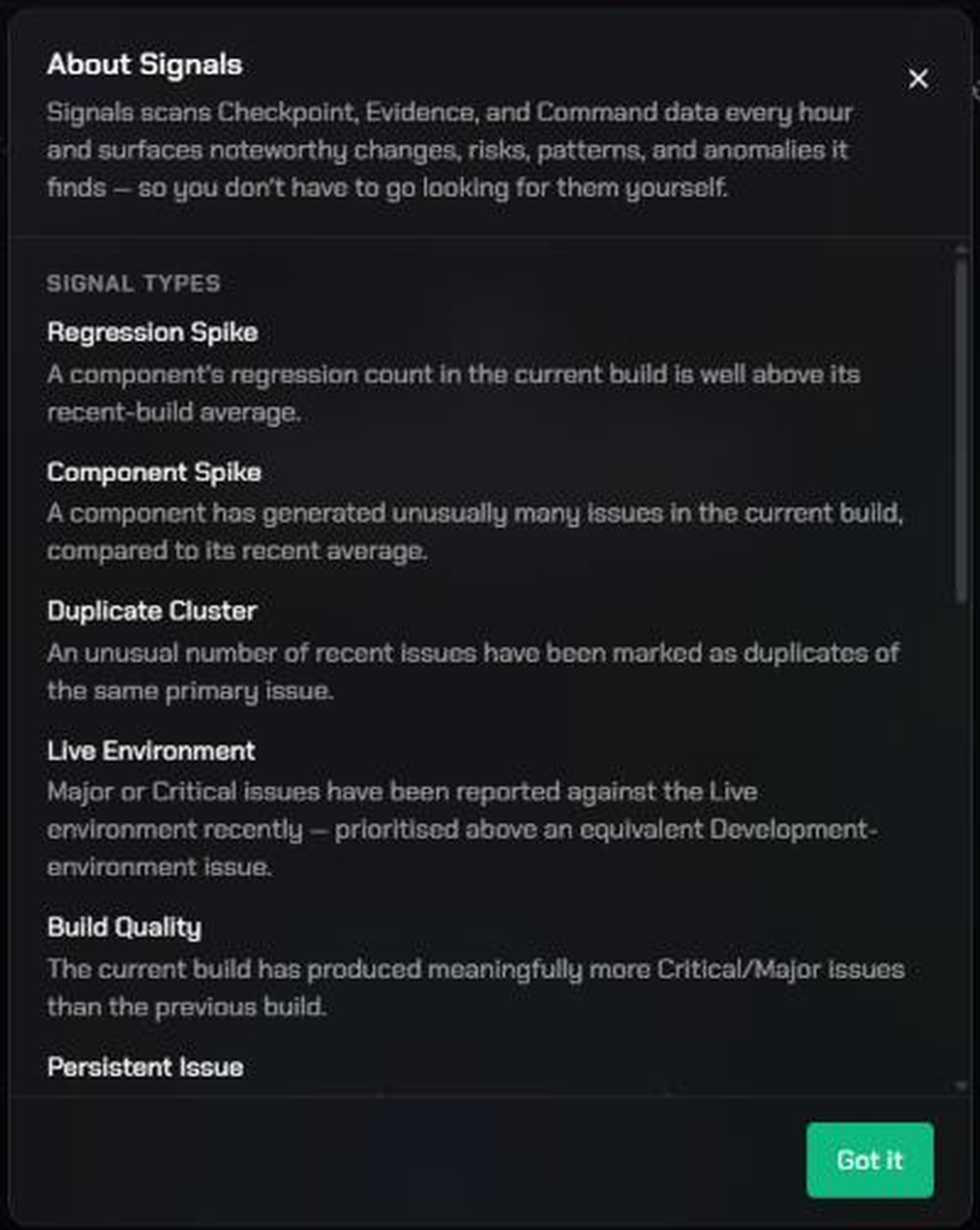
- Regression Spike: a component's regressions in the current build are well above its recent average.
- Component Spike: a component has far more issues than usual in the current build.
- Duplicate Cluster: many recent issues are duplicates of the same one.
- Live Environment: Major or Critical issues reported against Live.
- Build Quality: the current build has more Critical and Major issues than the last one.
- Persistent Issue: the same issue has been seen across several builds.
- Returned Issue: issues that were resolved have come back.
- Environment Concentration: one kind of issue, such as crashes, is concentrated in one environment.
- Quality Hotspot: a component has several warning signs at once.
- Allocation Risk: a project is producing many Major+ issues while few testers are on it.
Click About Signals (the question mark) for the same list in the app.
Troubleshooting
- "Nothing needs your attention right now". Nothing noteworthy has been found. Signals appear when the hourly check finds something.
- "Could not refresh Signals". Check your connection and try Refresh now again.