
Before you start
- Everyone can read the documents they have access to.
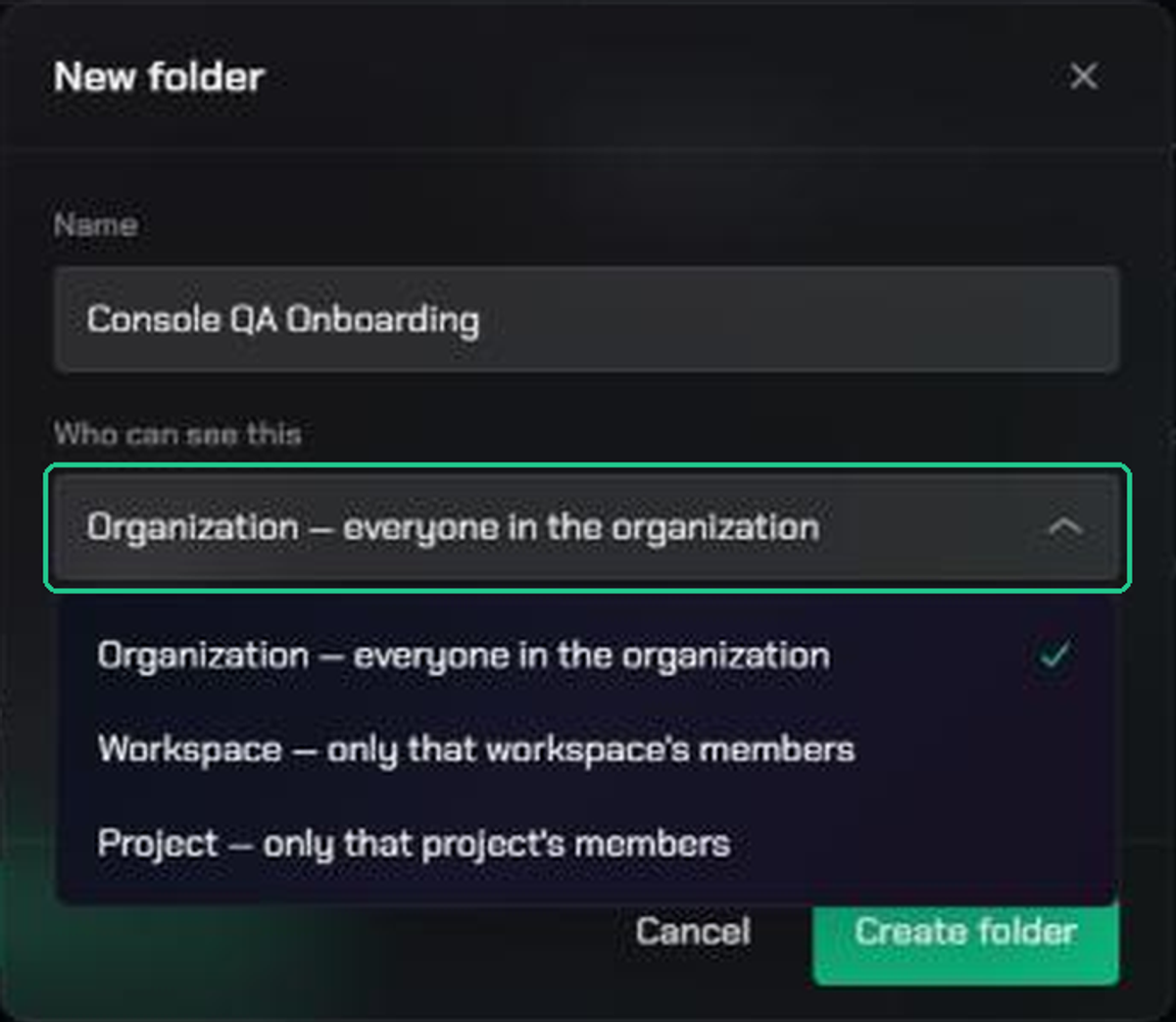
- Who sees what is set by the folder a document is in: Organization (everyone in the organization), Workspace (only that workspace's members) or Project (only that project's members). Documents at the top level (Home) are visible to the whole organization.
- Who can add and organise: organization admins anywhere, workspace admins in their workspace's folders, and project admins in their project's folders. The person who wrote a document can also rename, move or delete it.
1. Open Resources
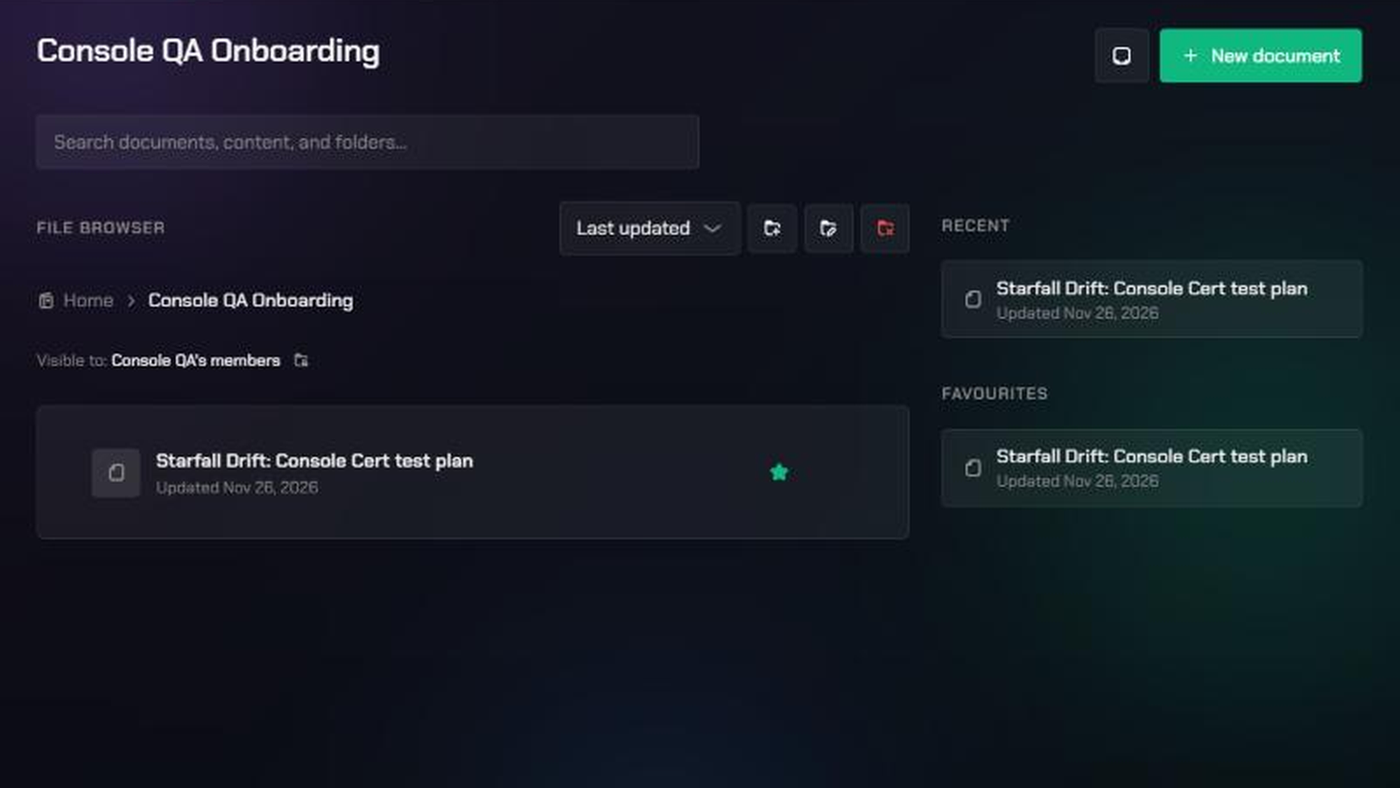
- Click Resources (the folder icon at the top left).
- Search with Search documents, content, and folders…. It looks inside documents as well as at their titles.
- Click a folder to open it, and use the path above the list (for example Home > Console QA Onboarding) to go back up.
- Sort the list by Last updated or Name.
On the right, Recent lists documents you opened lately. Click the star on a document to add it to Favourites.
2. Create a folder
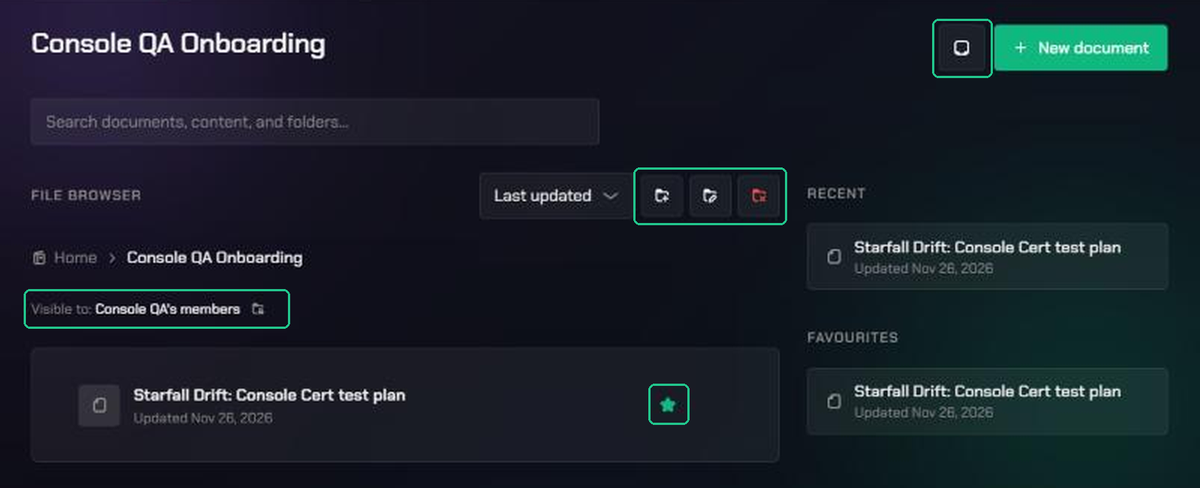
- Click New folder (the folder icon with a plus, next to the sort menu).
- Enter a Name, such as "Onboarding".
- Under Who can see this, choose Organization, Workspace or Project, and pick the workspace or project.
- Choose a Parent folder (optional), or leave it as None — top-level folder.
- Click Create folder. You'll see "Folder created".
A folder inside another can only be the same or narrower. For example, a workspace folder can hold project folders for that workspace, but not an organization-wide folder.
3. Manage a folder
Open the folder, then use the buttons next to the sort menu, or the folder's ⋮ menu in the list:
- Rename folder or Move it to another folder.
- Change permissions: pick a new Who can see this. The change applies to every subfolder and document inside it.
- Delete folder: deletes the folder and everything in it. Documents can be restored afterwards, but the folder itself can't.
The Visible to line under the path shows who can see the folder you're in.
4. Restore a deleted document (workspace admins)
- On Resources, click Archived documents (the icon next to New document).
- Find the document and click Restore.
Troubleshooting
- There's no New document or New folder button. You're not an admin for this folder's level. Ask an admin, or open a folder you manage.
- A colleague can't see a document. Check the Visible to line. They need to be in that workspace or project.
- "Nothing here yet". The folder is empty, or everything in it is in a narrower folder you can't see.