
Before you start
- You can create a document in any folder you manage. See Resources for who that is.
- The person who wrote a document and workspace admins can edit it.
- Everyone who can see a document can read its history.
1. Create a document
- Open the folder it belongs in, then click New document.
- Enter a Title, such as "How to write a great bug report", and click Create document.
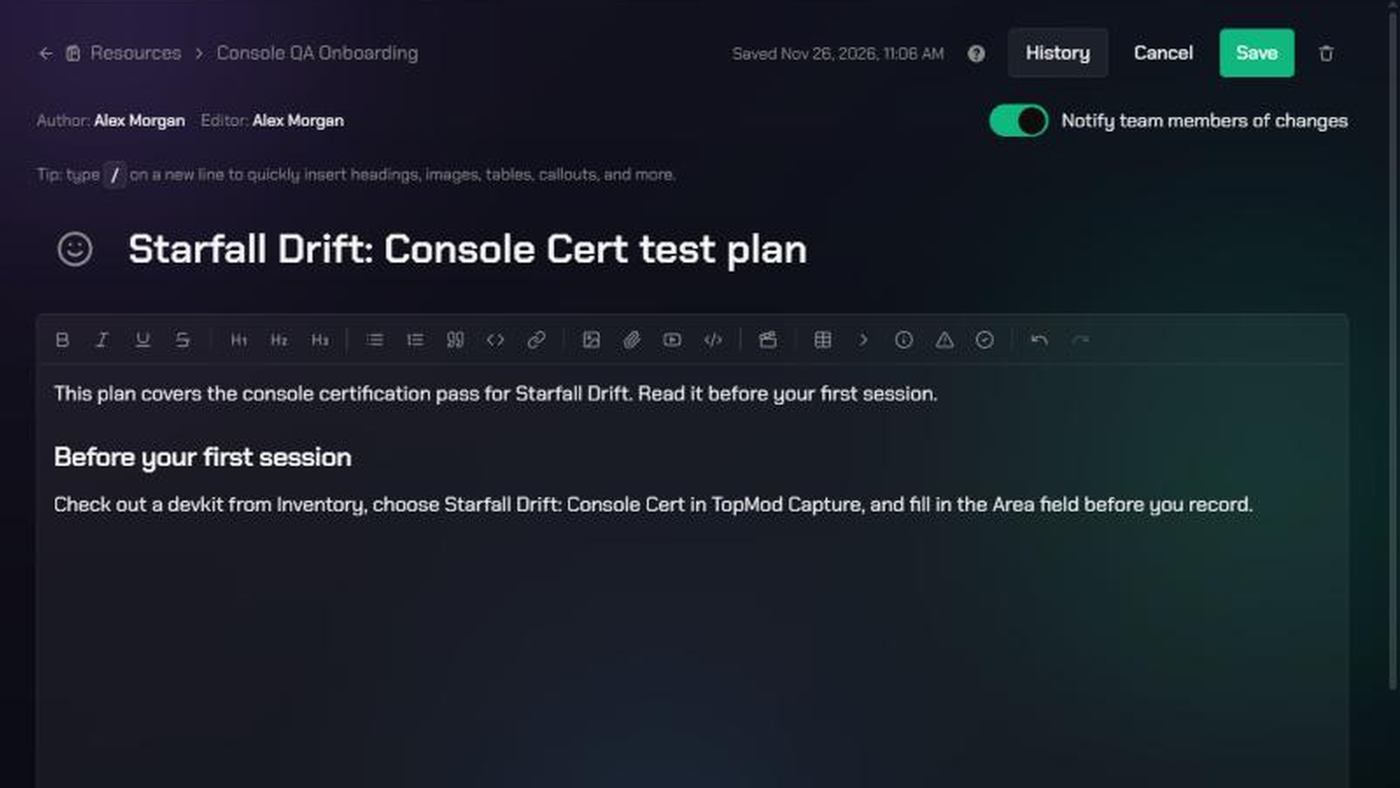
The document opens ready to edit.
2. Write and format
- Type in the body. Use the toolbar for bold, lists, links, tables, callouts and more.
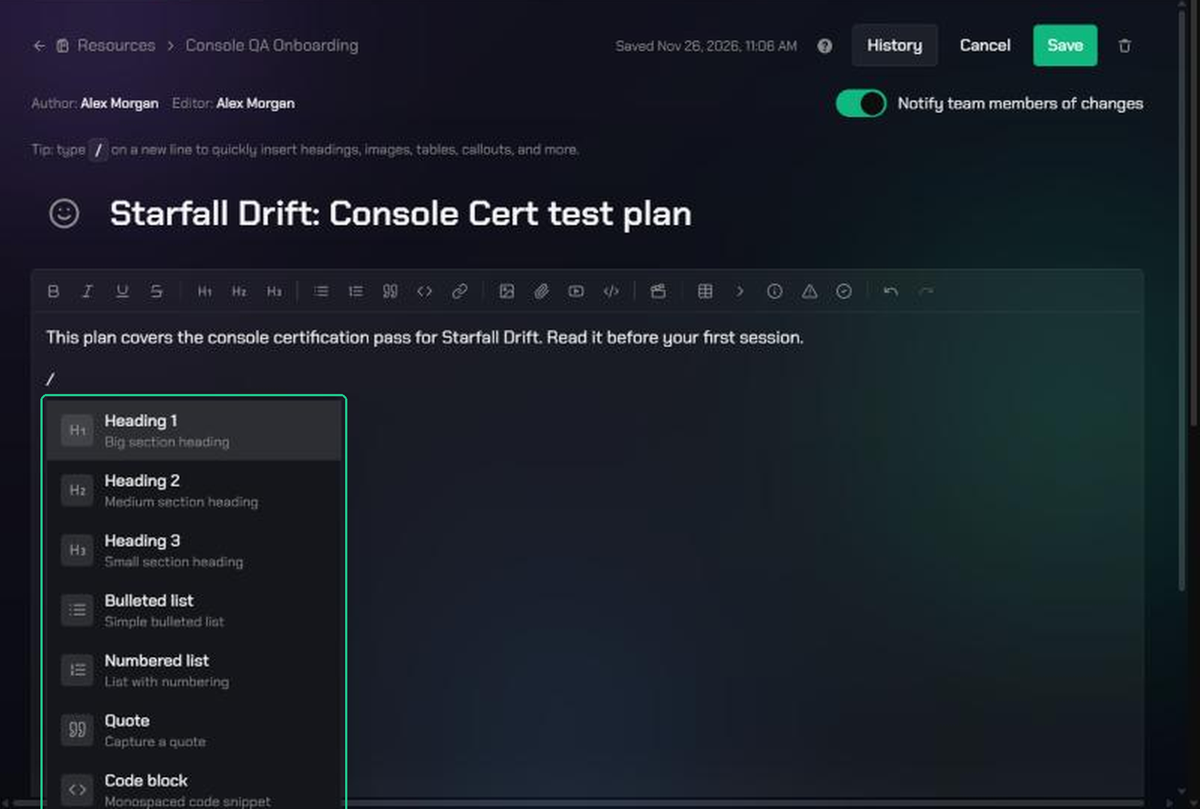
- On a new line, type / to insert headings, lists, quotes, code blocks, tables, toggle sections, callouts, images, files, videos or evidence.
- To show a clip, screenshot or replay, choose Embed evidence in the toolbar, or Evidence in the / menu.
- Paste an image straight in, or drag a file in from your computer.
- Click the icon above the title to give the document a header emoji.
Hover over the left edge of a block to drag it somewhere else. Click How to use this page (the question mark) for these tips in the app.
3. Save and share changes
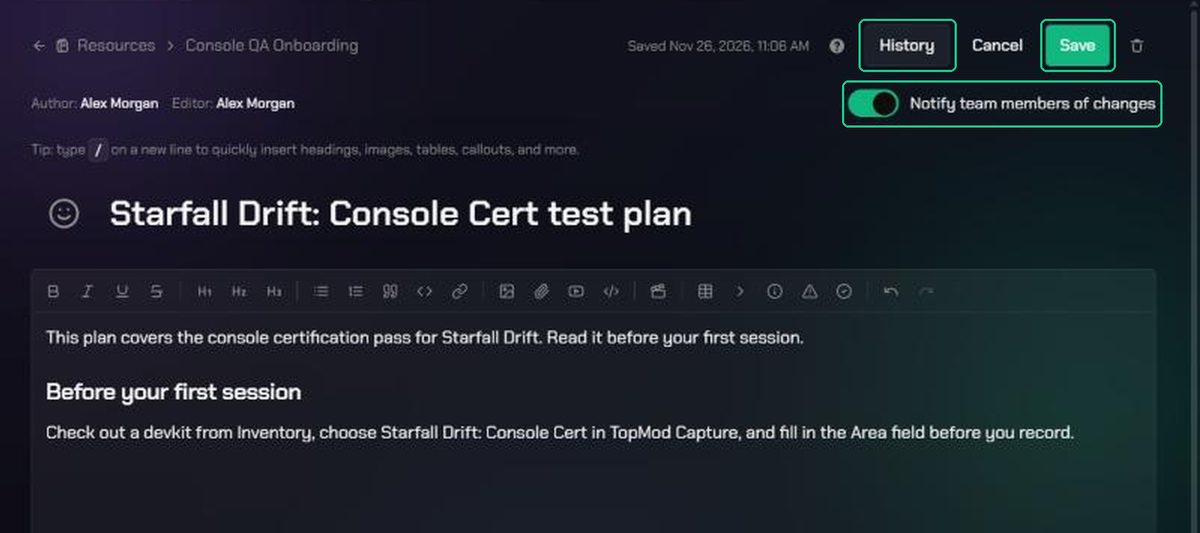
- Your changes save automatically a moment after you stop typing. The time of the last save shows at the top.
- Click Save to save a version straight away, or Cancel to undo changes that haven't saved yet.
- Leave Notify team members of changes on to tell everyone who can see the document that it's new or updated. Switch it off for small fixes.
- Add tags in Type a tag and press Enter to help people find the document.
4. See or restore an earlier version
- Open the document and click History.
- Pick a version to see it.
- To go back to it, click Restore this version, then Restore. You'll see "Restored to version" and its number.
5. Rename, move or delete
- In the folder list, click the document's ⋮, then Rename, Move or Delete.
- Or open the document and click Delete document (the bin icon).
A deleted document leaves Resources, but a workspace admin can restore it from Archived documents.
Troubleshooting
- There's no Edit document button. You didn't write this document and you're not a workspace admin. Ask the author or an admin.
- "Leave without saving?" You have changes that haven't saved. Click Save & Leave, or leave and lose them.
- "Could not save the document." Check your connection and click Save again.
- "No history yet." The document hasn't been saved with any changes since it was created.