
Before you start
- Anyone in the workspace can make requests.
- Absence requests always need approval. Admins can always decide them, as can anyone added as an absence approver.
- Inventory requests go to the workspace's inventory approvers. See Inventory.
1. Request time off
- Click Command in the top bar or sidebar, then Requests.
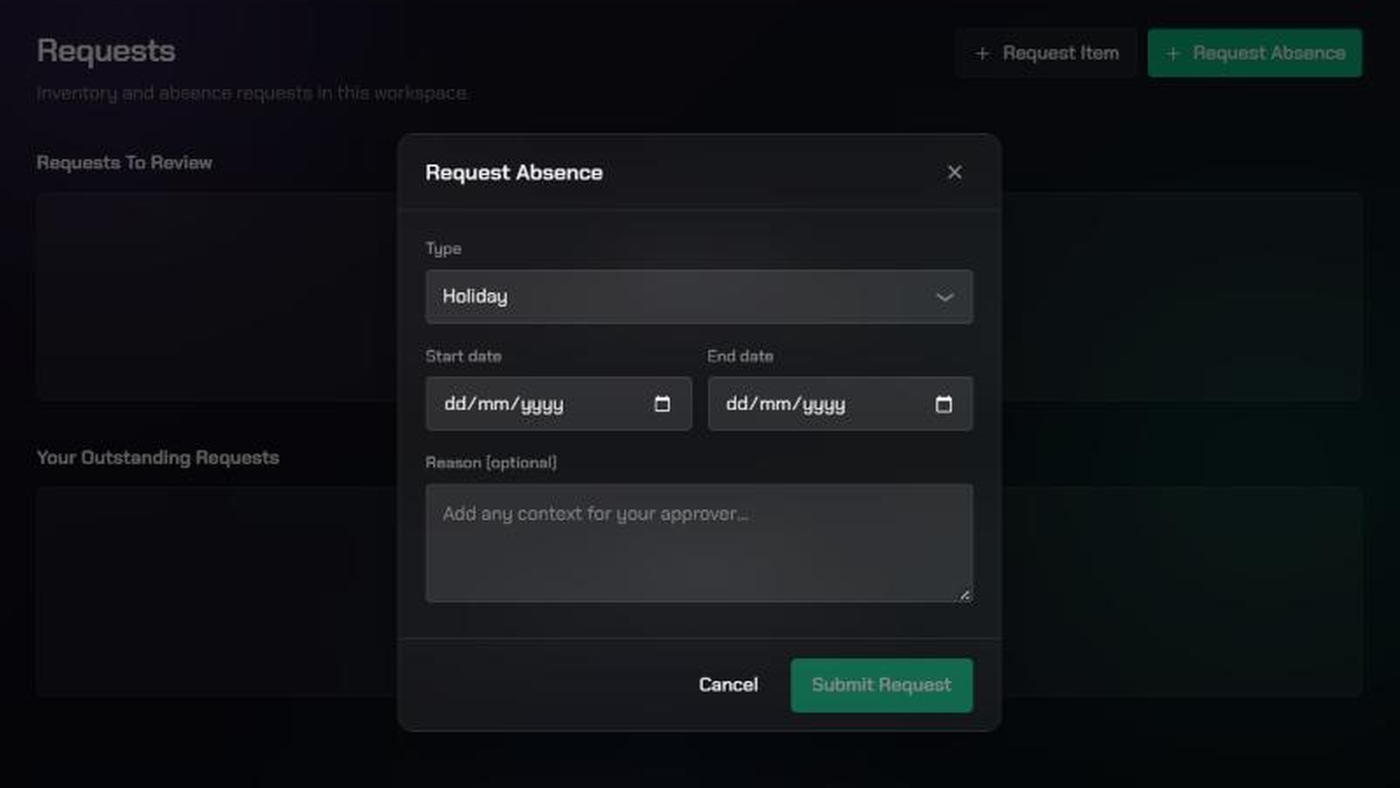
- Click Request Absence.
- Choose the Type (Holiday, Sickness or Extended break), the Start date and End date, and add a reason. Your workspace may require one.
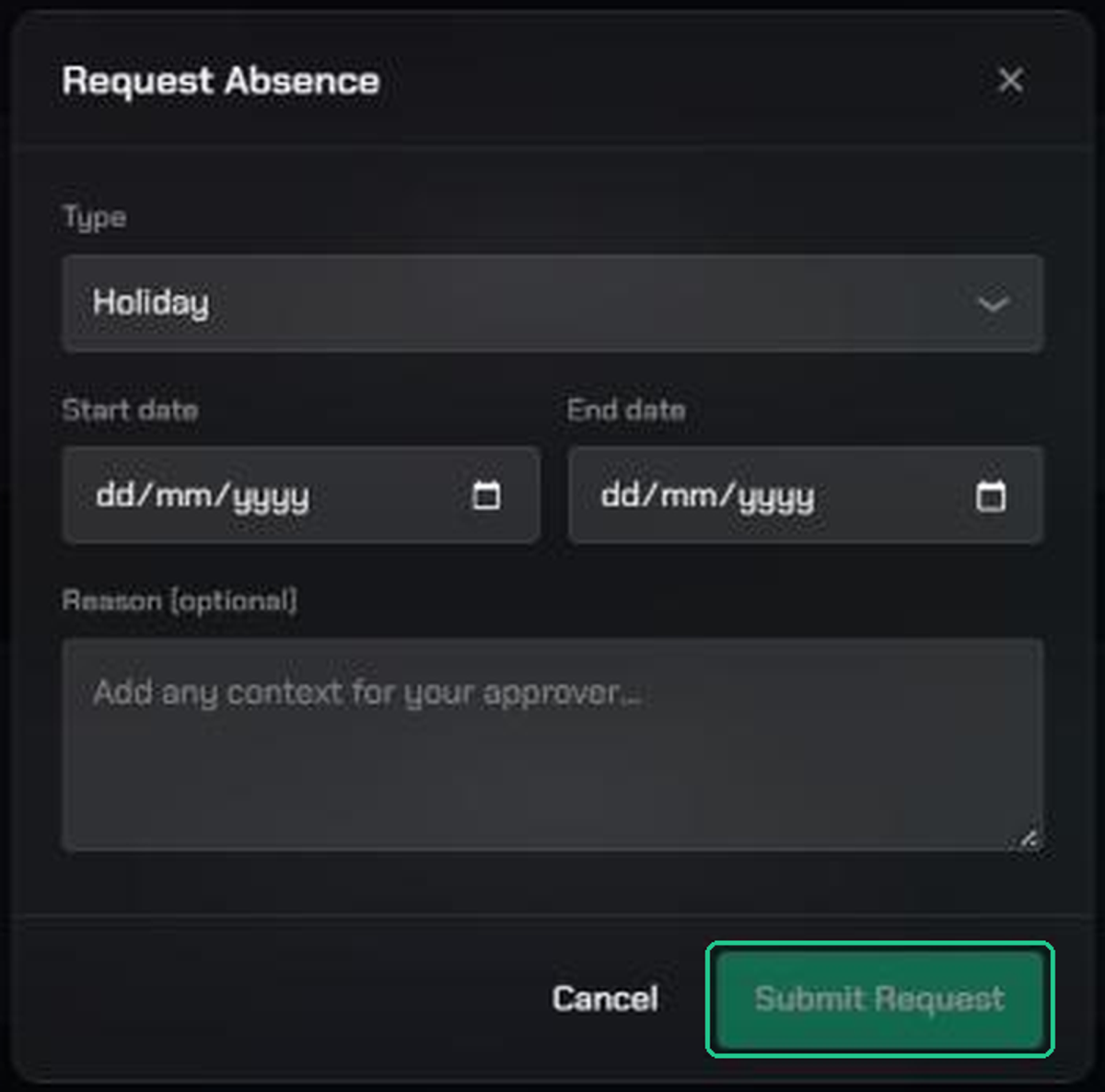
- Click Submit Request. You'll see "Absence request submitted".
2. Request an item
- On Requests, click Request Item.
- In Request an Item, search and pick the item.
You can also click Request next to an item on the Inventory page.
3. Follow your requests
Your pending requests are under Your Outstanding Requests. Click Cancel to withdraw one. You'll get a notification when a request is approved or denied.
4. Approve or deny (approvers and admins)
- Open Requests. Pending requests are under Requests To Review.
- Click Approve or Deny.
If approving a holiday would take someone over their allowance, you'll see "Approve over-allowance request?". Click Approve Anyway to go ahead. You can also approve and deny from Requests Awaiting Your Action on the Command dashboard.
Admins can see every decision in Requests Log, with who made it.
5. Choose approvers (admins)
- Absences: in Workspace Settings > Absences, add members under Absence Request Approvers.
- Inventory: in Workspace Settings > Inventory, add members under Inventory Request Approvers.
Troubleshooting
- "Nothing to review". You're not an approver, or there are no pending requests.
- Submit Request is greyed out. Fill in both dates, and a reason if it says Reason (required).
- "End date can't be before the start date." Pick an end date on or after the start date.