
Before you start
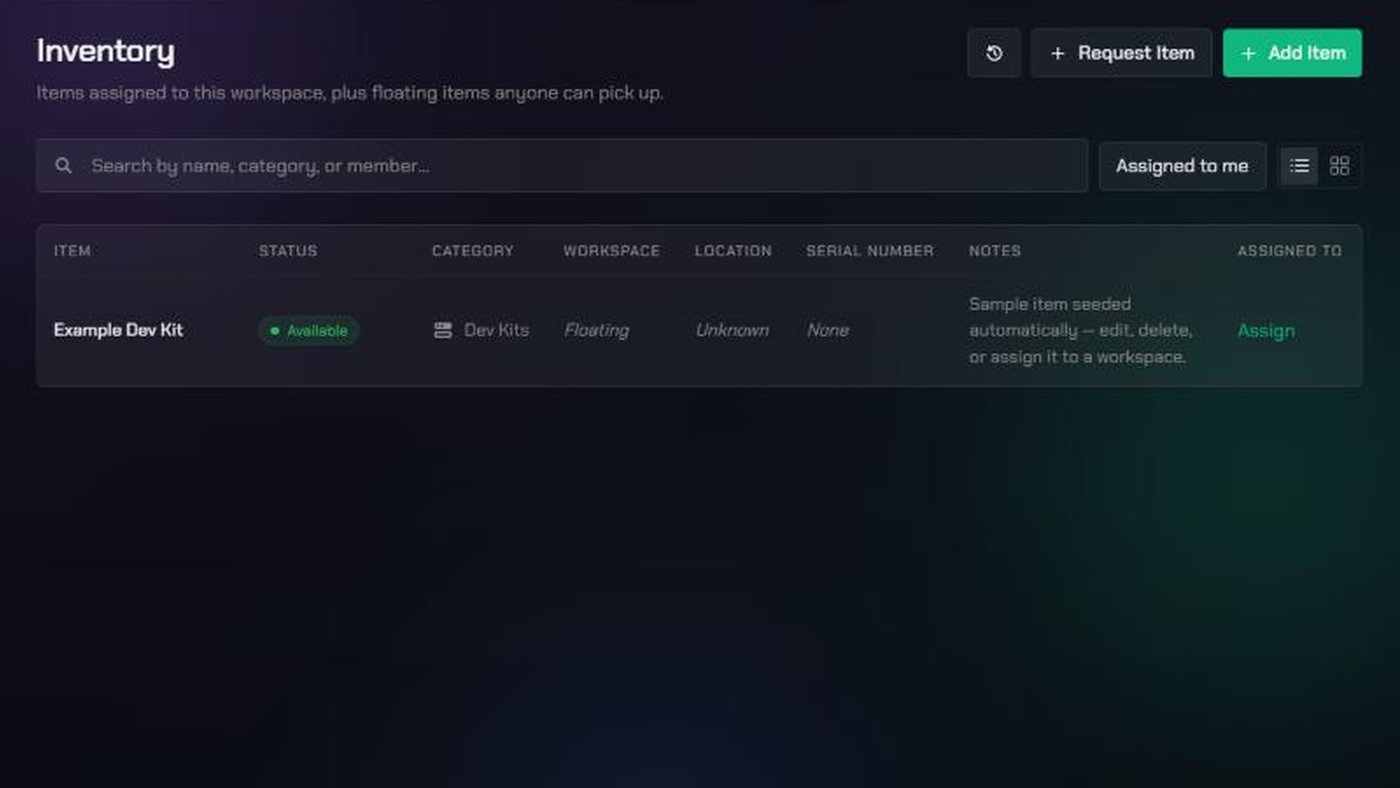
- The list shows items assigned to this workspace, plus Floating items anyone in the organization can pick up.
- Admins add and edit items, and assign them to anyone.
- Everyone else can return items they hold. If your workspace has no inventory approvers, you can Claim an available item straight away. If it has approvers, you Request it instead, and an approver decides.
1. Open Inventory
- Click Command in the top bar or sidebar, then Inventory.
- Search with Search by name, category, or member…, or switch on Assigned to me.
- Switch between Table view and Card view.
Each item shows its status: Available, Assigned or Inactive.
2. Get or return an item
- Claim: takes an available item straight away. You'll see "Claimed".
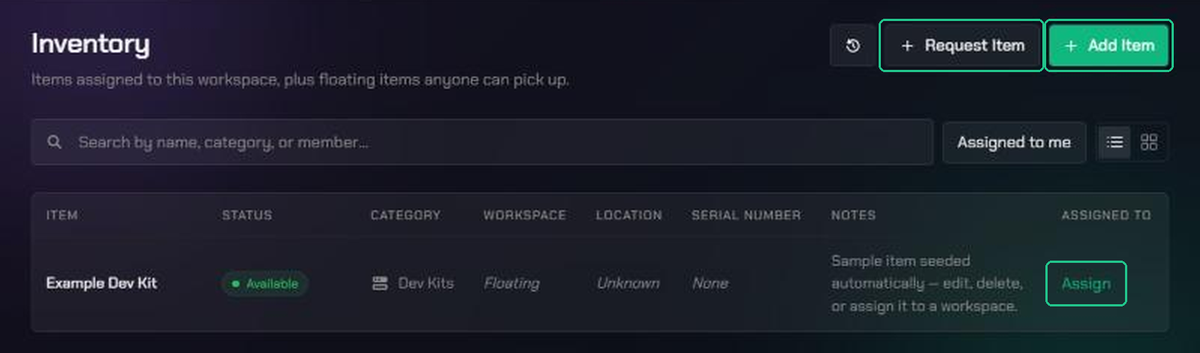
- Request: sends a request to an approver. The item shows Requested until it's decided. Click Cancel to withdraw it.
- Return: open My Inventory Items (from Search, or My inventory on HQ) and return the item.
3. Manage items (admins)
- Click Add Item. Enter a Name, Category, Type, Storage location, Serial number, Status and Notes, then save.
- To give an item to someone, click Assign and pick a member. Click Unassign to take it back.
- To take an unassigned item out of use, hover over its status and click Mark inactive.
- Click View inventory activity to see everything created, edited, assigned or unassigned.
Organization admins manage categories and the full catalogue in Organization Settings > Inventory.
4. Require approval (admins)
- Open Workspace Settings > Inventory.
- Under Inventory Request Approvers, select a member and add them.
With no approvers, anyone can claim items. Add at least one to require a request. An approver's own requests are approved automatically.
Troubleshooting
- There's no Claim, only Request. Your workspace requires approval. Request the item and wait for an approver.
- "No inventory items are assigned to this workspace, and there are no floating items to claim." Ask an admin to add or assign items.
- Assign is greyed out. The item is inactive. An admin can mark it available again.