Before you start
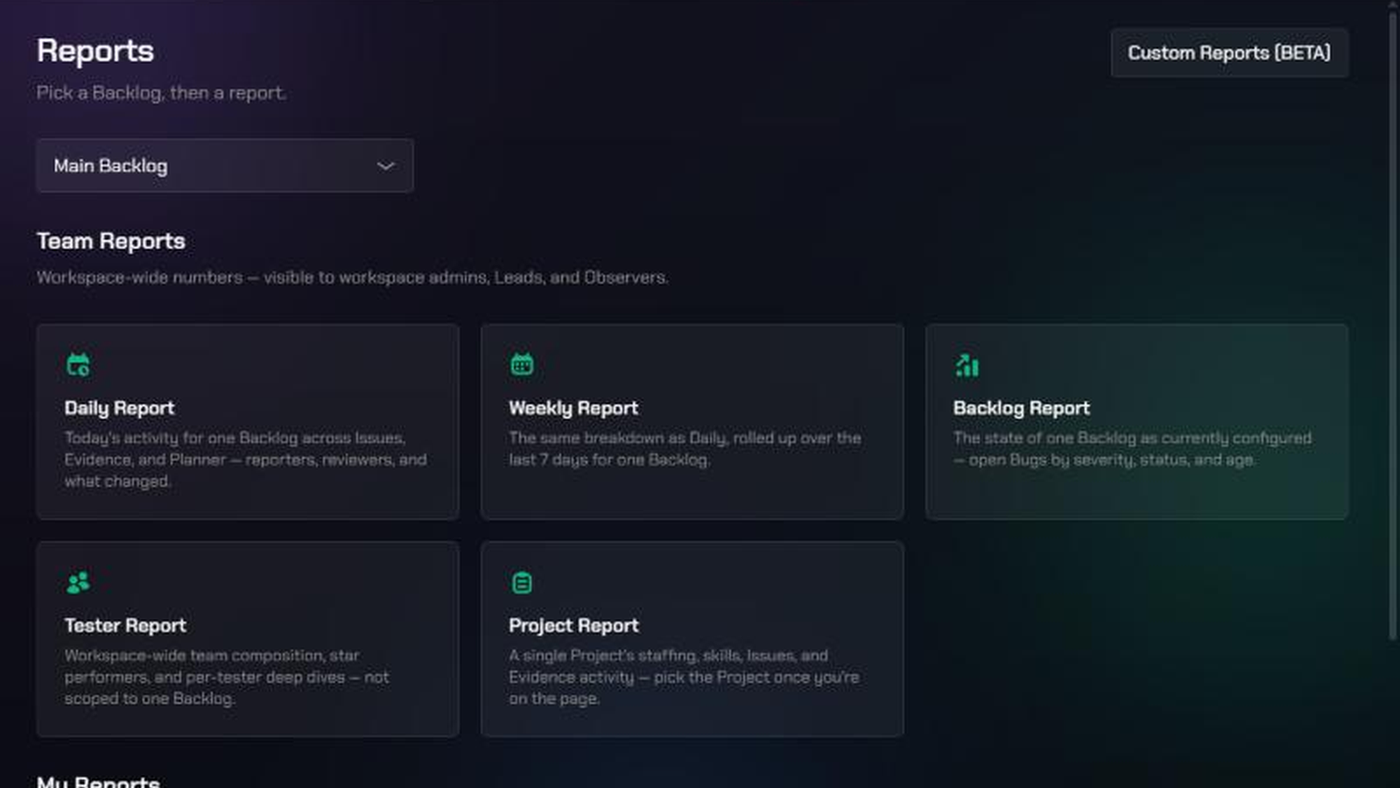
- Team Reports cover the whole workspace. Workspace admins and members with the Team Role Lead or Observer can see them.
- My Reports are the same reports, showing only your own activity. Everyone can see them.
- Daily, Weekly and Backlog reports are per Backlog.
1. Open a report
- Click Intel in the top bar or sidebar, then Reports.
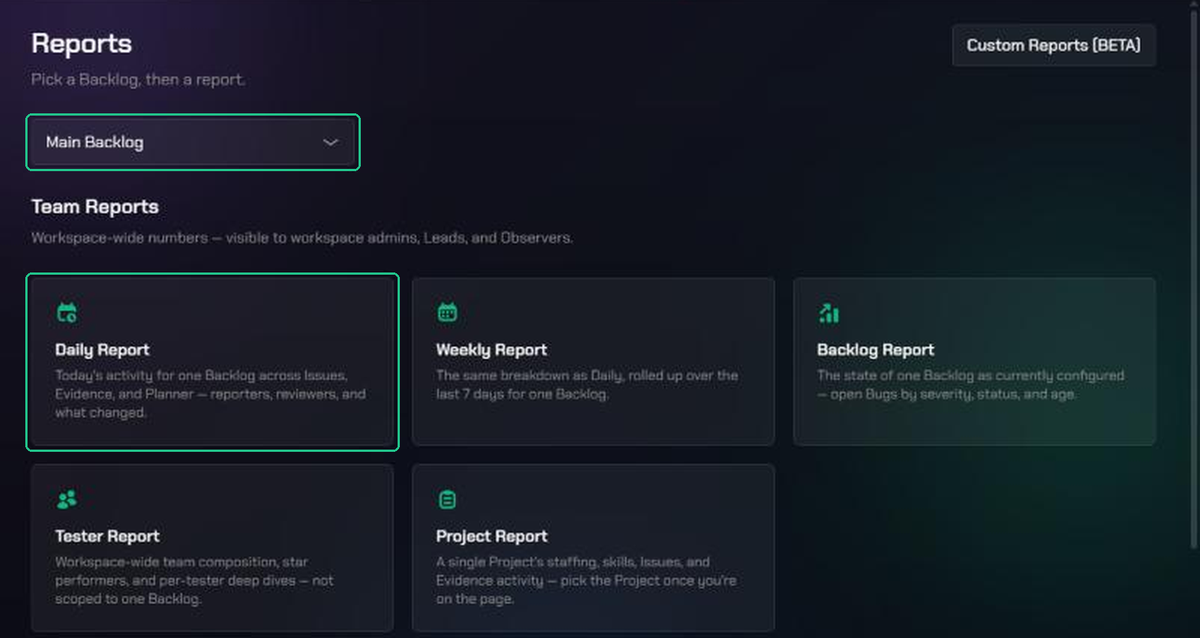
- Choose a Backlog.
- Under Team Reports or My Reports, click a report.
2. Choose the right report
- Daily Report: today's bugs, reviews, sessions, project activity and team utilisation.
- Weekly Report: the same over the last seven days.
- Backlog Report: open bugs, the backlog's size over time, and a forecast. Choose 30d, 12m or All time.
- Tester Report: Tester Rankings by submissions, quality and impact. Select a tester for their detail.
- Project Report: each project's sessions, bugs, team, skills and Impact Score.
3. Share or export
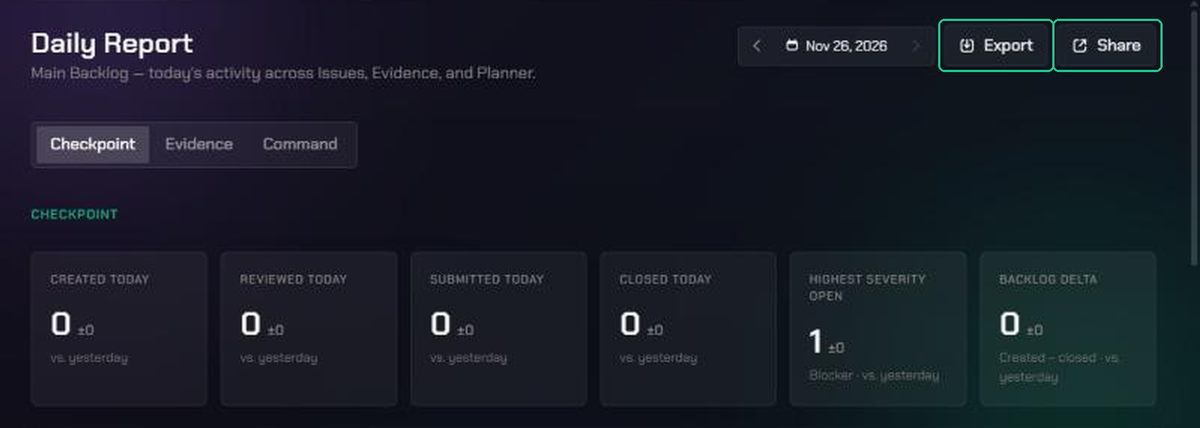
- Export: choose the parts of the report to include, then Export CSV or Export PDF.
- Share: in Share this report, click Create new share link. Add a password if you like, then Create link. The link is copied once and not shown again, so paste it somewhere safe. Click Revoke under Existing links to stop a link working.
If your organization requires passwords on share links, you must add one.
Custom Reports (beta)
Custom Reports (BETA) lets you build your own report from sections of charts, KPI tiles and notes, generate it on demand or on a schedule, and export PDF snapshots. It's still in beta, so screens may change.
Troubleshooting
- There's no Team Reports section. Ask a workspace admin to set your Team Role to Lead or Observer, or use My Reports.
- A report is greyed out with "Select a Backlog first". Choose a Backlog at the top.
- "No Backlogs yet". Create a Backlog in Checkpoint first.
- "Nothing selected has data to export as CSV". Tick a part of the report that has data.