
A TopMod Capture session already records the gameplay, inputs, performance and game logs from a test run. What it hasn't recorded is the context the tester carries in their head: which area of the game they were in, which branch they were testing, or which changelist the build came from.
Capture fields add that context to the recording itself. They're available now in the TopMod web app and in TopMod Capture 1.2.10.
This is a quick tour of how capture fields work for admins, testers and anyone reviewing evidence. Each section links to the full guide in our documentation.
What capture fields are
Capture fields are backlog fields that TopMod Capture asks for while testers record. Typical examples are Area, Branch and Changelist. Single Select, Text and Number fields can all be used.
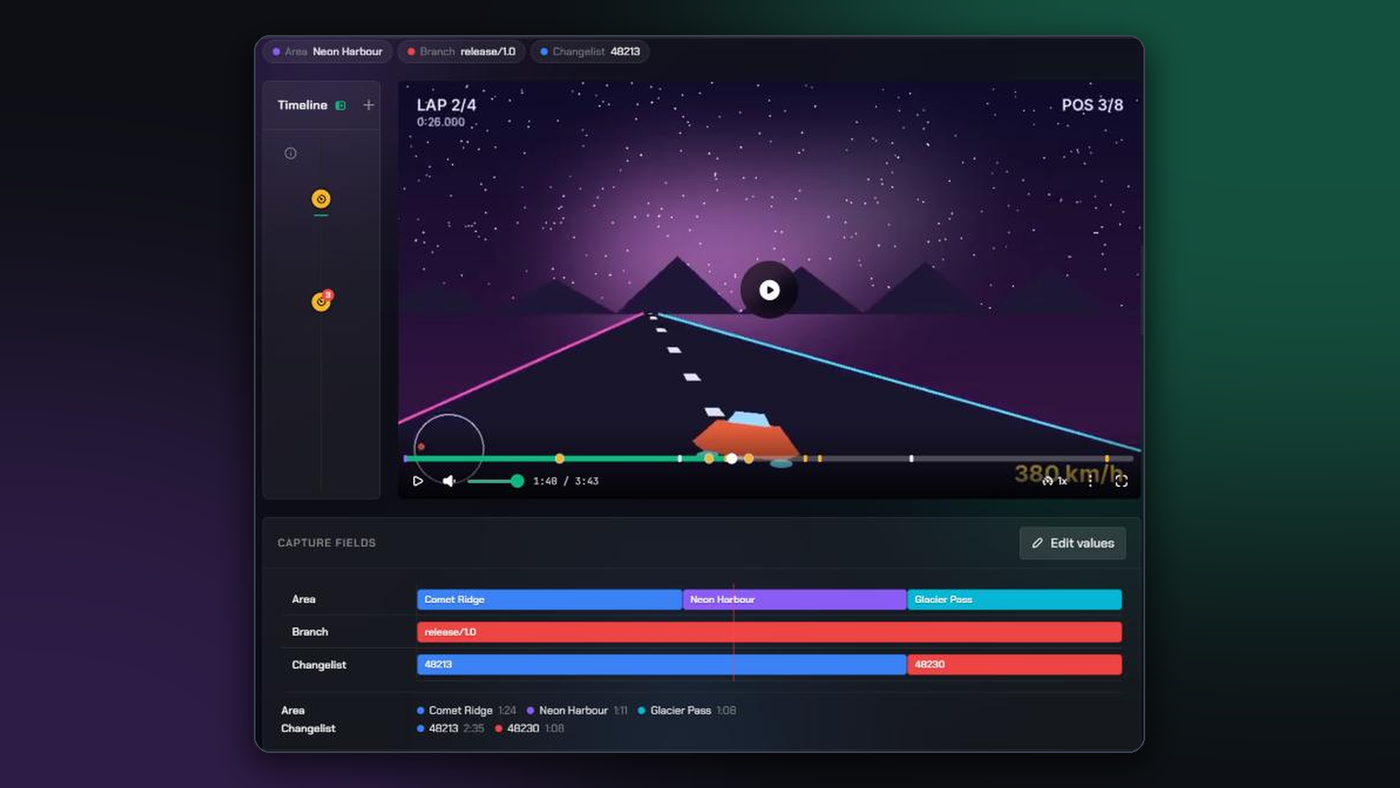
Every value is placed on the session's timeline. If a tester moves from one area to another halfway through a session, the replay shows exactly when that happened, and every clip and screenshot from the session carries the values that applied at that moment.
Admins choose the fields on the backlog
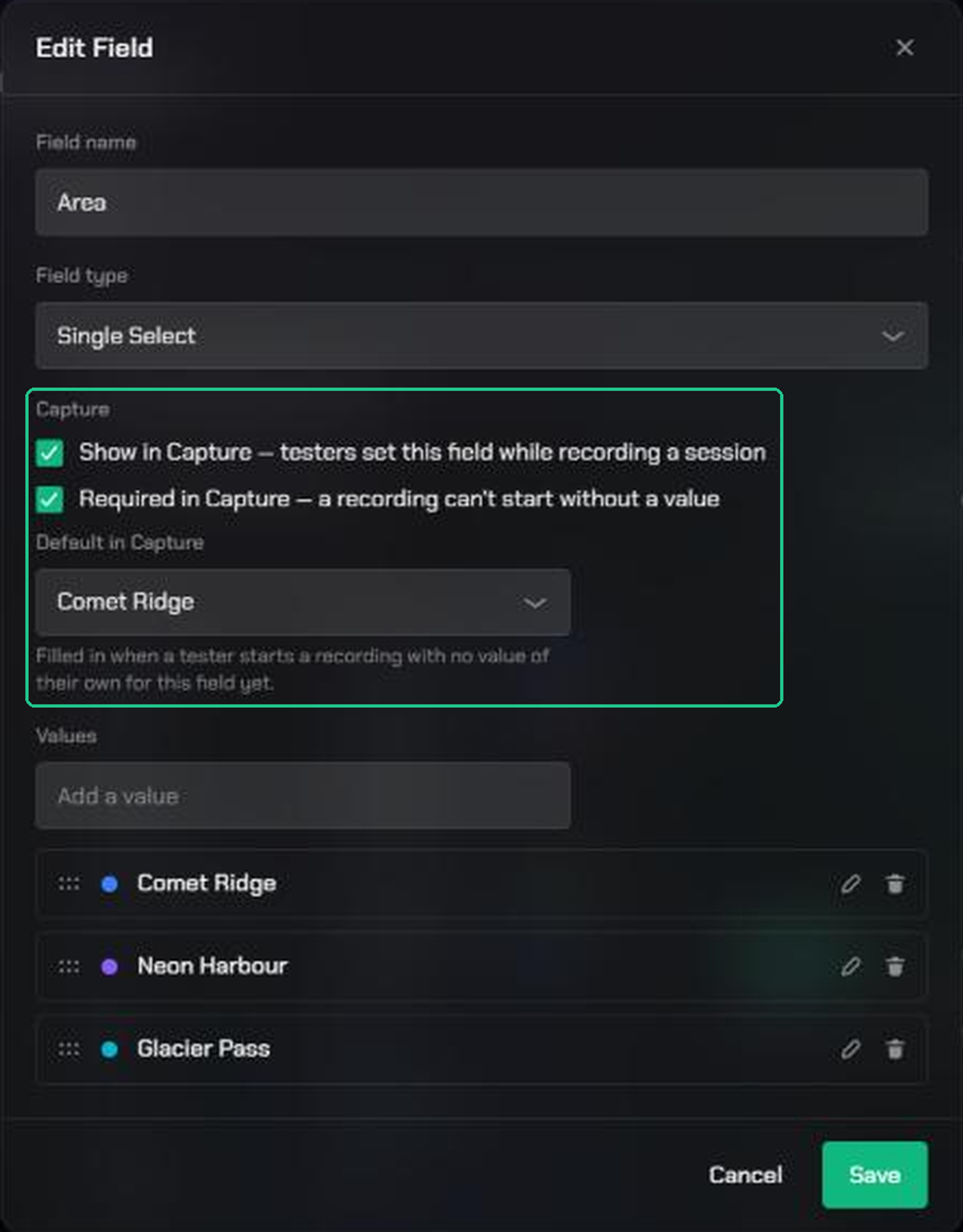
Capture fields are set up on the backlog of the project testers record into. In the backlog's configuration, open Fields and edit the field you want. Under Capture there are three settings:
- Show in Capture: testers fill in the field while they record.
- Required in Capture: a recording can't start until the field has a value.
- Default in Capture: the value a tester starts with if they haven't set one of their own.
Every backlog now includes ready-made Branch and Changelist fields, so you can switch these on straight away, or remove them if you don't need them. Organization admins can also choose the fields every new backlog starts with, including which ones Capture asks for.
Keep the list short. Each field is something testers have to keep up to date while they play.
Read more: Set up capture fields on a backlog and Default backlog fields for your organization.
Testers fill them in as they play
In TopMod Capture, the fields appear on the Start a new session card. Required fields need a value before recording starts. Capture remembers each tester's last values for the project, so most sessions start with nothing to change.
While recording, testers can update a value from the Fields button in the recording toolbar, or step through a dropdown's values with the Cycle Capture Field shortcut without leaving the game. When there's no time to stop, Mark Field Change (Alt+M) marks the moment to fill in later.
Before uploading, the Fields panel in Review lists any marked points still to fill in and shows how each value changed over the session. Auto-record is never held up by an empty required field. Capture warns the tester before upload instead.
Read more: Fill in capture fields before you record, Change capture fields while recording and Fill in marked points and missing fields in Review.
Everyone sees the values on the web
Once a session is uploaded, the values follow the evidence through TopMod:
- Replays show the current values as pills above the player, and a Capture Fields card underneath with a track for each field.
- Each change appears on the replay's Timeline, alongside clips, screenshots and markers.
- Clips and screenshots show the values they were captured under.
- The Session List gains a filter for each capture field, and a Missing required fields switch to find sessions uploaded without a value.
If a value was set wrongly, the session's creator, the project's Lead or an admin can correct it with Edit values on the replay. The replay, its clips and screenshots, and the Session List filters all update to match.
Read more: Find, view and correct capture field values.
Getting started
- Make sure your testers are on TopMod Capture 1.2.10 or later.
- Ask a workspace or organization admin to turn on Show in Capture for the fields your team needs. Branch and Changelist are a good place to start.
- Record a session, upload it and open the replay in Evidence to see the values on the timeline.
Every capture field guide is in the Capture, Checkpoint and Evidence sections of the TopMod documentation.