Before you start
- HQ is laid out for your Team Role. Testers see their own work first. Leads and Observers see the whole team first.
- It refreshes itself while it's open. The time it last updated is under the greeting.
1. Open HQ
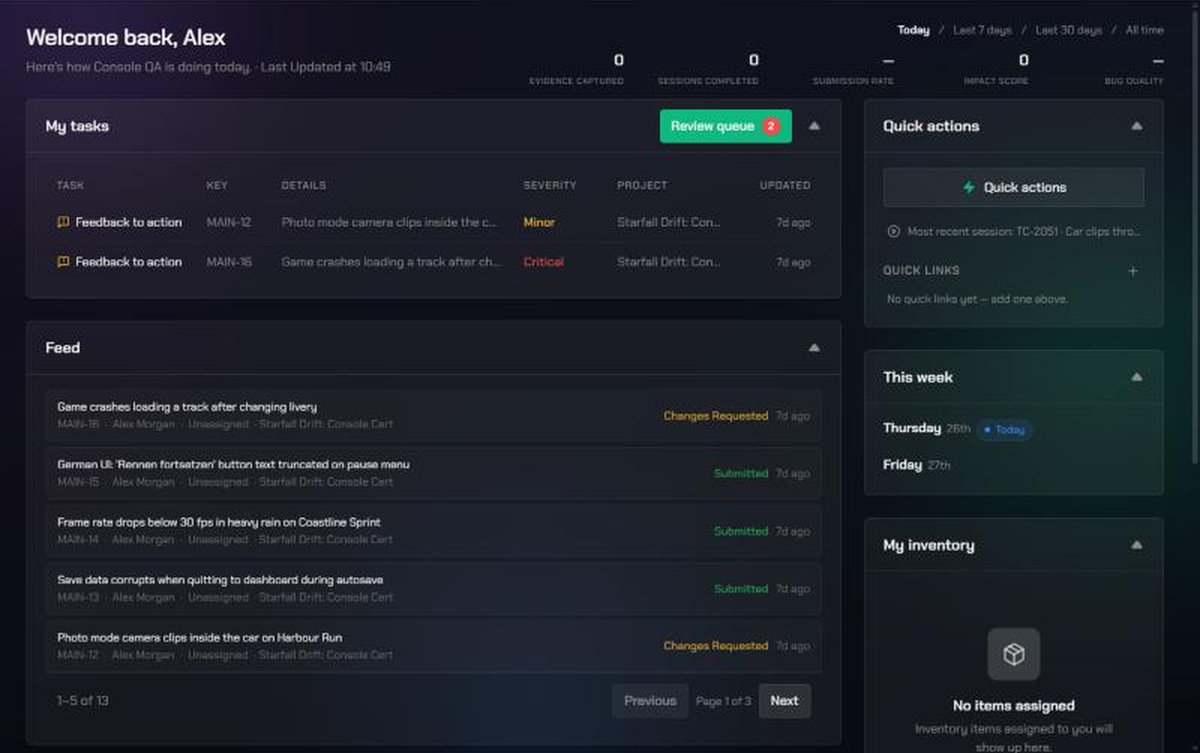
Click Home (the house icon). HQ opens with "Welcome back" and today's summary for the workspace.
2. What's on HQ
- Your numbers (Testers): Evidence captured, Sessions completed, Submission Rate, Impact score and Bug quality, for Today, Last 7 days, Last 30 days or All time.
- My tasks: bugs to review or action, and requests to decide.
- Feed: evidence uploads, bug activity and updates on your requests.
- Team overview: each person's status (Active Testing, Paused, Idle, Inactive or Absent today) and project. Leads also see today's bug activity, Tester utilization, Acceptance rate today and Impact score.
- Quick actions: Submit a Bug, View latest upload, Upload new evidence and Make a request. Admins with the Team Role Lead also get Change project team and Create new project.
- This week: what's due and who's away.
- My inventory: kit assigned to you. You can return items from here.
- Active projects: your projects, or every active project for Leads.
3. Add a quick link
- On Quick actions, click Add a quick link.
- Choose Link to a Resource or Custom link.
- For a custom link, give it a name, such as "Team wiki", and a full URL starting with https://.
Quick links are personal. Only you see them.
Troubleshooting
- Team overview shows someone as Paused or Idle. They're in a live session. Paused means they've paused the recording. Idle means it's recording but there's been no game input for a while.
- "Enter a full URL starting with http:// or https://." Add https:// to the start of the address.
- HQ looks different from a colleague's. It depends on your Team Role. A workspace admin can change it in Workspace Settings > Members.